
MultiOS-USB Download Free for Windows 11, 10 & Linux 0.15.0
MultiOS-USB is a free and open-source bootable USB utility that lets you keep multiple operating system ISO files on a single USB drive. Instead of preparing a separate bootable flash drive for every operating system, you can install MultiOS-USB once, copy your ISO and WIM files into the appropriate folder, and select the system you want to boot from its GRUB menu. It’s especially useful for installing Windows, testing Linux distributions, and maintaining system recovery tools.
What makes MultiOS-USB interesting is its straightforward multiboot approach. It supports BIOS and UEFI systems, Secure Boot, exFAT storage, and automatic detection of compatible ISO images. You don’t need to reinstall the bootloader every time you add another supported operating system. Just copy the new image files, restart your computer, and choose the required system from the boot menu.
MultiOS-USB 0.15.0 Download Links
| Part / Link | Official / DDownload | Rapidgator | Nitroflare |
|---|---|---|---|
| MultiOS-USB Windows Image 0.15.0 | 🔵 DOWNLOAD | 🟣 DOWNLOAD | 🟡 DOWNLOAD |
MultiOS-USB Software Information
| Field | Details |
|---|---|
| Software Name | MultiOS-USB |
| Latest Version | 0.15.0 |
| Developer | Mexit |
| Publisher | Mexit |
| License | GNU General Public License v3.0 (GPL-3.0) |
| Category | Bootable USB / Multiboot |
| Operating Systems | Windows and Linux |
| Architecture | x86 / x86_64 |
| Windows UEFI Package Size | Approximately 4.2 MB |
| Windows Image Package Size | Approximately 5.7 MB |
| Linux Package Size | Approximately 5.2 MB |
| File Formats | ZIP, TAR.GZ |
| Boot Support | BIOS / UEFI |
| Secure Boot | Supported |
| Official Website | https://github.com/Mexit/MultiOS-USB |
| Latest Release | November 8, 2026 |
MultiOS-USB is an open-source project. Package sizes refer to the version 0.15.0 release archives.
What Is MultiOS-USB?
MultiOS-USB is a multiboot USB creation tool developed by Mexit. It uses GRUB 2 to create a boot menu that allows computers to start different operating systems directly from ISO or supported WIM images stored on a USB drive.
The main idea is simple: prepare your USB drive once and then add compatible operating system images whenever you need them. MultiOS-USB automatically detects supported images and creates corresponding boot menu entries. It is particularly useful for system administrators, IT technicians, Linux enthusiasts, and users who frequently install or troubleshoot operating systems.
Key Features of MultiOS-USB
-
Multiboot USB Creation: Keep multiple operating system images on one USB drive. Select the required operating system from the boot menu instead of preparing separate installation drives.
-
BIOS and UEFI Support: Supports traditional BIOS and modern UEFI boot environments. This makes it useful for different generations of desktop computers and laptops.
-
Secure Boot Compatibility: Supports Secure Boot and UEFI key management. On a new computer, you may need to enroll the MultiOS-USB certificate through the firmware menu before booting.
-
Direct ISO Booting: Boot compatible Linux distributions and other operating systems directly from ISO files without extracting their contents manually.
-
Windows Installation Support: Boot Windows 10 and Windows 11 installation media from compatible ISO images. This is useful for reinstalling Windows or preparing installation environments.
-
Linux Distribution Support: Boot supported Linux distributions from the same USB device. It is useful for testing, installing, and troubleshooting different Linux systems.
-
WinPE and WIM Support: Supports booting compatible Windows Preinstallation Environment images from bootable WIM files.
-
Automatic ISO Detection: Automatically identifies compatible ISO images and adds them to the GRUB boot menu. Adding another supported operating system generally does not require reinstalling the bootloader.
-
exFAT File System Support: Supports exFAT-formatted storage, which is useful when working with large ISO files that exceed the traditional FAT32 single-file size limit.
-
UEFI Driver Loading: Load UEFI drivers to extend boot compatibility with supported hardware and boot environments.
-
EFI Application Support: Launch
.efiexecutable files and additional bootloaders from the USB drive. -
Custom Boot Menu: Customize ISO boot entries and menu configurations. You can adjust kernel options and other settings for compatible operating system images.
-
Automatic Configuration Updates: Update MultiOS-USB configuration files without rebuilding the entire USB installation. Custom configurations stored in the private configuration directory can be preserved.
-
Network Linux Installation: Includes experimental support for installing Linux distributions through network boot options.
-
Locally Installed Operating Systems: Provides options for launching locally installed Linux and Windows systems through supported boot configurations.
-
Multiple Storage Device Support: Supports USB drives, SSDs, NVMe devices, MMC storage, loop devices, NBD devices, and virtual disks.
-
No Background Services: MultiOS-USB does not need a continuously running background service after installation. Its boot functionality operates through the USB drive.
-
GRUB 2 Bootloader: Uses the established GRUB 2 bootloader, providing a familiar and configurable boot environment for advanced users.
-
Custom Configuration Files: Add your own configuration files to the
config_privdirectory. These custom settings are designed to remain available during automatic configuration updates.
Supported Operating Systems and Boot Images
MultiOS-USB can boot different operating system images, depending on their compatibility with GRUB loopback or the available configuration files.
| Operating System / Image | Support |
|---|---|
| Windows 10 Installer | Yes |
| Windows 11 Installer | Yes |
| Linux Distributions | Yes |
| WinPE | Yes, compatible WIM images |
| Ubuntu | Yes, compatible ISO images |
| Debian | Yes, supported configurations |
| Fedora | Yes, supported configurations |
| Linux Mint | Yes, supported configurations |
| Kali Linux | Yes, supported configurations |
| Arch Linux | Yes, supported configurations |
| openSUSE | Yes, supported configurations |
| Bazzite | Supported configuration |
| Nobara Linux | Supported configuration |
| MocaccinoOS | Supported configuration |
Not every ISO image is guaranteed to boot. Compatibility depends on the distribution, ISO structure, boot method, and configuration supplied by the project.
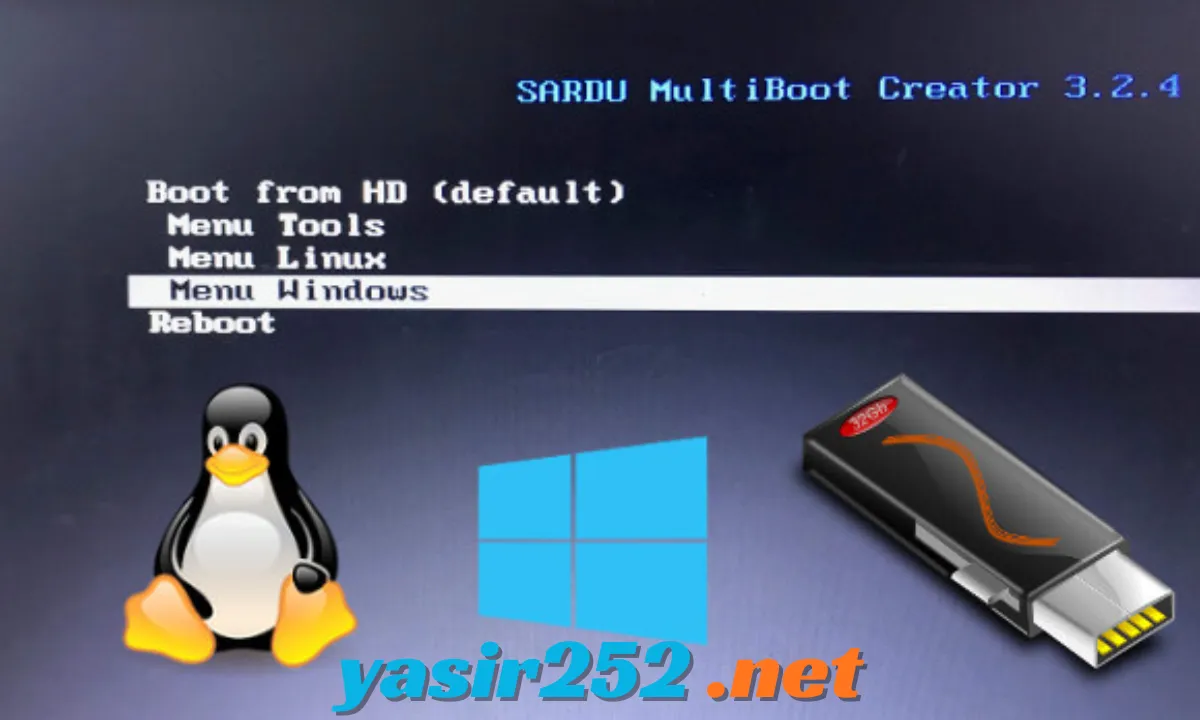
MultiOS-USB Boot Modes
MultiOS-USB provides different boot options for computers with different firmware configurations.
| Boot Mode | Description |
|---|---|
| Legacy BIOS | Supports compatible traditional BIOS systems |
| UEFI | Supports modern UEFI-based computers |
| UEFI Secure Boot | Supports Secure Boot with certificate enrollment |
| EFI Applications | Launch compatible EFI programs |
| GRUB ISO Boot | Launch compatible operating system ISO files |
| WIM Boot | Start supported Windows PE images |
For most modern Windows computers, the UEFI package is the recommended option. The separate Windows image-based installation method is also available, but its BIOS and UEFI support is experimental.
What’s New in MultiOS-USB 0.15.0?
Version 0.15.0 introduces several improvements to operating system compatibility and boot configuration.
-
Windows ISO Compatibility: Updates ISO detection patterns for newer Windows images, including Windows 26H2 and later.
-
New Linux Support: Adds configuration for Parrot Security and updates support for Nobara Linux and MocaccinoOS.
-
Fedora Improvements: Improves ISO detection for Fedora 45.
-
Updated Configuration Files: Includes refreshed boot configuration files for supported operating systems.
-
Updated Boot Menu Theme: Displays the current MultiOS-USB version in the theme.
These improvements make the latest release more useful for users who maintain multiboot USB drives with newer Windows and Linux installation images.
MultiOS-USB Free Download: Is It Really Free?
Yes. MultiOS-USB is completely free and open-source software released under the GNU General Public License version 3.0 (GPL-3.0).
You can download the project, use its supported features, and access its source code without purchasing a commercial licence or paying a subscription fee.
| Feature | Free Version |
|---|---|
| Multiboot USB Creation | Yes |
| Multiple ISO Support | Yes |
| Windows Installation Boot | Yes |
| Linux ISO Booting | Yes |
| BIOS and UEFI Support | Yes |
| Secure Boot Support | Yes |
| exFAT Support | Yes |
| EFI Application Launching | Yes |
| Custom Boot Configuration | Yes |
| Automatic Configuration Updates | Yes |
| Source Code Access | Yes |
| Commercial Subscription | Not Required |
Important: MultiOS-USB is genuine freeware. You should download the official release archive rather than modified packages from unknown websites.
MultiOS-USB System Requirements
| Component | Requirement |
|---|---|
| Operating System | Windows or Linux |
| Architecture | x86 / x86_64 |
| Boot Firmware | BIOS / UEFI |
| Storage Device | USB, SSD, NVMe, MMC, or supported virtual disk |
| File System | FAT32 / exFAT, depending on installation method |
| USB Capacity | Depends on the size and number of ISO files |
| Required Tools | Image-writing utility for Windows image-based installation |
| Linux Dependencies | tar, bzip2, xz, sgdisk, wipefs, mkfs.fat, and other required utilities |
| Internet Connection | Required to download operating system images |
Storage recommendation: Choose a USB drive with enough capacity for the MultiOS-USB installation and all your operating system ISO files. A 32 GB or larger drive is a practical starting point, but larger collections may require 64 GB, 128 GB, or more.
MultiOS-USB Download for Windows
MultiOS-USB provides separate Windows download packages. The UEFI package is recommended for most Windows users, while the Windows image package provides an experimental image-based installation method for BIOS and UEFI systems.
| Package | File Name | Purpose |
|---|---|---|
| Windows UEFI | MultiOS-USB_uefi_v0.15.0.zip | Recommended UEFI installation |
| Windows Image | MultiOS-USB_windows_image_v0.15.0.zip | Image-based installation; BIOS and UEFI support is experimental |
| Linux | MultiOS-USB_linux_v0.15.0.tar.gz | Linux installation package |
| Source Code | v0.15.0 source code.zip | Project source files |
Official Download: https://github.com/Mexit/MultiOS-USB/releases/latest
How to Install MultiOS-USB on Windows
The recommended Windows method uses the UEFI package.
-
Visit the official MultiOS-USB GitHub release page.
-
Download
MultiOS-USB_uefi_v0.15.0.zip. -
Extract the downloaded archive.
-
Read the included Windows installation instructions.
-
Follow the PowerShell installation procedure provided in the archive.
-
Select the correct USB device when prompted.
-
Complete the installation process.
-
Open the USB drive and locate the
ISOsdirectory. -
Copy your compatible operating system ISO files into that directory.
-
Restart your computer and select the USB drive from its boot menu.
Warning: Installing a bootloader or writing an image can modify USB partitions and erase existing data. Back up your USB drive before starting. Carefully verify the target device so you do not accidentally select your internal system drive.
How to Use MultiOS-USB
Once MultiOS-USB is installed, adding operating systems is relatively straightforward.
-
Connect the prepared USB drive to your computer.
-
Open the
ISOsdirectory. -
Copy the supported Windows or Linux ISO files into the folder.
-
Safely eject the USB drive.
-
Connect it to the computer you want to boot.
-
Open the computer’s BIOS or UEFI boot menu.
-
Select the MultiOS-USB device.
-
Wait for the GRUB boot menu to appear.
-
Select the operating system you want to launch.
-
Follow the installation or live boot instructions for that operating system.
The boot menu automatically detects compatible images, so you generally do not need to create a separate entry for every newly added ISO.
How to Install MultiOS-USB on Linux
Linux users can install MultiOS-USB using its shell script or supported distribution packages.
For a manual installation:
-
Download
MultiOS-USB_linux_v0.15.0.tar.gz. -
Extract the archive.
-
Open a terminal in the extracted directory.
-
Check that the required system utilities are installed.
-
List available storage devices using:
./multios-usb.sh -l-
Identify the correct USB device.
-
Install MultiOS-USB using the following command, replacing
/dev/sdXwith your actual USB device:
sudo ./multios-usb.sh /dev/sdX-
Copy compatible ISO files into the
ISOsdirectory. -
Restart the computer and boot from the prepared USB drive.
Warning: The installation command modifies the selected storage device. Selecting the wrong device can cause data loss. Double-check the device name before running the command.
MultiOS-USB Advantages and Disadvantages
| Advantages | Disadvantages |
|---|---|
| Completely free and open-source | Installation requires some technical knowledge |
| Supports multiple ISO files | Not every ISO is compatible |
| BIOS and UEFI support | Windows BIOS image installation is experimental |
| Secure Boot support | Certificate enrollment may be required |
| Supports exFAT | Windows setup is less straightforward than some GUI alternatives |
| No background services | Primarily focused on boot and installation tasks |
| Automatic ISO detection | Some systems require custom configuration |
| Supports Windows and Linux | Linux installation requires terminal commands |
| Customizable GRUB boot menu | Not as beginner-friendly as some graphical multiboot tools |
MultiOS-USB vs Ventoy
Both MultiOS-USB and Ventoy help users create multiboot USB drives, but their approaches are different.
| Feature | MultiOS-USB | Ventoy |
|---|---|---|
| Multiple ISO Files | Yes | Yes |
| BIOS Support | Yes | Yes |
| UEFI Support | Yes | Yes |
| Secure Boot | Yes | Yes |
| exFAT Support | Yes | Yes |
| GRUB 2 Based | Yes | No, uses its own boot framework |
| Windows GUI Setup | Limited / package-based methods | Yes |
| Linux Support | Yes | Yes |
| Custom Boot Configuration | Yes | Yes |
| Open Source | Yes | Yes |
MultiOS-USB is particularly interesting for users who prefer a GRUB-based setup and direct control over boot configuration. Ventoy may be more convenient for beginners who want a graphical Windows installation workflow.
Frequently Asked Questions (FAQ)
1. Is MultiOS-USB free to download?
Yes. MultiOS-USB is free and open-source software released under the GPL-3.0 licence.
2. What is the latest version of MultiOS-USB?
The latest release is version 0.15.0, published on November 8, 2026.
3. Does MultiOS-USB work on Windows 11?
Yes. It provides a Windows UEFI package and an experimental Windows image-based installation package.
4. Can I install multiple operating systems on one USB drive?
Yes. You can store multiple compatible ISO and WIM images on one prepared USB drive and select them from the boot menu.
5. Does MultiOS-USB support Windows 10 and Windows 11?
Yes. It supports booting compatible Windows installation ISO files.
6. Does MultiOS-USB support Linux distributions?
Yes. It supports multiple Linux distributions, including Ubuntu, Debian, Fedora, Kali Linux, Linux Mint, Arch Linux, and other configured systems.
7. Does MultiOS-USB support Secure Boot?
Yes. It supports UEFI Secure Boot. The certificate may need to be enrolled on a new computer before the USB drive can boot with Secure Boot enabled.
8. Can I add new ISO files after installation?
Yes. You can copy additional compatible ISO files into the ISOs directory without reinstalling MultiOS-USB.
9. Does MultiOS-USB support exFAT?
Yes. exFAT support allows users to store large ISO files without the traditional FAT32 single-file size limitation.
10. Does MultiOS-USB require an internet connection?
An internet connection is required to download MultiOS-USB and operating system images. Booting locally stored ISO files does not normally require an internet connection.
11. Can MultiOS-USB boot Windows PE?
Yes. It supports compatible bootable WIM images used by Windows PE environments.
12. Does MultiOS-USB work with external SSDs?
Yes. It supports compatible SSD and NVMe storage devices in addition to USB flash drives.
13. Can I customize the MultiOS-USB boot menu?
Yes. You can customize ISO configuration files, including supported kernel options and other boot settings.
14. Does MultiOS-USB need to run in the background?
No. It does not require a continuously running background service after installation.
15. Is MultiOS-USB better than Ventoy?
Both tools offer multiboot functionality. MultiOS-USB is a good choice for users who prefer GRUB 2 and configurable boot entries, while Ventoy offers a more straightforward graphical setup for many Windows users.
16. Can I use MultiOS-USB on a computer with Legacy BIOS?
Yes. The project supports BIOS booting, although Windows users should pay attention to the installation method because the image-based Windows package has experimental BIOS and UEFI support.
17. Can MultiOS-USB launch EFI applications?
Yes. It can detect and launch compatible EFI applications and other bootloaders from the configured tools directory.
18. Where can I download MultiOS-USB safely?
Download the latest release directly from the official Mexit GitHub repository.
Conclusion
MultiOS-USB is a useful free multiboot USB utility for users who regularly install operating systems, test Linux distributions, or maintain computer recovery tools. Its support for multiple ISO files, BIOS and UEFI booting, Secure Boot, exFAT, and customizable GRUB configurations makes it a flexible option for creating a multi-purpose bootable drive.
The latest version 0.15.0 adds updated operating system configurations and improved ISO detection. If you want to keep several compatible operating system installers on one USB device, MultiOS-USB is worth trying. Download the official release, follow the installation instructions carefully, and build your own multiboot USB drive.