
Adobe Bridge Download [2027 v17.0 (x64) Multilingual] – Free Media Management Software for Windows and Mac
Adobe Bridge is a powerful digital asset management application that helps you organize, browse, preview, and manage creative files from one convenient workspace. Instead of searching through folders one by one, you can use Bridge to view images, videos, graphics, PDFs, and other supported files with useful sorting and filtering tools.
Whether you’re a photographer, graphic designer, video editor, or content creator, Adobe Bridge makes handling large collections of creative assets much easier. It works alongside applications such as Photoshop, Illustrator, and InDesign, helping you manage projects, add metadata, organize files, and prepare assets for your creative workflow.
Adobe Bridge 2027 v17.0.0 Download Links
Version 1 – Bridge 2027 v17.0.0
| Part | Rapidgator | Nitroflare |
|---|---|---|
| Part 1 | 🟣 DOWNLOAD | 🟡 DOWNLOAD |
| Part 2 | 🟣 DOWNLOAD | 🟡 DOWNLOAD |
Version 2 – Adobe Bridge 2027 Multilingual
| Part | Rapidgator | Nitroflare |
|---|---|---|
| Part 1 | 🟣 DOWNLOAD | 🟡 DOWNLOAD |
| Part 2 | 🟣 DOWNLOAD | 🟡 DOWNLOAD |
Adobe Bridge Software Information
| Field | Details |
|---|---|
| Title | Adobe Bridge |
| Developer | Adobe Inc. |
| Publisher | Adobe Inc. |
| Category | Digital Asset Management / Creative Software |
| Latest Version | Current version available through Adobe Creative Cloud |
| License | Free application; some connected Adobe services or products may require a paid subscription |
| Operating System | Windows and macOS |
| Main Purpose | Organizing, browsing, previewing, and managing digital assets |
| Official Website | https://www.adobe.com/products/bridge.html |
What Is Adobe Bridge?
Adobe Bridge is a digital asset management (DAM) application developed by Adobe. It provides a central location for browsing and organizing creative files without needing to open each file in its original editing program. You can preview supported media, rename files in batches, add keywords, edit metadata, create collections, and search through large libraries.
The software is especially useful for people who work with many photographs, design files, videos, and documents. It connects with Adobe’s creative applications, making it easier to move between asset management and editing tasks. Adobe Bridge is not a replacement for Photoshop or Lightroom; its main job is to help you find, organize, and manage your files.
What Is Adobe Bridge Used For?
Adobe Bridge is mainly used to organize creative assets and make them easier to locate and manage. Its tools are useful in several everyday workflows:
-
Photo Organization: Browse large collections of photographs, sort images, and group related files into folders or collections.
-
Graphic Design Management: Manage Illustrator, Photoshop, InDesign, and other creative project files from a central interface.
-
Metadata Editing: Add keywords, descriptions, copyright details, ratings, and other information to supported files.
-
Batch File Renaming: Rename multiple files together using customizable naming rules.
-
Image Previewing: View thumbnails and previews of supported image formats without opening each file in an editing application.
-
Creative Workflow Management: Send assets to compatible Adobe applications for further editing and production.
-
Video and Audio Browsing: Review supported video and audio files and organize them alongside other project assets.
-
File Searching: Find assets using filenames, metadata, keywords, ratings, and filters.
Key Features of Adobe Bridge
– Centralized Asset Management: Browse and manage creative files from one workspace. Bridge helps keep photographs, graphics, videos, and project documents organized.
– Thumbnail and Preview Browsing: View supported files as thumbnails and open larger previews to check content before launching an editing application.
– Advanced Search and Filtering: Locate assets using filenames, file types, keywords, ratings, labels, and available metadata.
– Batch Renaming: Rename multiple files in one operation with custom text, numbering, dates, and other available naming options. This is especially helpful when preparing large photo collections.
– Metadata Management: View and edit metadata for supported files, including descriptions, keywords, copyright information, and other asset details.
– Keywords and Labels: Add keywords, star ratings, and color labels to make important files easier to identify and retrieve.
– Collections: Group files into collections for convenient access without necessarily moving the original files from their existing folders.
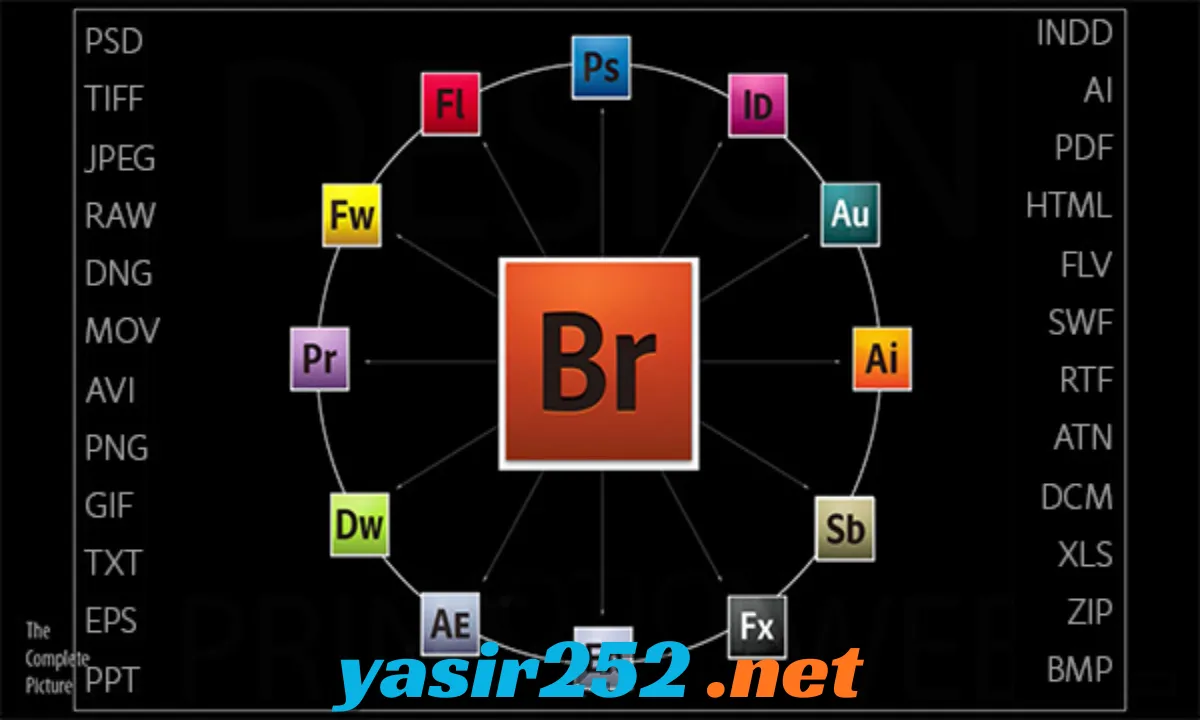
– Adobe Application Integration: Send compatible assets to Photoshop, Illustrator, InDesign, and other supported Adobe applications as part of a creative workflow.
– Camera Raw Support: Open supported camera raw images in Adobe Camera Raw for image adjustments. Camera Raw availability and capabilities depend on the installed version and compatible files.
– Batch Processing Workflows: Use available automation and integration features to handle repetitive asset-management tasks more efficiently.
– Contact Sheets and Output Tools: Create contact sheets and other organized outputs using the available tools and compatible workflows.
– File Format Support: Browse a wide range of creative file types, including common image formats, PDFs, video files, and Adobe project formats. Preview and editing support varies by format.
– Workspace Customization: Adjust panels, layouts, and viewing options to create a workspace that fits your preferred way of managing assets.
– Creative Cloud Integration: Work with compatible Adobe applications and services through the Adobe ecosystem. Some connected services may require an Adobe account or subscription.
Adobe Bridge Interface
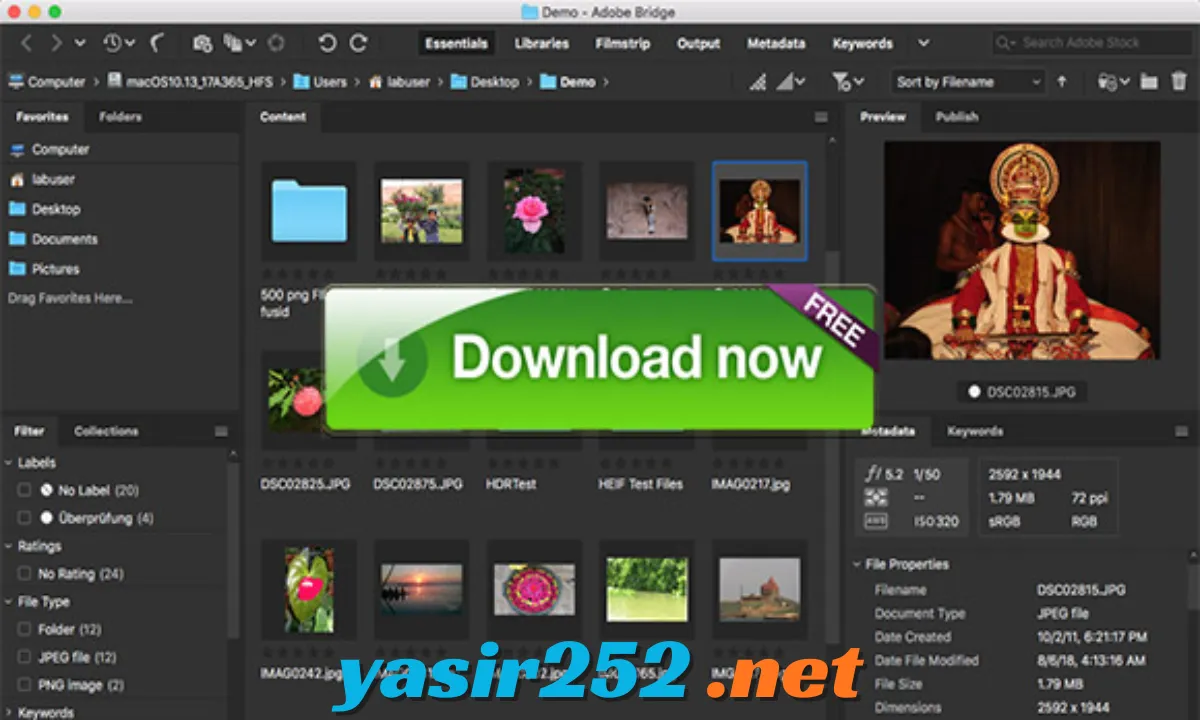
Adobe Bridge uses a file-browser-style interface designed around folders, thumbnails, previews, and metadata. Its panels help you navigate between locations, inspect files, and organize assets without switching between multiple applications.
The main interface generally includes:
-
Folders Panel: Navigate through folders and drives to locate your files.
-
Content Panel: Display thumbnails and files from the selected location.
-
Preview Panel: Inspect a selected asset in a larger preview.
-
Metadata Panel: View available information embedded in supported files.
-
Keywords Panel: Add and manage keywords for asset organization.
-
Filter Panel: Narrow down visible files using available criteria.
-
Collections Panel: Access groups of assets created for particular projects or tasks.
-
Workspace Controls: Switch or customize panel arrangements to suit your workflow.
Panel names and available tools can vary slightly depending on the Adobe Bridge version and workspace.
Adobe Bridge Free Download [2027]
Adobe Bridge is available as a free application from Adobe. You can download the official installer through Adobe’s website or the Creative Cloud desktop application. You do not need to purchase Photoshop simply to use Bridge, although certain connected Adobe products and services may require separate licenses or subscriptions.
Official Adobe Bridge page: https://www.adobe.com/products/bridge.html
Adobe Creative Cloud download: https://creativecloud.adobe.com/apps/download/creative-cloud
How to Download and Install Adobe Bridge
-
Visit the official Adobe Bridge product page.
-
Select the download option or open Adobe Creative Cloud.
-
Sign in with an Adobe account or create one if needed.
-
Locate Adobe Bridge in the available applications.
-
Select Install and wait for the installer to finish.
-
Open Adobe Bridge from your computer.
-
Choose a folder containing your creative files to begin organizing them.
Always download Bridge from Adobe’s official website. Avoid unofficial installers that claim to provide cracked, modified, or pre-activated versions.
How to Use Adobe Bridge
Getting started with Adobe Bridge is straightforward. The following steps cover a basic workflow for organizing photographs and other creative assets.
Step 1: Open a Folder
Launch Bridge and use the Folders panel to navigate to the location containing your images or project files.
Step 2: Browse Your Files
The Content panel displays available files as thumbnails. Change the viewing options to make it easier to inspect large collections.
Step 3: Preview an Asset
Select a file to view its preview and available metadata. This helps you identify the correct image or document before opening it elsewhere.
Step 4: Add Keywords and Ratings
Use keywords, star ratings, and labels to classify important files. For example, you can label approved photographs separately from images that still need editing.
Step 5: Rename Files in Bulk
Select multiple files and use the batch rename command. Configure the naming pattern and numbering options before applying the changes.
Step 6: Create Collections
Group related assets into collections for a campaign, photography session, design project, or client assignment.
Step 7: Open Files in Adobe Applications
When you need to edit an asset, open it in a compatible Adobe application such as Photoshop or Illustrator.
Adobe Bridge System Requirements
Adobe updates its supported operating systems and hardware requirements over time. The table below provides general guidance rather than a guaranteed specification for every release.
| Component | General Guidance |
|---|---|
| Operating System | Supported 64-bit Windows or macOS release |
| Processor | Modern Intel or AMD processor on Windows; supported Apple or Intel processor on macOS |
| RAM | 8 GB minimum recommended for basic workflows; 16 GB or more for larger collections |
| Storage | Free space for installation, cache, previews, and temporary files |
| Graphics | Graphics hardware compatible with the supported operating system and Adobe requirements |
| Display | A modern display with sufficient resolution for the workspace |
| Internet | Required for download, installation, sign-in, and certain online services |
For exact requirements, check Adobe’s current Bridge technical requirements before installing. Performance also depends on the number and size of files being browsed and the available cache storage.
Is Adobe Bridge Free?
Yes. Adobe Bridge is free to download and use. Adobe makes the application available without requiring a paid Creative Cloud subscription for the core Bridge experience.
However, some related Adobe applications and services are separately licensed. For example, using Photoshop to edit images requires access to Photoshop, and certain cloud-based features may have their own account or subscription requirements.
| Product or Service | License Information |
|---|---|
| Adobe Bridge | Free application |
| Adobe Photoshop | Paid subscription |
| Adobe Illustrator | Paid subscription |
| Adobe InDesign | Paid subscription |
| Adobe Camera Raw | Available through compatible Adobe applications; check current Adobe requirements |
| Creative Cloud Storage | Storage limits and plans depend on the Adobe account |
You can use Bridge for file browsing, organizing, metadata management, and many other asset-management tasks without buying Photoshop.
Adobe Bridge CC and Older Versions
Adobe Bridge has been released in different generations, including older Creative Suite editions and newer Creative Cloud versions.
-
Adobe Bridge CC: Refers to the Creative Cloud generation of Bridge, which integrates with Adobe’s newer creative software ecosystem.
-
Adobe Bridge 2026: A search term people use when looking for the version available around 2026. Check Adobe’s official download page for the current release.
-
Adobe Bridge CS3: An older version associated with Adobe Creative Suite 3. It is no longer a suitable choice for most modern computers because it lacks current support and compatibility updates.
If you’re installing Bridge on a modern Windows or macOS computer, use the latest supported version instead of relying on old CS3 installers.
Adobe Bridge vs Adobe Lightroom
Adobe Bridge and Adobe Lightroom both help photographers manage images, but they are designed for different workflows.
| Feature | Adobe Bridge | Adobe Lightroom |
|---|---|---|
| Main Purpose | General creative asset management | Photography organization and editing |
| File Management | Browse files in existing folders | Catalog-based photo organization |
| Metadata | View and edit supported metadata | Manage photography metadata |
| Photo Editing | Uses Camera Raw and compatible editing applications | Includes integrated photo editing |
| File Types | Images, PDFs, videos, and creative project files | Primarily photography assets |
| Adobe Integration | Works with multiple Adobe applications | Focused on photography workflows |
| Best For | Designers, photographers, and creative teams | Photographers who need an integrated editing workflow |
Which one should you choose?
Choose Adobe Bridge if you want a free way to browse and organize different types of creative files. Lightroom is a better fit if you need a dedicated photography workflow with integrated image editing and photo-library management.
Best Adobe Bridge Alternatives
If you need different asset-management features or want to compare other applications, consider these alternatives:
-
Adobe Lightroom Classic: A photography-focused application with catalog management, image editing, and organizational tools.
-
ACDSee Photo Studio: Provides photo browsing, organization, metadata tools, and editing features.
-
digiKam: A free and open-source photo management application with tagging, albums, and metadata support.
-
XnView MP: A cross-platform image viewer and organizer that supports many image formats.
-
FastStone Image Viewer: A Windows image viewer with browsing, sorting, and basic image-processing tools.
Pros and Cons of Adobe Bridge
Pros
-
Free to download and use.
-
Organizes different types of creative files.
-
Supports batch file renaming.
-
Provides metadata and keyword management.
-
Offers thumbnails and previews for supported formats.
-
Integrates with Photoshop and other Adobe applications.
-
Useful for managing large creative projects.
-
Available for Windows and macOS.
Cons
-
Not a complete photo-editing application.
-
Large file collections can require significant cache storage.
-
Some workflows depend on other Adobe applications.
-
Advanced features may take time to learn.
-
Preview support varies between file formats.
-
Older CS3 versions may have compatibility and security limitations.
Frequently Asked Questions About Adobe Bridge
1. What is Adobe Bridge?
Adobe Bridge is a digital asset management application used to browse, organize, preview, search, and manage creative files such as photographs, graphics, videos, and documents.
2. Is Adobe Bridge free?
Yes. Adobe Bridge is free to download and use. Some connected Adobe applications and services require separate subscriptions or licenses.
3. What is Adobe Bridge used for?
It is used for organizing images and other creative assets, editing metadata, adding keywords, renaming files in batches, creating collections, and opening files in compatible Adobe applications.
4. Can I download Adobe Bridge for free?
Yes. You can download it from Adobe’s official website or through the Creative Cloud desktop application.
5. Does Adobe Bridge work without Photoshop?
Yes. Bridge can be used independently for browsing, organizing, searching, and managing supported files. Photoshop is only needed when you want to use Photoshop-specific editing features.
6. Is Adobe Bridge available for Windows 11?
Yes. Current supported Adobe Bridge releases are available for compatible Windows systems, including supported Windows 11 versions.
7. Is Adobe Bridge available for Mac?
Yes. Adobe provides Bridge for supported macOS versions. Check Adobe’s system requirements to confirm compatibility with your Mac.
8. What is Adobe Bridge CC?
Adobe Bridge CC refers to the Creative Cloud generation of the application. It provides digital asset management and integration with compatible Adobe creative applications.
9. What is Adobe Bridge CS3?
Adobe Bridge CS3 is an older release distributed as part of the Adobe Creative Suite 3 generation. It is not recommended for modern systems because it no longer receives current updates or support.
10. Can Adobe Bridge edit photos?
Bridge is primarily an asset-management tool, not a full photo editor. You can open supported raw images through Adobe Camera Raw and send images to compatible editing applications.
11. Can Adobe Bridge organize videos?
Yes. Bridge can browse and organize supported video files alongside images and other creative assets. Preview capabilities depend on the file format and installed system support.
12. Does Adobe Bridge support batch renaming?
Yes. Its batch rename feature lets you rename multiple files using a customizable naming pattern, which is useful for photography sessions and design projects.
13. Can Adobe Bridge open PSD files?
Yes. Bridge can display thumbnails and previews of supported Photoshop PSD files and can open them in Photoshop when it is installed.
14. What is the difference between Adobe Bridge and Lightroom?
Bridge is a general digital asset management application for different creative file types. Lightroom focuses more specifically on photography organization and image editing.
15. Does Adobe Bridge require an internet connection?
An internet connection is needed for downloading, installation, Adobe account sign-in, and certain online services. Many local file-management tasks can be performed offline after setup.
16. Can Adobe Bridge create contact sheets?
Yes. Bridge includes output workflows for creating contact sheets from selected images, subject to the available tools in the installed version.
17. Does Adobe Bridge support RAW images?
Yes. Bridge supports browsing compatible camera raw files and can work with Adobe Camera Raw for supported image adjustments.
18. What is the latest version of Adobe Bridge?
Adobe updates Bridge through Creative Cloud. Check the official download page or Creative Cloud desktop application for the latest available release and build number.
19. Is Adobe Bridge better than Lightroom?
Neither is universally better. Bridge is useful for managing different creative assets, while Lightroom is better suited to photographers who want integrated photo cataloging and editing.
20. Where can I download Adobe Bridge safely?
Download Adobe Bridge directly from Adobe’s official website at https://www.adobe.com/products/bridge.html. Avoid unofficial installers and modified versions.
Conclusion
Adobe Bridge is a useful digital asset management solution for photographers, designers, and other creative professionals who need an organized way to handle large collections of files. Its browsing, metadata, keyword, batch renaming, preview, and Adobe application integration features make everyday creative work easier.
The best part is that Adobe Bridge is free, so you can use its core asset-management tools without purchasing Photoshop or another Creative Cloud application. If you need a reliable way to organize creative files in 2027, download the official version and explore its features.