
AOMEI Partition Assistant v11.0.0 Technician Edition – WinPE Download 2027 – Free Partition Manager for Windows
AOMEI Partition Assistant is a powerful disk and partition management tool for Windows that helps users organize hard drives, SSDs, and storage devices without relying entirely on Windows Disk Management. It provides tools for resizing, moving, merging, splitting, formatting, and managing partitions through an easy-to-use graphical interface, making it suitable for beginners and experienced users alike.
AOMEI Partition Assistant Standard is the free edition designed for everyday disk-management tasks, while Professional and other advanced editions offer additional features such as operating system migration, disk cloning, advanced conversions, application migration, and bootable media creation. If you need to manage storage space, prepare an SSD, or reorganize disk partitions, AOMEI Partition Assistant is a practical Windows utility to consider.
AOMEI Partition Assistant 11.0.0 WinPE Download Links
| Rapidgator | Nitroflare |
|---|---|
| 🟣 DOWNLOAD | 🟡 DOWNLOAD |

AOMEI Partition Assistant Software Information
| Field | Details |
|---|---|
| Software Name | AOMEI Partition Assistant |
| Latest Version | 10.12.1 |
| Release Date | August 31, 2026 |
| Developer | AOMEI Technology |
| Publisher | AOMEI Technology |
| Category | Disk Management / Partition Manager |
| Operating System | Windows 11, Windows 10, Windows 8.1, Windows 8, Windows 7 |
| License | Freeware / Commercial Editions |
| Edition | Standard, Professional, Server, Unlimited, Technician |
| Architecture | Windows x86/x64 and ARM64 download options, depending on edition |
| Official Website | https://www.aomeitech.com/ |
What Is AOMEI Partition Assistant?
AOMEI Partition Assistant is a disk management and partitioning software that allows you to manage storage devices, create new partitions, adjust disk space, and perform various maintenance operations. It offers a graphical interface that makes complex partition operations more accessible than using command-line utilities.
The Standard edition provides essential partition management tools for home users, including resizing, moving, formatting, deleting, creating, merging, and splitting partitions. Users who need more advanced disk operations can upgrade to Professional, which includes features such as system migration, disk cloning, application moving, and additional disk conversion tools.
Key Features of AOMEI Partition Assistant
– Resize and Move Partitions: Adjust the size of existing partitions to make better use of available disk space. You can shrink, extend, or move partitions according to your storage requirements, provided the operation is supported by your disk layout.
– Create, Delete, and Format Partitions: Create new partitions, delete unwanted ones, and format storage volumes using supported file systems. These tools help prepare storage devices for new installations or different data-management purposes.
– Merge Partitions: Combine eligible partitions to consolidate available storage space. This is useful when managing multiple adjacent partitions on a disk, subject to supported configurations.
– Split Partitions: Divide an existing partition into separate volumes when you want to organize files, applications, or other data into different storage locations.
– Copy Partitions: Copy supported partitions to another location or compatible disk, depending on the edition and operation requirements.
– Convert MBR and GPT Disks: Convert supported data disks between MBR and GPT partition styles. Advanced system-disk conversions may require a Professional license.
– Convert File Systems: Access supported file-system conversion tools for specific storage configurations. The available conversion options depend on the disk, file system, and software edition.
– NTFS and FAT32 Conversion: Convert supported volumes between NTFS and FAT32 without relying solely on traditional Windows formatting methods. Check the limitations of the selected conversion operation before proceeding.
– SSD Optimization: Manage SSD partitions and improve storage organization with supported partition-management operations. The software can also help prepare SSDs for migration and installation workflows.
– Disk Cloning: Advanced editions offer disk-cloning functionality to transfer data and system configurations to another storage device. This is useful when upgrading from an older HDD to a newer SSD.
– Migrate Windows to SSD: Professional edition includes an operating-system migration feature that can move Windows to another drive without requiring a complete reinstall, subject to supported hardware and disk configurations.
– Move Applications: Professional edition provides application-migration tools to move supported installed applications to another drive without manually relocating every file.
– Allocate Free Space: Professional edition allows users to allocate available space from one partition to another, helping manage storage capacity across eligible volumes.
– Dynamic Disk Management: Advanced editions include tools for managing supported dynamic-disk configurations. Compatibility and available operations depend on Windows and disk configuration.
– Create Bootable Media: Professional and other advanced editions provide tools to create bootable media for disk management operations outside the normal Windows environment.
– Partition Recovery: Advanced editions offer recovery tools for supported lost or deleted partitions and data-recovery operations. Recovery results depend on the condition of the storage device and the extent of data overwriting.
– Disk Health and Maintenance: The software provides supported disk-checking and maintenance functions to help users inspect storage devices and manage disk-related problems.
– Disk Wiping: Access supported data-wiping tools in eligible editions to erase selected storage devices or partitions. Choose the operation carefully because wiping may permanently destroy data.
– Windows PE Support: Create bootable environments for performing selected disk-management operations when Windows cannot boot normally, subject to the edition and supported hardware.
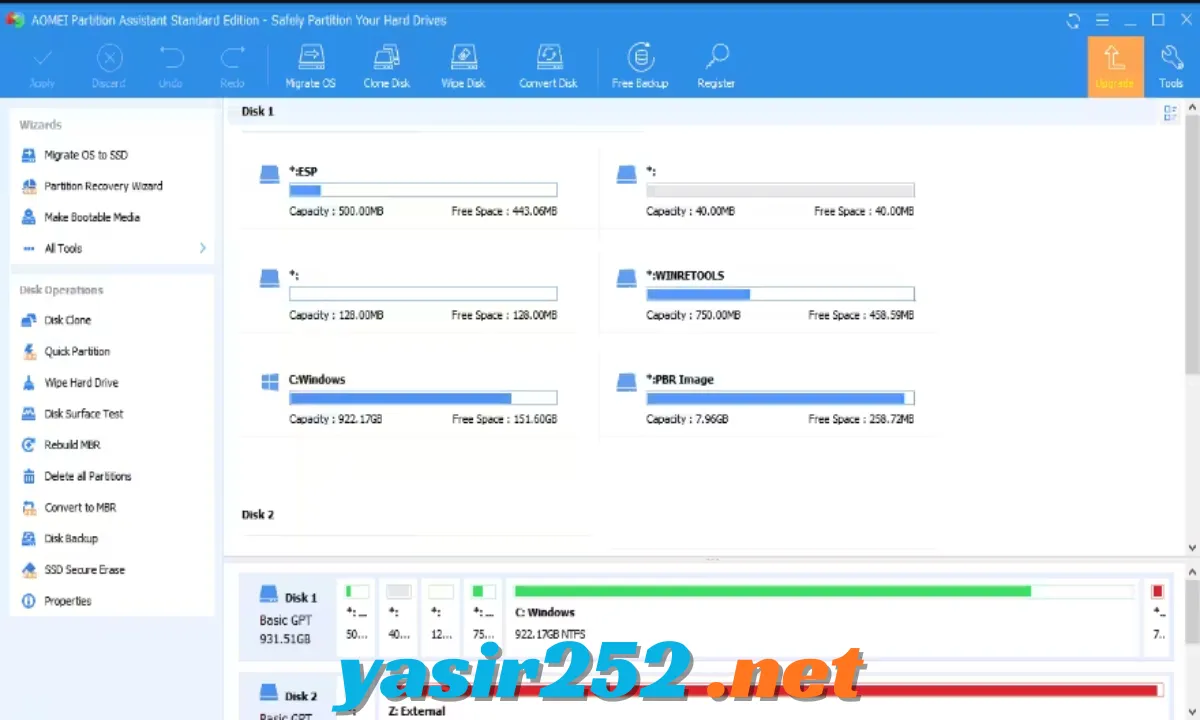
– User-Friendly Interface: AOMEI Partition Assistant provides a graphical layout with disk maps, partition details, pending operations, and action menus to simplify storage management.
– Multiple Storage Device Support: Manage compatible HDDs, SSDs, USB storage devices, and other recognized storage hardware through supported partition-management operations.
AOMEI Partition Assistant Standard vs Professional
AOMEI Partition Assistant Standard is the free edition, while Professional is a paid upgrade designed for users who need advanced storage operations.
| Feature | Standard | Professional |
|---|---|---|
| Create Partitions | Yes | Yes |
| Resize Partitions | Yes | Yes |
| Move Partitions | Yes | Yes |
| Extend and Shrink Partitions | Yes | Yes |
| Delete and Format Partitions | Yes | Yes |
| Merge Partitions | Yes | Yes |
| Split Partitions | Yes | Yes |
| Convert Data Disk MBR/GPT | Yes | Yes |
| NTFS/FAT32 Conversion | Supported | Supported |
| Disk Cloning | Limited / edition-dependent | Advanced features |
| Migrate Windows to SSD | No | Yes |
| Clone System Disk | No | Yes |
| Convert System Disk MBR/GPT | No | Yes |
| Move Applications | No | Yes |
| Allocate Free Space | No | Yes |
| Dynamic Disk Management | No | Yes |
| Create Windows PE Bootable Media | No | Yes |
| Recover Lost/Deleted Partitions | Advanced edition feature | Yes |
| Commercial Usage | License restrictions apply | License restrictions apply |
Feature availability can change with software updates. Check the official comparison page before relying on a particular operation.
What’s New in AOMEI Partition Assistant 10.12.1?
AOMEI Partition Assistant 10.12.1 is the version identified in the official download center, with an update date of August 31, 2026.
The Standard edition remains focused on everyday disk and partition management, while advanced editions provide additional tools for disk cloning, Windows migration, bootable media, and more specialized operations.
The precise changelog for version 10.12.1 is not independently verified here, so this article does not invent individual bug fixes or newly introduced features for that release.
Why Update to the Latest Version?
-
Improved Compatibility: Updated partition-management software may provide improved compatibility with supported Windows versions and storage hardware.
-
Updated Interface: Newer releases may refine the user interface and workflow.
-
Bug Fixes: Updates can correct previously reported issues and improve software reliability.
-
Storage Management Improvements: Updated builds may improve selected disk-management operations and compatibility with newer storage configurations.
Always check the official release notes for exact version-specific changes before updating.
AOMEI Partition Assistant Standard Free Download
AOMEI Partition Assistant Standard is the freeware edition of AOMEI’s partition-management software. It is designed for users who need common partition operations without paying for advanced Professional features.
Official download
AOMEI Partition Assistant Standard
Free partition management software for Windows
Download from Official WebsiteUse the official download center to obtain the Standard freeware edition.
How to Download AOMEI Partition Assistant Standard
-
Visit the official AOMEI Partition Assistant download center.
-
Locate the Standard edition.
-
Select the free download option.
-
Wait for the setup file to download.
-
Verify that the installer was downloaded from the official AOMEI website.
-
Open the downloaded installer to begin installation.
Is AOMEI Partition Assistant Standard Free?
Yes, AOMEI Partition Assistant Standard is a genuine freeware edition.
The Standard edition provides essential partition-management features for personal storage management. Advanced features such as migrating Windows to an SSD, cloning a system disk, moving applications, and creating Windows PE bootable media may require a paid edition.
AOMEI Partition Assistant Standard Free Download for Windows 11
The official download center lists AOMEI Partition Assistant Standard for supported Windows versions, including Windows 11 and Windows 10. It also provides a separate Windows ARM64 download option.
Choose the installer that matches your operating system and hardware. Before making partition changes on Windows 11, back up important files and verify the disk layout.
How to Install AOMEI Partition Assistant
Follow these steps to install AOMEI Partition Assistant on your computer.
-
Download AOMEI Partition Assistant Standard from the official website.
-
Locate the downloaded installer in your Downloads folder.
-
Double-click the setup file.
-
Allow the Windows permission prompt if required.
-
Follow the installation wizard.
-
Review the available setup options.
-
Complete the installation.
-
Launch AOMEI Partition Assistant from the Start menu or desktop shortcut.
After installation, the software will display the recognized disks and partitions. You can review the disk layout before selecting an operation.
How to Use AOMEI Partition Assistant Standard
1. Open the Software
Launch AOMEI Partition Assistant from the Windows Start menu. The main interface displays the available storage devices and their partitions.
2. Select a Partition
Click the partition you want to manage. Depending on the selected volume and supported operations, you may see options for resizing, formatting, deleting, moving, merging, or other partition-management actions.
3. Resize or Extend a Partition
Select a partition and open the resize or move option. Adjust the partition boundaries to create or use available space.
Before confirming, check whether the operation involves moving data or changing the location of existing files.
4. Create a New Partition
If unallocated space is available, select it and choose the option to create a new partition. Configure the volume size, drive letter, and supported file system.
5. Review Pending Operations
AOMEI Partition Assistant typically stages selected changes before applying them. Review the pending operations carefully to ensure you have selected the correct disk and partition.
6. Apply the Changes
Click the Apply option when you are ready to execute the selected operations. Some operations may require restarting Windows, depending on the disk or system configuration.
Important: Partition operations can result in data loss if interrupted or applied to the wrong disk. Always back up important files before resizing, formatting, deleting, moving, cloning, or converting partitions.
AOMEI Partition Assistant System Requirements
AOMEI Partition Assistant is designed for Windows-based computers and supports a range of Windows operating systems. Exact compatibility may depend on the edition, installer architecture, and hardware configuration.
| Requirement | Details |
|---|---|
| Operating System | Windows 11, Windows 10, Windows 8.1, Windows 8, Windows 7 (edition-specific support) |
| Architecture | x86/x64 and ARM64 options, depending on edition |
| Processor | Compatible Windows-supported CPU |
| RAM | Sufficient memory for the operating system and disk operations |
| Hard Disk | HDD, SSD, and supported storage devices |
| Storage Space | Space required for the installation and temporary operations |
| File Systems | Supported file systems such as NTFS and FAT/FAT32, depending on the operation |
| Internet Connection | Required for downloading, updates, online activation, or related services |
| Additional Requirements | Administrative privileges for many disk-management operations |
Consult AOMEI’s current system requirements for exact hardware and operating-system compatibility. The requirements may differ between Standard, Professional, Server, and other editions.
AOMEI Partition Assistant License and Pricing
AOMEI Partition Assistant offers a free Standard edition and several commercial editions for users who require advanced features or business-related usage.
| Edition | License | Intended Users |
|---|---|---|
| Standard | Freeware | Home users and basic partition management |
| Professional | Paid | Home users and small offices requiring advanced disk features |
| Server | Paid | Windows Server environments |
| Unlimited | Paid | Businesses managing multiple computers |
| Technician | Paid | IT professionals and service providers |
AOMEI Partition Assistant Professional Pricing
The official download center currently lists the following Professional license options:
| License | Listed Price | License Coverage |
|---|---|---|
| Yearly | $49.95 | 2 PCs |
| Lifetime | $59.95 | 2 PCs |
| Family Lifetime | $89.95 | 5 PCs |
Prices and promotional discounts may change. Verify the current offer, license terms, upgrade policy, and permitted usage on AOMEI’s official store.
Is AOMEI Partition Assistant Standard Free?
Yes. AOMEI Partition Assistant Standard is a genuine free edition that provides basic partition-management functionality. You do not need a cracked copy or unauthorized license code to use its freeware features.
AOMEI Partition Assistant License Code
Advanced editions require a valid license or activation method provided by AOMEI. If you purchased Professional, use the activation details supplied with your order or through the official account or purchase process.
Avoid third-party license codes, key generators, or cracked installers. They may be invalid, unsafe, or bundled with malicious software.
AOMEI Partition Assistant Standard vs Windows Disk Management
Windows Disk Management is a built-in utility for managing storage devices, while AOMEI Partition Assistant Standard provides an alternative interface with additional partition-management options.
| Feature | Windows Disk Management | AOMEI Partition Assistant Standard |
|---|---|---|
| Create Partitions | Yes | Yes |
| Delete Partitions | Yes | Yes |
| Format Volumes | Yes | Yes |
| Shrink Volumes | Yes | Yes |
| Extend Volumes | Yes, with limitations | Yes, with supported operations |
| Move Partitions | Limited | Supported |
| Merge Partitions | Not directly | Supported |
| Split Partitions | Not directly | Supported |
| Disk Layout Interface | Basic | Graphical disk map |
| Advanced Disk Operations | Limited | Additional tools |
AOMEI Partition Assistant Standard is worth considering if Windows Disk Management does not provide the specific partition operation you need. However, built-in Windows tools may be sufficient for basic formatting, creating volumes, and managing simple disk layouts.
Pros and Cons of AOMEI Partition Assistant
Pros
-
Free Standard Edition: Provides essential disk-management tools without a paid license.
-
Easy-to-Use Interface: Offers a visual disk layout that makes partitions easier to understand.
-
Multiple Partition Tools: Supports resizing, moving, formatting, deleting, creating, merging, and splitting partitions.
-
Windows Compatibility: Supports several Windows operating systems, subject to edition-specific requirements.
-
Advanced Editions Available: Professional and other editions offer additional features for more demanding operations.
-
SSD and HDD Management: Supports common storage-management workflows involving HDDs, SSDs, and compatible storage devices.
-
Useful for Storage Upgrades: Advanced editions provide tools for migration and disk cloning.
-
Alternative to Disk Management: Offers additional partition-management options beyond some built-in Windows tools.
Cons
-
Advanced Features Require Payment: Some operations are restricted to paid editions.
-
Risk of Data Loss: Incorrect partition operations can damage or erase data.
-
Compatibility Depends on Hardware: Some operations may be unavailable on certain disks or configurations.
-
Trial Restrictions: Advanced editions may operate in demo mode or simulate certain operations until licensed.
-
Complex Disk Operations: Beginners should carefully review the disk layout and pending changes before applying them.
Best Alternatives to AOMEI Partition Assistant
If you want to compare other partition-management tools, consider these options:
| Software | Best For |
|---|---|
| MiniTool Partition Wizard | Partition management and storage operations |
| EaseUS Partition Master | Partition resizing and disk migration |
| GParted | Open-source partition management |
| NIUBI Partition Editor | Partition-management tools for Windows |
| Windows Disk Management | Basic built-in storage management |
These alternatives offer different features, licensing options, and operating-system compatibility. Windows Disk Management is suitable for simple operations, while third-party tools can offer more flexibility.
Frequently Asked Questions (FAQs)
1. What is AOMEI Partition Assistant?
AOMEI Partition Assistant is disk-management software for Windows that lets users resize, move, merge, split, format, create, and delete partitions, with additional advanced features available in paid editions.
2. Is AOMEI Partition Assistant Standard free?
Yes. The Standard edition is freeware and includes basic partition-management features for supported Windows systems.
3. What is the latest version of AOMEI Partition Assistant?
Version 10.12.1 is the version listed in the official download center, with an update date of August 31, 2026.
4. Does AOMEI Partition Assistant work on Windows 11?
Yes. The official download center lists support for Windows 11, along with other supported Windows versions.
5. Can AOMEI Partition Assistant resize partitions?
Yes. It supports resizing and moving partitions through its graphical interface, subject to the selected disk’s layout and compatibility.
6. Can AOMEI Partition Assistant merge partitions?
Yes. It provides a partition-merging feature for supported partition configurations.
7. Is AOMEI Partition Assistant Standard available for free download?
Yes. You can download the Standard edition directly from AOMEI’s official website without purchasing a Professional license.
8. What is the difference between AOMEI Partition Assistant Standard and Professional?
Standard offers essential partition-management features, while Professional adds advanced tools such as Windows migration, system disk cloning, application migration, advanced system-disk conversion, and Windows PE bootable media creation.
9. Can AOMEI Partition Assistant clone an HDD to an SSD?
Advanced editions offer disk-cloning tools for supported storage devices. Check the Professional feature list and license requirements before starting a cloning operation.
10. Can AOMEI Partition Assistant migrate Windows to an SSD?
Yes. The Professional edition includes an operating-system migration feature that can help transfer Windows to another compatible storage device.
11. Does AOMEI Partition Assistant support GPT and MBR?
Yes. It supports operations involving MBR and GPT disks. Advanced system-disk conversions may require Professional edition.
12. Can AOMEI Partition Assistant convert NTFS to FAT32?
It provides supported file-system conversion tools for certain configurations. The availability of conversion options depends on the selected disk, file system, and edition.
13. Is AOMEI Partition Assistant safe to use?
It is a legitimate disk-management application. However, partition operations can cause data loss if applied incorrectly, so you should back up your files before making changes.
14. Does AOMEI Partition Assistant support SSDs?
Yes. It supports compatible SSD storage devices and provides partition-management tools for SSD-related workflows.
15. Can AOMEI Partition Assistant create bootable media?
Yes. Advanced editions provide Windows PE bootable media creation for supported disk-management operations.
16. Does AOMEI Partition Assistant support Windows Server?
Yes, AOMEI offers separate Server and other advanced editions for supported Windows Server environments. Check the specific edition for compatibility and licensing.
17. What is AOMEI Partition Assistant Professional?
Professional is a paid edition that provides advanced disk-management features for home users and small-office environments.
18. Is AOMEI Partition Assistant better than Windows Disk Management?
For basic operations, Windows Disk Management may be sufficient. AOMEI Partition Assistant offers additional options such as merging, splitting, and moving partitions, which can make it more flexible for certain disk layouts.
19. Does AOMEI Partition Assistant require a license code?
The Standard freeware edition does not require a paid license code. Professional and other commercial editions require valid licensing for their licensed features.
20. Where can I download AOMEI Partition Assistant?
Download the software from the official AOMEI Partition Assistant download center: https://www.aomeitech.com/pa/download.html
Final Verdict
AOMEI Partition Assistant is a practical partition-management tool for Windows users who need more flexibility than the standard Windows Disk Management utility. Its Standard edition offers useful free features for organizing storage, adjusting partitions, and managing disks, while Professional provides advanced capabilities for disk cloning, Windows migration, and more specialized storage operations.
If you are looking for a free partition manager for Windows 10 or Windows 11, AOMEI Partition Assistant Standard is a useful option to consider. Users who need to upgrade their storage, migrate Windows to an SSD, or manage more complex disk layouts can explore the Professional edition.