
AVS Video Editor 26.0.3.6 Multilingual Download Free for Windows 11, 10, 8 & 7
Looking for an easy video editor that lets you cut clips, add effects, create slideshows, and produce videos without dealing with complicated editing software? AVS Video Editor is a Windows-based video editing application designed for beginners and everyday content creators. It includes a timeline editor, transitions, visual effects, audio tools, text overlays, and screen recording features to help turn raw footage into polished videos.
The software supports popular video formats and resolutions up to 4K, so you can work with footage from cameras, smartphones, webcams, and other devices. You can download AVS Video Editor for free and test its editing features, but keep in mind that the unregistered version adds a watermark to exported videos. A paid AVS4YOU license is required to remove the watermark and use the software without that limitation.
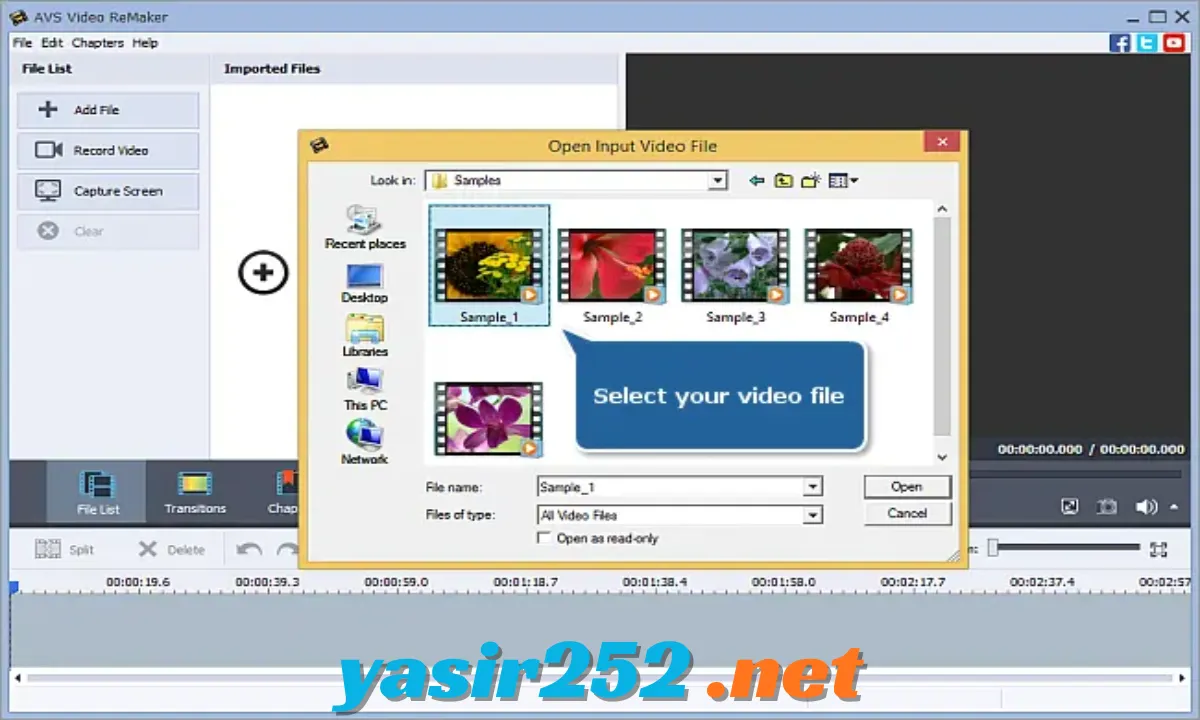
AVS Video Editor – Software Information
| Field | Details |
|---|---|
| Title | AVS Video Editor |
| Genre | Video Editing & Multimedia Software |
| Developer | Online Media Technologies Ltd. |
| Publisher | AVS4YOU |
| Franchise | AVS4YOU |
| Release Date | February 19, 2026 (listed build) |
| Version | 26.0.2.17 |
| License | Commercial / Free Trial |
| Platform | Windows |
| Installer Size | 204.82 MB |
What Is AVS Video Editor?
AVS Video Editor is a desktop video editing program that provides tools for creating, editing, and exporting video projects. It allows users to trim unwanted scenes, combine multiple clips, crop footage, rotate videos, add transitions, insert text, and mix audio tracks. Its timeline and storyboard editing modes make it possible to arrange video, images, and sound in a project.
It is also useful for recording content directly from a computer screen, webcam, or supported video capture device. With support for HD, Full HD, 2K, and 4K video, along with hundreds of effects and transitions, AVS Video Editor offers a practical collection of tools for home videos, tutorials, presentations, and social media content.
Important Features of AVS Video Editor
1. Easy Timeline Video Editing
Arrange video clips, images, and audio tracks using the timeline or storyboard workspace. You can organize your footage and build a complete video project without using a complicated professional editing workflow.
2. Trim, Cut, and Split Videos
Remove unwanted footage, shorten clips, or divide long recordings into smaller sections. The Trim and MultiTrim tools help you select the exact parts you want to keep.
3. Merge Multiple Video Clips
Combine several video files into one continuous project. Drag and arrange your clips on the timeline to create travel videos, tutorials, family movies, and other content.
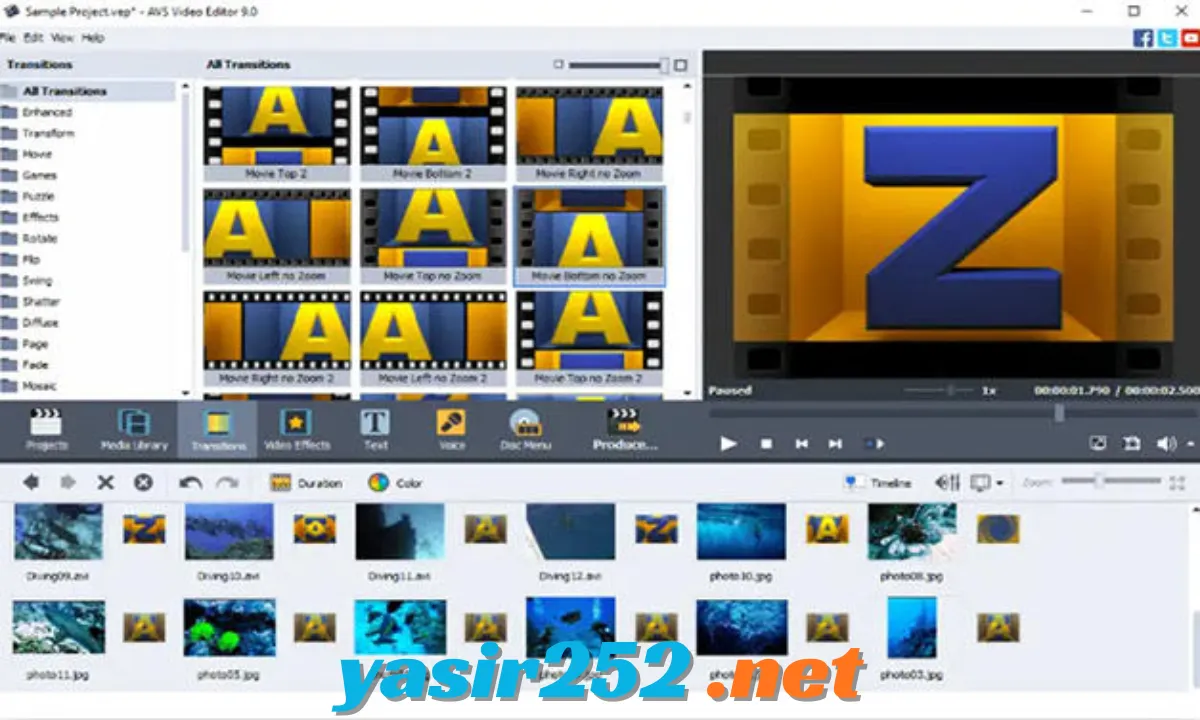
4. 300+ Video Effects and Transitions
Choose from a large collection of visual effects and transitions to improve your videos. Add creative changes between scenes and give your projects a more polished appearance.
5. Video Overlay and Picture-in-Picture
Place one video or image over another to create picture-in-picture effects. This is useful for reaction videos, tutorials, commentary, and presentations.
6. Text, Titles, and Captions
Add static or animated titles, captions, and text elements to your footage. Customize their appearance to create introductions, subtitles, headings, and explanatory messages.
7. Chroma Key Background Removal
Use the Chroma Key effect to replace a supported solid-color background with another video or image. This is useful for green-screen recordings, presentations, and creative video compositions.
8. Video Stabilization
Improve shaky recordings with the video stabilization tool. It can help make handheld footage look smoother, especially when working with recordings captured while walking or moving.
9. Color Correction
Adjust the visual appearance of your clips with color correction tools and effects. You can improve footage, change its overall look, and make different scenes appear more consistent.
10. Slow Motion and Fast Motion
Change video playback speed to create slow-motion or fast-motion sequences. This is useful for action clips, tutorials, creative edits, and highlighting specific moments.
11. Screen Recording
Record your computer screen to create software tutorials, demonstrations, presentations, and instructional videos. You can capture the full screen or select a specific area.
12. Webcam and Video Capture
Capture video from supported webcams and external video devices. You can also transfer footage from compatible DV/HDV and VHS capture equipment.
13. Audio Editing and Soundtracks
Add music, voice recordings, and other audio tracks to your video projects. Adjust the sound to create a more balanced final result.
14. Voice Recording
Record narration or commentary for your videos. This is useful for educational content, software guides, presentations, and product demonstrations.
15. Audio Effects
Apply audio-processing tools such as noise removal, amplification, equalization, normalization, compression, and pitch shifting to supported audio tracks.
16. Photo Slideshow Creation
Turn photographs into video slideshows with transitions, effects, and music. You can create presentations, travel memories, birthday videos, and family collections.
17. 4K Video Support
Work with different video resolutions, including HD, Full HD, 2K Quad HD, 4K Ultra HD, and DCI 4K. Actual editing performance depends on your computer hardware and source footage.
18. Wide Format Compatibility
Import and export many common video formats, including MP4, AVI, MOV, MKV, WMV, MPEG, and other supported media types. Codec availability and export options depend on the selected format.
19. GPU Acceleration
Use supported graphics hardware to accelerate video decoding and improve editing performance for compatible codecs. Supported hardware includes Intel HD Graphics and NVIDIA GeForce graphics, depending on the system.
20. DVD Video Creation
Create DVD video projects and menus using supported DVD authoring features and compatible hardware. This is useful when preparing home videos for DVD playback.
21. Snapshot and Freeze Frame
Capture still images from video footage or freeze a selected frame to create a pause effect. These tools can help emphasize an important moment in your project.
22. Export and Online Publishing
Save finished projects in supported video formats and prepare content for online sharing or compatible devices. Export settings let you choose an appropriate output for your intended use.
Supported Video Formats
AVS Video Editor supports a wide selection of popular video containers and codecs. Some formats may require the appropriate codec to be installed on your computer.
| Format | Description |
|---|---|
| MP4 | Common video format for computers and mobile devices |
| AVI | Audio Video Interleave |
| MOV | QuickTime video |
| MKV | Matroska video |
| WMV | Windows Media Video |
| MPEG | MPEG-1 and MPEG-2 video |
| VOB | DVD video files |
| 3GP | Mobile video format |
| M2TS | Blu-ray and AVCHD video |
| MTS | AVCHD camera footage |
| FLV | Flash video |
| WebM | Web video format |
What’s New in AVS Video Editor 26.0.2.17?
AVS Video Editor 26.0.2.17
The AVS4YOU download page lists version 26.0.2.17, released on February 19, 2026. The build is available for Windows and has an installer size of approximately 204.82 MB.
The product’s current feature set includes:
-
Video Editing Improvements: Tools for trimming, cutting, splitting, merging, cropping, and rotating video clips.
-
Creative Effects: Access to a library of more than 300 effects and transitions.
-
High-Resolution Editing: Support for HD, Full HD, 2K, and 4K video projects.
-
Recording Tools: Capture footage from the computer screen, webcam, and supported video devices.
-
Audio Tools: Add soundtracks, record voice, and apply audio effects.
-
GPU Acceleration: Hardware-assisted decoding for supported graphics cards and video codecs.
Check the official download page for any newer build or additional release notes before installing.
Is AVS Video Editor Free?
AVS Video Editor offers a free download, but it is not fully free software. You can install and test the application without purchasing a license. However, exported videos made with the unregistered version include a watermark displaying the AVS Video Editor branding.
| Feature | Free Unregistered Version | Registered Version |
|---|---|---|
| Download and installation | Yes | Yes |
| Video editing tools | Available | Available |
| Effects and transitions | Available | Available |
| Timeline editing | Available | Available |
| Video export | Yes, with watermark | Yes, without the trial watermark |
| Commercial use | Subject to license restrictions | According to purchased license |
| Full licensed use | No | Yes |
If you only want to explore the editing tools, the free unregistered version is useful. For watermark-free exports and licensed use, you need to purchase an appropriate AVS4YOU license.
System Requirements
| Component | Minimum Requirements | Recommended Requirements |
|---|---|---|
| Operating System | Windows XP, Vista, 7, 8, 8.1, 10, 11 (as listed by vendor) | Windows 10 or 11 |
| Processor | Dual-core Intel Core 2 Duo or AMD equivalent | Quad-core Intel Core i5 series or AMD equivalent |
| RAM | 2 GB | 4 GB or higher |
| Graphics | Intel HD Graphics, NVIDIA GeForce, or AMD Radeon | Compatible graphics hardware for acceleration |
| Sound | Windows-compatible sound card | Windows-compatible sound card |
| DirectX | DirectX 9.0c or later | DirectX 9.0c or later |
| DVD Recorder | Required for DVD creation | Compatible DVD recorder |
| Video Capture Device | Required for video capture | Compatible capture device |
| Internet | Required for activation | Required for activation |
Note: The vendor lists older Windows versions as supported, but compatibility with newer hardware, drivers, and Windows configurations may vary. Administrative permissions are required for installation and internet access may be needed for activation.
How to Download AVS Video Editor for PC
Follow these steps to download the official AVS Video Editor installer:
-
Open the official AVS4YOU download page.
-
Find AVS Video Editor under the video software section.
-
Check the listed version and file size.
-
Click the Download option.
-
Save the installer to your Windows computer.
-
Wait for the download to complete.
-
Run the downloaded setup file to begin installation.
Official Download: Download AVS Video Editor for Windows
Official Product Page: AVS Video Editor Features
How to Install AVS Video Editor
After downloading the setup file, follow these instructions:
-
Open your Downloads folder.
-
Locate the AVS Video Editor installer.
-
Double-click the setup file.
-
Allow the Windows permission prompt if required.
-
Follow the installation wizard.
-
Read and accept the license agreement.
-
Choose the installation location if prompted.
-
Wait for the installation to finish.
-
Launch AVS Video Editor from the Start menu or desktop shortcut.
How to Use AVS Video Editor
Step 1 – Launch the Software
Open AVS Video Editor after installation. The main interface provides access to the media library, preview window, editing timeline, and available tools.
Step 2 – Import Your Media
Select the option to import media files and browse your computer for videos, photographs, and audio tracks. Add the files you want to use in your project.
Step 3 – Arrange Clips on the Timeline
Drag your video clips and images onto the timeline. Arrange them in the order you want them to appear in the finished video.
Step 4 – Trim and Cut Footage
Select a clip and use the trimming tools to remove unwanted sections. You can also split longer clips into smaller pieces for more precise editing.
Step 5 – Add Effects and Transitions
Choose from the available effects and transitions. Apply them to your clips or between scenes to create a smoother and more engaging video.
Step 6 – Add Text and Music
Insert titles, captions, voice recordings, and background music. Adjust the audio levels and text appearance to match your project.
Step 7 – Preview Your Project
Play the edited video in the preview window. Check the timing, transitions, sound, and overall appearance before exporting.
Step 8 – Export Your Video
Choose the output format and resolution, then start rendering. Remember that the unregistered version adds an AVS Video Editor watermark to exported videos.
Advantages and Disadvantages
| Advantages | Disadvantages |
|---|---|
| Beginner-friendly editing interface | Free exports include a watermark |
| More than 300 effects and transitions | Full licensed use requires payment |
| Supports HD and 4K video | Windows-only application |
| Includes screen and webcam recording | Advanced projects require more powerful hardware |
| Offers audio editing and voice recording | Some formats require additional codecs |
| Supports slideshows and DVD creation | Activation requires internet access |
Frequently Asked Questions
1. What is AVS Video Editor?
AVS Video Editor is a Windows video editing application for trimming, cutting, merging, adding effects, recording screen content, and exporting video projects.
2. Is AVS Video Editor free to download?
Yes. You can download and install the software for free, but the unregistered version places a watermark on exported videos.
3. What is the latest version of AVS Video Editor?
The official download page lists version 26.0.2.17, released on February 19, 2026.
4. Does AVS Video Editor support Windows 11?
Yes. The official product information lists Windows 11 compatibility.
5. Can I edit 4K videos with AVS Video Editor?
Yes. The software supports 4K Ultra HD and DCI 4K video processing. Performance depends on your computer’s hardware.
6. Does AVS Video Editor add a watermark?
Yes. Exported videos from the unregistered version include an AVS Video Editor watermark. A registered license removes this limitation.
7. Can I record my computer screen?
Yes. AVS Video Editor includes screen recording functionality that can capture the full screen or a selected area.
8. Does AVS Video Editor support webcam recording?
Yes. You can record footage from compatible webcams and supported video capture devices.
9. Can I add music to my videos?
Yes. You can add audio tracks, record voice, and use available audio-processing tools to improve the sound.
10. Does AVS Video Editor support MP4?
Yes. MP4 is among the supported video formats for importing and exporting.
11. Can I create slideshows with AVS Video Editor?
Yes. You can combine photographs with transitions, effects, and music to create video slideshows.
12. Does AVS Video Editor support green-screen editing?
Yes. Its Chroma Key feature lets you replace supported solid-color backgrounds with other video or image content.
13. Can I stabilize shaky videos?
Yes. The software includes a video stabilization tool designed to improve shaky footage.
14. Can I use AVS Video Editor for commercial projects?
Commercial use depends on the license you purchase. Review the AVS4YOU license terms before using the software for business or client work.
15. Where can I download AVS Video Editor safely?
Download it from the official AVS4YOU website to get the genuine Windows installer.
Conclusion
AVS Video Editor is a practical choice for Windows users who want an accessible video editing application with a good collection of creative tools. Its timeline editing, 300+ effects and transitions, screen recording, audio processing, Chroma Key, stabilization, and 4K support make it suitable for home videos, tutorials, presentations, and online content.
You can download AVS Video Editor for free and explore its editing features before purchasing a license. Just remember that the unregistered version adds a watermark to exported videos. If you need watermark-free results, consider activating the software with a valid AVS4YOU license.