
EaseUS Todo Backup 16.4 Build 20261124 Multilingual Download [2027] – Free Backup, Disk Cloning and Recovery Software
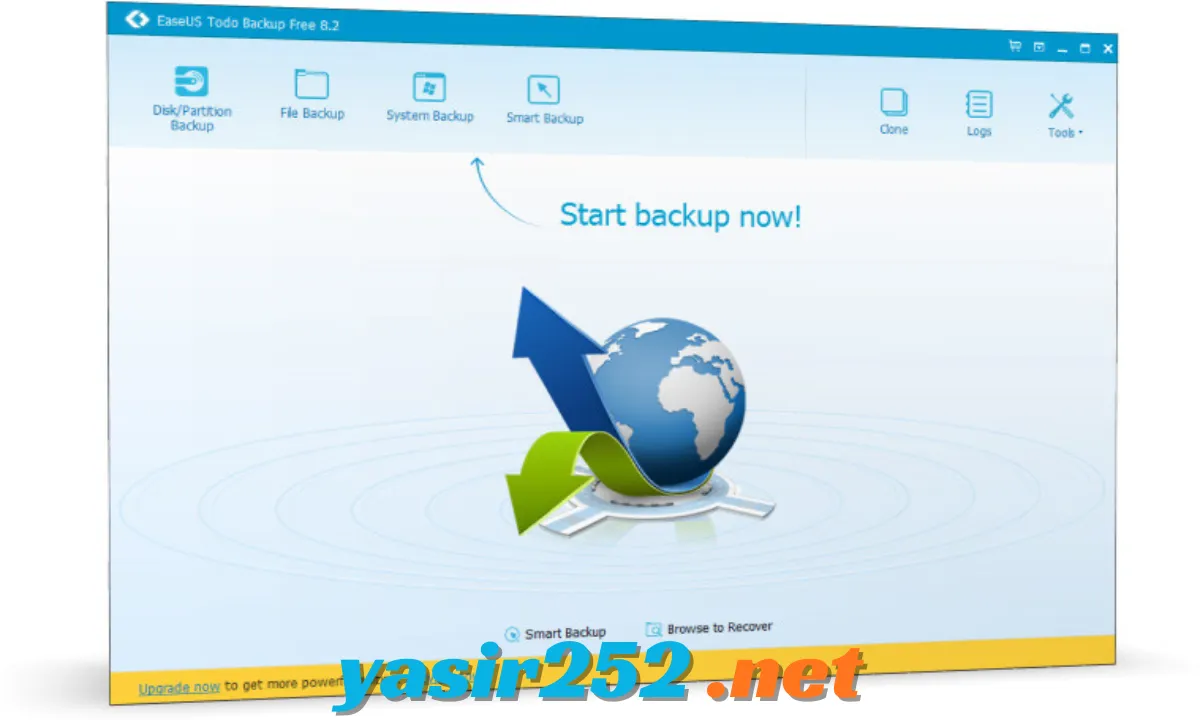
EaseUS Todo Backup is a Windows backup and recovery program designed to protect important files, partitions, disks, and the entire operating system from unexpected data loss. It helps users create backups, schedule automatic protection, clone hard drives, migrate Windows to SSDs, and restore data when a computer experiences hardware failure, software problems, or other issues. Its straightforward interface makes it accessible to beginners while offering additional backup tools for more advanced users.
EaseUS Todo Backup comes in different editions, including Free and paid versions such as Home and Business-oriented products. Depending on the edition, users can back up individual files, create complete system images, clone disks, use scheduled backup plans, and restore data from saved backup images. If you are searching for EaseUS Todo Backup Free Download in 2027, this guide covers its features, installation, disk cloning, licensing, system requirements, and the differences between its editions.
EaseUS Todo Backup 16 Download Links
| Nitroflare | Rapidgator |
|---|---|
| 🟡 DOWNLOAD | 🟣 DOWNLOAD |
EaseUS Todo Backup Software Information
| Field | Details |
|---|---|
| Software Name | EaseUS Todo Backup |
| Latest Version | 17.5.0 (reported 2026 release; check official updates) |
| Developer | EaseUS |
| Category | Backup, Recovery, Disk Cloning |
| License | Free and Paid Editions |
| Free Edition | EaseUS Todo Backup Free |
| Paid Edition | EaseUS Todo Backup Home, Workstation, Server and other business editions |
| Operating System | Windows 11, Windows 10, Windows 8, Windows 7 (edition and version dependent) |
| Backup Types | File, Disk, Partition, System |
| Backup Methods | Full, Incremental, Differential |
| Backup Destinations | Local, External, Network, NAS, Cloud (feature-dependent) |
| Official Website | https://www.easeus.com/ |
| Official Download Page | https://www.easeus.com/backup-software/tb-free.html |
What Is EaseUS Todo Backup?
EaseUS Todo Backup is backup and recovery software for Windows designed to protect files, operating systems, partitions, and complete hard drives. It lets users create backup images, schedule regular backups, restore individual files, and recover a system after unexpected data loss.
The software is available in several editions. EaseUS Todo Backup Free provides basic backup functionality, while Home and business-oriented editions add features such as cloning, advanced backup options, system migration, and other capabilities depending on the license. It is useful for home users, PC technicians, and people preparing to replace an HDD with an SSD.
Key Features of EaseUS Todo Backup
-
File Backup: Back up documents, photos, videos, music, and other important files to another storage location.
-
System Backup: Create a backup image of Windows and the system-related partitions needed for recovery.
-
Disk Backup: Back up an entire disk, including multiple partitions, to help protect against disk failure.
-
Partition Backup: Create backup images of individual partitions without backing up the entire drive.
-
Scheduled Backup: Configure automatic backup tasks to run daily, weekly, monthly, or according to available scheduling options.
-
Incremental Backup: Save changes since the previous backup to reduce the time and storage required for subsequent backups.
-
Differential Backup: Back up changes since the last full backup, offering another approach to managing backup storage and recovery.
-
Disk Cloning: Copy supported disks or partitions to another drive, useful for storage upgrades and migration workflows in editions that include cloning.
-
System Cloning: Transfer a Windows installation and supported system partitions to a new disk in supported editions.
-
HDD to SSD Migration: Clone or migrate a Windows installation to an SSD using the appropriate edition and supported cloning options.
-
Backup Encryption: Protect backup images using encryption options available in supported editions and configurations.
-
Backup Compression: Compress backup images to help reduce the storage space they occupy.
-
Cloud Backup: Store backup copies in supported cloud destinations, subject to edition, configuration, and service availability.
-
NAS and Network Backup: Save backups to network shares or supported NAS devices.
-
FTP/SFTP Support: Use supported network transfer destinations for backup or synchronization tasks, depending on the edition and feature.
-
WinPE Bootable Media: Create recovery media in supported editions to help restore a system when Windows cannot start.
-
Image Mounting and Browsing: Browse or mount supported backup images to recover files without restoring an entire disk.
-
Smart Backup: Use intelligent backup scheduling and monitoring features available in supported editions.
-
Outlook Backup: Back up Outlook data using editions that include the feature.
-
Recovery Environment: Restore files, partitions, or system images when data is lost or a computer needs recovery.
-
Image Reserve Strategy: Manage older backup images using retention rules and available storage-management options.
-
Email Notifications: Receive backup status notifications when the feature is supported and configured.
EaseUS Todo Backup Free vs Home
EaseUS Todo Backup Free and Home are designed for different levels of backup and recovery needs. Free is intended for personal use, while Home adds features that may be useful for disk upgrades, system migration, and more advanced backup workflows.
| Feature | Todo Backup Free | Todo Backup Home |
|---|---|---|
| File Backup | Yes | Yes |
| System Backup | Yes | Yes |
| Disk/Partition Backup | Yes | Yes |
| Scheduled Backup | Available | Available |
| Incremental Backup | Available | Available |
| Differential Backup | Available | Available |
| Disk/Partition Cloning | Feature availability may be limited | Included |
| System Cloning | Limited or unavailable depending on current release | Included |
| Cloud Backup | Feature availability varies | Additional options |
| Outlook Backup | Limited or unavailable | Supported |
| WinPE Bootable Media | Feature availability varies | Supported |
| License | Free | Paid |
| Intended Use | Personal backup | Advanced home backup and migration |
Feature availability can change between releases. Confirm the current edition comparison before starting a cloning or migration project.
EaseUS Todo Backup Free Download
EaseUS Todo Backup Free is designed for users who want to protect important files and Windows data without purchasing a license. It provides core backup capabilities for personal use, making it a practical starting point for creating backup plans.
How to Download EaseUS Todo Backup Free
-
Visit the official EaseUS website.
-
Open the Todo Backup Free download page.
-
Click the Free Download option.
-
Download the Windows installation file.
-
Open the installer.
-
Follow the installation instructions.
-
Launch EaseUS Todo Backup after installation.
Official Free Download page: https://www.easeus.com/backup-software/tb-free.html
How to Install EaseUS Todo Backup on Windows
Step 1: Download the Setup File
Download EaseUS Todo Backup Free or the Home installer from the official EaseUS website.
Step 2: Launch the Installer
Locate the downloaded file and open it. Follow any Windows security prompts.
Step 3: Choose the Installation Options
Review the setup options and select the appropriate installation preferences.
Step 4: Complete the Installation
Follow the installation wizard until the setup is complete.
Step 5: Launch the Software
Open EaseUS Todo Backup from the Start menu or desktop shortcut.
Step 6: Create Your First Backup
Select the backup type, choose the source data, select the destination, and start the backup task.
How to Back Up Files Using EaseUS Todo Backup
File backup is useful for protecting documents, photos, videos, projects, and other data you do not want to lose.
-
Open EaseUS Todo Backup.
-
Select the File Backup option.
-
Choose the files and folders you want to protect.
-
Select a backup destination.
-
Configure a schedule if required.
-
Review the backup settings.
-
Start the backup process.
-
Wait until the backup completes.
-
Verify that the backup files are available at the destination.
For important files, use a destination that is separate from the original storage drive.
How to Back Up Windows Using EaseUS Todo Backup
System backup creates a backup image of the Windows installation and the relevant system partitions selected or detected by the program.
-
Open EaseUS Todo Backup.
-
Select System Backup.
-
Review the detected system partitions.
-
Choose the destination for the backup image.
-
Configure scheduling and backup options if required.
-
Start the backup.
-
Wait for the backup task to finish.
-
Verify that the backup image is stored successfully.
Keep a recovery plan and, where supported, create bootable recovery media before relying on a system backup. A backup that has never been tested may not restore successfully when needed.
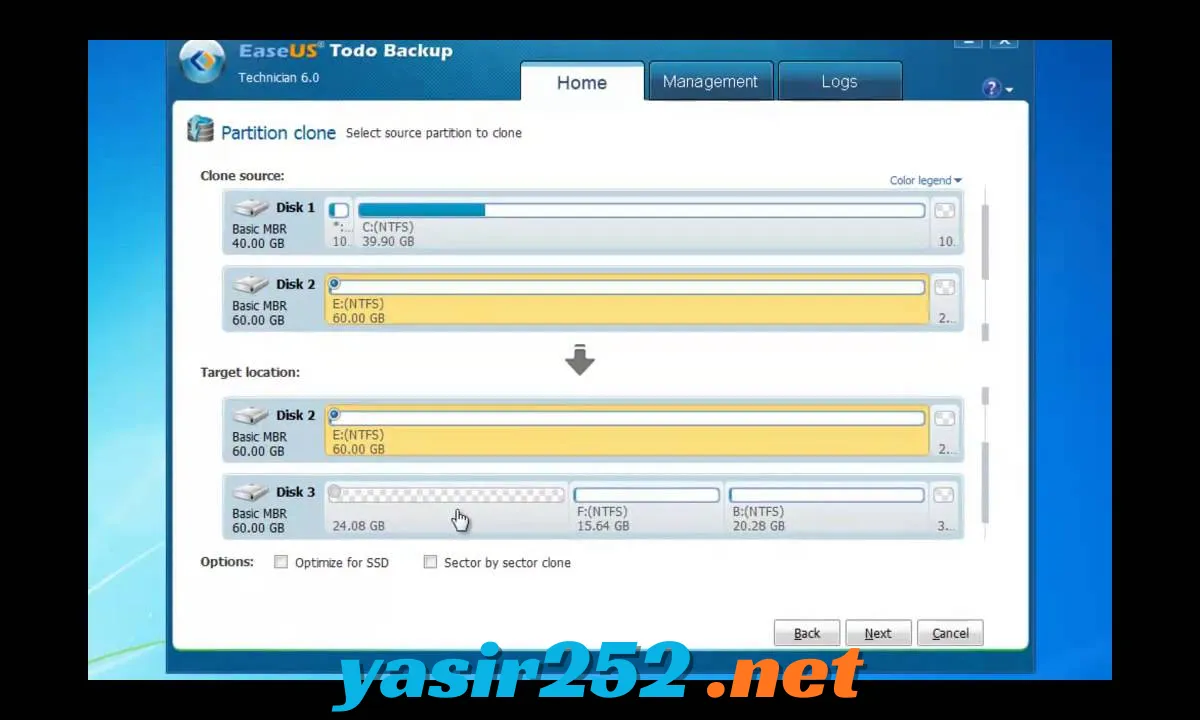
How to Clone a Hard Drive Using EaseUS Todo Backup
Disk cloning is useful when upgrading an HDD to an SSD, replacing a failing drive, or migrating a disk to another supported storage device. Cloning availability depends on the edition.
Step 1: Connect the New Drive
Connect your target SSD or HDD to the computer. For laptops, this may require an external USB adapter or enclosure.
Step 2: Open EaseUS Todo Backup
Launch the program and check whether your current edition includes the cloning function.
Step 3: Select the Clone Option
Choose the appropriate disk or system cloning function.
Step 4: Select the Source Disk
Select the original drive you want to copy.
Step 5: Select the Target Disk
Choose the destination disk. Make sure it is the correct drive because the cloning process may overwrite its existing data.
Step 6: Review the Clone Settings
Review the available disk layout and alignment options. Select appropriate SSD optimization settings if offered.
Step 7: Start Cloning
Start the cloning operation and allow it to complete without disconnecting the drives.
Step 8: Test the New Drive
If you are cloning Windows, shut down the computer and test the cloned drive using the appropriate boot configuration.
Cloning can overwrite data on the destination disk. Back up any important data on the target drive before beginning.
How to Clone Windows to an SSD Using EaseUS Todo Backup Home
System cloning is useful when you want to move your Windows installation from an older HDD to a faster SSD without reinstalling Windows and your applications from scratch.
-
Connect the new SSD to your PC.
-
Open EaseUS Todo Backup Home.
-
Select the System Clone option.
-
Choose the target SSD.
-
Review the cloning settings and disk layout.
-
Enable SSD optimization if the option is available.
-
Confirm the target drive and proceed.
-
Wait for the cloning process to complete.
-
Shut down your computer.
-
Install the SSD internally or adjust your boot settings to test the cloned Windows installation.
The exact steps can differ depending on the Windows version, disk layout, and software release. If your original system uses BitLocker, review its status before cloning and follow the software’s supported instructions.
How to Restore Files Using EaseUS Todo Backup
Restoring data is one of the most important functions of backup software. EaseUS Todo Backup allows you to recover files and other data from existing backup images.
-
Open EaseUS Todo Backup.
-
Locate the backup task you want to use.
-
Select the Recover option.
-
Choose the backup image or recovery point.
-
Browse the available files or folders.
-
Select the items you want to restore.
-
Choose a recovery destination.
-
Start the restore process.
-
Verify that the recovered files are accessible.
Avoid restoring files directly over important original data unless you are sure that the overwrite operation is intended.
EaseUS Todo Backup System Requirements
EaseUS Todo Backup is designed for Windows PCs. The exact requirements depend on the version and edition you install.
| Component | Requirements / Recommendations |
|---|---|
| Operating System | Windows 11, Windows 10, Windows 8, Windows 7 (version-dependent) |
| Processor | Compatible Windows processor |
| RAM | 2 GB minimum recommended for basic tasks; more for larger backup jobs |
| Storage | Available space for installation, temporary data, and backup images |
| Backup Destination | HDD, SSD, USB drive, network share, NAS, FTP and supported cloud destinations |
| File System | Supported Windows file systems, depending on the operation |
| Internet | Required for downloading, activation, and online backup destinations |
| Permissions | Administrator privileges may be required for system backup, cloning, and recovery operations |
Is EaseUS Todo Backup Free?
Yes, EaseUS Todo Backup offers a Free edition for personal use. It is designed to provide basic backup and recovery capabilities for files, disks, partitions, and Windows systems.
The Home edition is a paid product and provides additional functions, including system and disk cloning and other advanced backup options.
If you only want to create regular file and system backups, the Free edition may be sufficient. If you plan to migrate Windows to an SSD, clone a disk, or use additional recovery functions, check whether the Home edition is required.
EaseUS Todo Backup Crack, License Code and Activation
Searches for EaseUS Todo Backup crack, EaseUS Todo Backup 12 key, EaseUS Todo Backup Free 11.5 license code, or EaseUS Todo Backup 9.2 license code are often related to users looking for paid features without purchasing a license.
Using cracked software or unofficial activation tools is risky because modified installers can contain malware, steal personal information, or damage backup files. Unauthorized activation codes may also stop working after software updates.
EaseUS Todo Backup Free is available for personal use, while Home and other editions provide additional features under their respective license terms.
If you need disk cloning, system migration, or advanced backup functions, use the official trial or purchase options instead of downloading a crack.
EaseUS Todo Backup Advantages and Disadvantages
Advantages
-
Easy-to-Use Interface: The interface guides users through backup and recovery tasks.
-
Multiple Backup Types: Supports file, disk, partition, and system backup.
-
Automatic Backup: Schedule backup jobs to reduce manual work.
-
Disk Cloning: Useful for supported HDD-to-SSD and disk migration workflows.
-
Incremental and Differential Backups: Help manage backup size and time.
-
Recovery Options: Restore files or recover a system using saved images.
-
Multiple Storage Destinations: Supports different local and network backup destinations.
-
Free Edition: Offers core backup functionality without requiring a paid license.
-
Advanced Home Features: Paid Home edition adds tools for cloning and other advanced tasks.
Disadvantages
-
Feature Restrictions: Some features are limited to paid editions.
-
Cloning Limitations: Disk and system cloning availability depends on the license.
-
Storage Requirements: Full system images may require substantial storage space.
-
Recovery Preparation: Recovery media and restore testing require additional preparation.
-
Paid Upgrade: Advanced functionality may require a Home or other commercial license.
Best EaseUS Todo Backup Alternatives
If EaseUS Todo Backup does not fit your requirements, you can consider these backup and recovery alternatives.
-
Macrium Reflect: Backup, disk imaging, and recovery software for Windows users.
-
AOMEI Backupper: A backup and disk migration solution with different editions and features.
-
Veeam Agent for Microsoft Windows: A backup tool designed for Windows systems, with editions and licensing depending on usage.
-
Clonezilla: Open-source disk imaging and cloning software for users comfortable with bootable environments.
-
Hasleo Backup Suite: A Windows backup, restoration, and disk cloning utility.
-
Windows Backup: Microsoft’s built-in backup-related solution for supported Windows environments and account configurations.
Frequently Asked Questions About EaseUS Todo Backup
1. What is EaseUS Todo Backup?
EaseUS Todo Backup is backup and recovery software for Windows that can protect files, disks, partitions, and the operating system through backup images and recovery tools.
2. Is EaseUS Todo Backup Free?
Yes, EaseUS offers a Free edition for personal use. It provides core backup features, although certain advanced functions are available only in paid editions.
3. Where can I download EaseUS Todo Backup?
You can download the software from the official website at https://www.easeus.com/backup-software/tb-free.html.
4. Does EaseUS Todo Backup work on Windows 11?
Yes, EaseUS Todo Backup supports Windows 11 in compatible releases. Check the official system requirements for the version you plan to install.
5. Can EaseUS Todo Backup clone an HDD to an SSD?
Yes, the cloning functionality available in supported editions can be used to migrate data from an HDD to an SSD.
6. Is disk cloning available in EaseUS Todo Backup Free?
Disk and system cloning availability depends on the current edition and release. The Home edition includes cloning functionality, so check the current Free-versus-Home comparison before starting.
7. How do I clone using EaseUS Todo Backup?
Connect the target disk, select the cloning feature, choose the source and destination drives, review the settings, and start the cloning process. The available options depend on your edition.
8. Is EaseUS Todo Backup Home worth it?
EaseUS Todo Backup Home may be worth it if you need disk cloning, system migration, advanced backup options, or other features not available in the Free edition.
9. Does EaseUS Todo Backup support incremental backups?
Yes, the software supports incremental backup methods in compatible versions and configurations.
10. Does EaseUS Todo Backup support differential backups?
Yes, differential backup is available in supported versions. It backs up changes since the last full backup.
11. Can EaseUS Todo Backup back up Windows?
Yes, its system backup function can create a backup image of Windows and the system-related partitions needed for recovery.
12. Can I back up files to an external hard drive?
Yes, you can select supported external storage devices as backup destinations.
13. Does EaseUS Todo Backup support NAS?
Yes, the software supports NAS and network backup destinations in compatible versions and configurations.
14. Can EaseUS Todo Backup back up to the cloud?
Yes, cloud backup options are available, depending on the edition, supported destination, and configuration.
15. Is EaseUS Todo Backup crack safe?
Cracked versions are not reliably safe. They can contain malware, modified files, or unauthorized activation tools that compromise your computer and data.
16. Does EaseUS Todo Backup support Windows 10?
Yes, compatible versions support Windows 10.
17. Can EaseUS Todo Backup restore individual files?
Yes, you can browse supported backup images and restore individual files or folders without necessarily restoring an entire disk.
18. Can EaseUS Todo Backup create bootable recovery media?
Yes, bootable recovery media is supported in compatible editions, including Home, and can help recover a system when Windows cannot start.
19. What is the difference between EaseUS Todo Backup 12 and newer versions?
Older versions such as 12 may have different features, compatibility, interface options, and licensing from newer releases. It is generally advisable to use a supported current version.
20. Is EaseUS Todo Backup suitable for beginners?
Yes, its guided interface and backup task options make it accessible to beginners who want to protect important data without manually configuring complex backup systems.
Conclusion
EaseUS Todo Backup is a practical Windows backup and recovery solution for protecting files, partitions, disks, and the operating system. Its Free edition offers useful backup features for personal users, while the Home edition adds advanced functionality such as disk and system cloning, migration, and additional recovery options.
Whether you want to create a Windows backup, clone an HDD to an SSD, schedule automatic backups, or restore lost files, EaseUS Todo Backup provides a convenient workflow for managing data protection tasks. For the safest experience, download the official version, verify your edition’s features, and regularly test your backups.