
FBackup 9.9.1073 Multilingual Download [2027] – Free Backup Software for Windows
FBackup is a free backup program developed by Softland that helps Windows users protect important files, folders, and personal data. It makes creating backups pretty straightforward, whether you want to save documents, photos, videos, or other files to an external drive, network location, or supported cloud destination.
One of its useful features is the ability to create full and incremental backups, so you can choose how your data gets copied and updated. FBackup also supports scheduled backup jobs and automatic tasks, making it easier to keep your files protected without manually copying everything every time.
FBackup Download Links
| Official Website | Nitroflare | Rapidgator |
|---|---|---|
| 🌐 OFFICIAL DOWNLOAD | 🟡 DOWNLOAD | 🟣 DOWNLOAD |
FBackup Software Information
| Field | Details |
|---|---|
| Software Name | FBackup |
| Latest Version | Check the official website for the current release |
| Developer | Softland |
| License | Freeware |
| Category | Backup and Recovery |
| Operating System | Microsoft Windows |
| Main Purpose | File and folder backup |
| Backup Types | Full and incremental |
| Official Website | https://www.fbackup.com/ |
| Official Download | https://www.fbackup.com/download.html |
What Is FBackup?
FBackup is a Windows backup utility designed to help users protect important data against accidental deletion, hardware failure, malware incidents, and other unexpected problems. Developed by Softland, it provides a graphical interface for setting up backup jobs without requiring advanced technical knowledge.
You can select the files and folders you want to protect, choose a backup destination, configure a backup method, and schedule jobs according to your needs. FBackup is also useful for home users and small offices that want a straightforward way to maintain copies of important files.
Key Features of FBackup
– Free for Personal and Commercial Use: FBackup is available at no cost for both home users and businesses. You can create and manage backup jobs without purchasing a FBackup license.
– Full Backup: The full backup option stores selected files and folders in a standard ZIP archive. This makes it easier to keep organized copies of important data.
– Mirror Backup: Mirror mode creates an uncompressed copy of your selected files in the destination folder. You can browse and access these files directly through Windows File Explorer.
– Automatic Backup Scheduling: Set a schedule for backup jobs so they can run automatically. This helps keep important files updated without having to start every backup manually.
– Local and External Drive Support: Save backups to internal drives, USB storage devices, and other supported destinations. Keeping a copy on a separate drive can help protect against problems with your main storage.
– Network Backup: FBackup can save files to supported network locations, including mapped network drives. This is useful when you want backups stored on another computer or network storage device.
– Cloud Backup Destinations: The software supports destinations such as Google Drive and Dropbox. Availability can depend on the current version and the cloud service’s connection requirements.
– Cloud Source Backup: FBackup can also back up files from supported cloud locations to other destinations, giving you another way to protect online data.
– ZIP64 Compression: Full backups use standard ZIP compression with ZIP64 support, allowing archives larger than 2 GB. ZIP files can also be opened using compatible archive utilities.
– Password Protection: You can protect supported ZIP backup archives with a password. Keep your password somewhere safe because losing it may prevent access to protected backup data.
– Backup Plugins: Predefined backup plugins help identify important settings and data locations for supported applications. This can make it easier to include application-related files in a backup job.
– Backup Reports: FBackup can provide reports about backup jobs, including warnings and errors. These reports help you identify problems that may need attention.
– Simple Backup Wizard: The guided setup process walks you through selecting source files, choosing a destination, and configuring how and when the backup should run.
What’s New in FBackup 9?
FBackup 9 is the current major version family. The official website lists version 9.9.1062, released on October 28, 2026, as its latest published release in the available release information.
The 9.9.1062 update addresses a certificate error during the update check. Earlier releases in the 9.9 series included security improvements to the update-check process, compatibility adjustments, translation updates, and fixes for backup operations.
Always check the official download page before installing because a newer maintenance release may become available.
Is FBackup Free to Download?
Yes. FBackup is free software for both personal and commercial use. You can download the Windows installer from the official Softland website without paying for a FBackup subscription.
It is important to understand the difference between FBackup and Backup4all. Both are developed by Softland, but Backup4all is the company’s commercial backup product with more advanced backup options. FBackup is intended for users who need straightforward file and folder backups.
Does FBackup Support Incremental Backups?
FBackup’s standard backup options are Full and Mirror. It should not be described as an incremental backup program. If incremental or differential backup functionality is a requirement, check Backup4all’s current feature and licensing information before choosing a product.
FBackup System Requirements
FBackup is designed for Windows computers. The official download information lists compatibility with the following operating systems:
| Requirement | Supported Information |
|---|---|
| Operating System | Windows 11, Windows 10, Windows 8, Windows 7, Windows Vista |
| Windows Server | Server 2025, 2022, 2019, 2016, 2012, 2008 |
| Architecture | x86 and x64, as listed by the publisher |
| Storage | Sufficient space for the installer and backup files |
| Internet | Required for downloading the installer and using online destinations |
| Backup Destination | Local drives, external storage, supported network and cloud locations |
Actual performance depends on the size of the backup, storage speed, network connection, and the destination you select. Check the official download page for the requirements that apply to the installer you choose.
How to Download FBackup for Windows
Follow these steps to download the official FBackup installer:
-
Open the official FBackup website.
-
Visit the download page.
-
Find the latest FBackup 9 release.
-
Select the free download option.
-
Save the installer to your Windows computer.
-
Wait for the download to finish before opening the setup file.
Official website: https://www.fbackup.com/
Official download page: https://www.fbackup.com/download.html
For security, avoid unofficial FBackup crack downloads, modified installers, and unknown full-version packages. The genuine FBackup application is already free, so there is no reason to use an unauthorized activation file.
How to Install FBackup
After downloading the setup file, you can install the program with these steps:
-
Locate the downloaded FBackup installer.
-
Double-click the setup file.
-
Follow the installation wizard.
-
Review and accept the license agreement.
-
Complete the installation process.
-
Launch FBackup from the Windows Start menu.
Once installation is complete, open the application and create your first backup job.
How to Use FBackup
FBackup uses a guided process to help you configure backup jobs. Here’s a basic walkthrough:
1. Create a Backup Job
Open FBackup and choose the option to create a new backup. Give the job a recognizable name so you can identify it later.
2. Select Files and Folders
Choose the documents, pictures, videos, or other folders you want to protect. Check the selected sources carefully to make sure important data is included.
3. Choose a Backup Destination
Select where the backup should be stored. This could be an external hard drive, USB device, supported network location, or compatible cloud destination.
4. Select the Backup Type
Choose between the available backup methods:
-
Full: Stores the selected data in a compressed ZIP archive.
-
Mirror: Creates an uncompressed copy of the selected files and folders.
5. Configure a Schedule
If you want automatic backups, configure the scheduler for the job. Choose a suitable schedule based on how often your files change.
6. Run the Backup
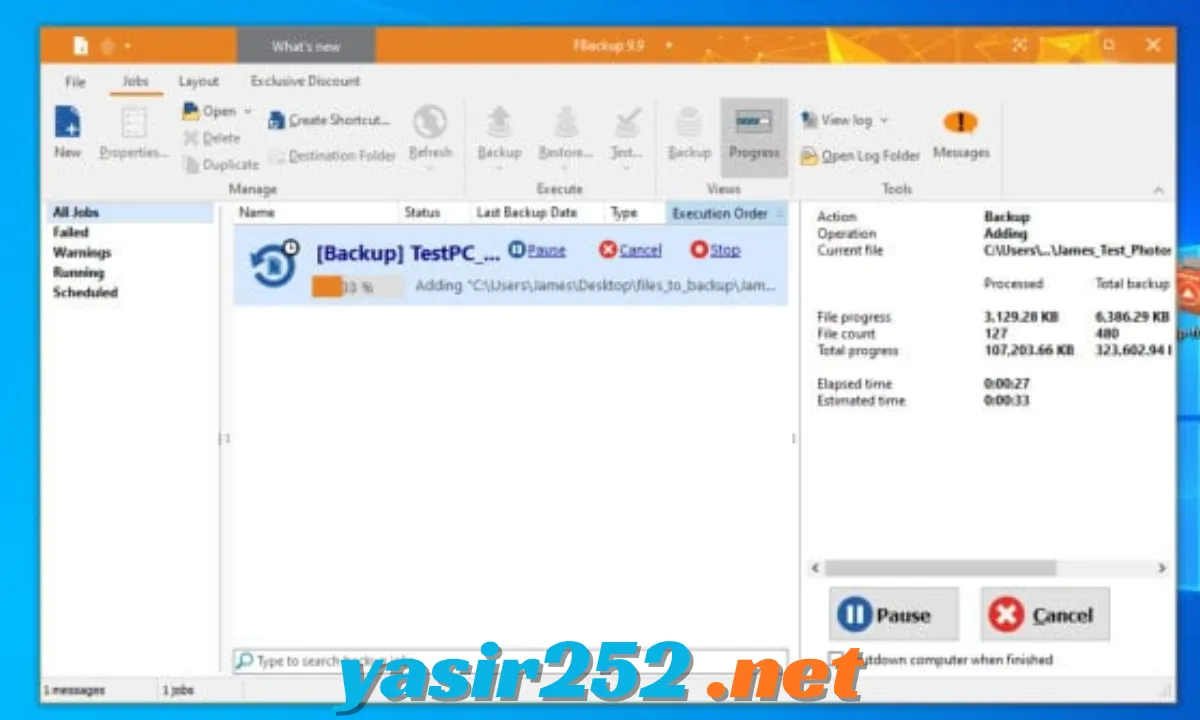
Start the backup job and allow the software to complete the process. Check the job report afterward to confirm that the operation finished without errors.
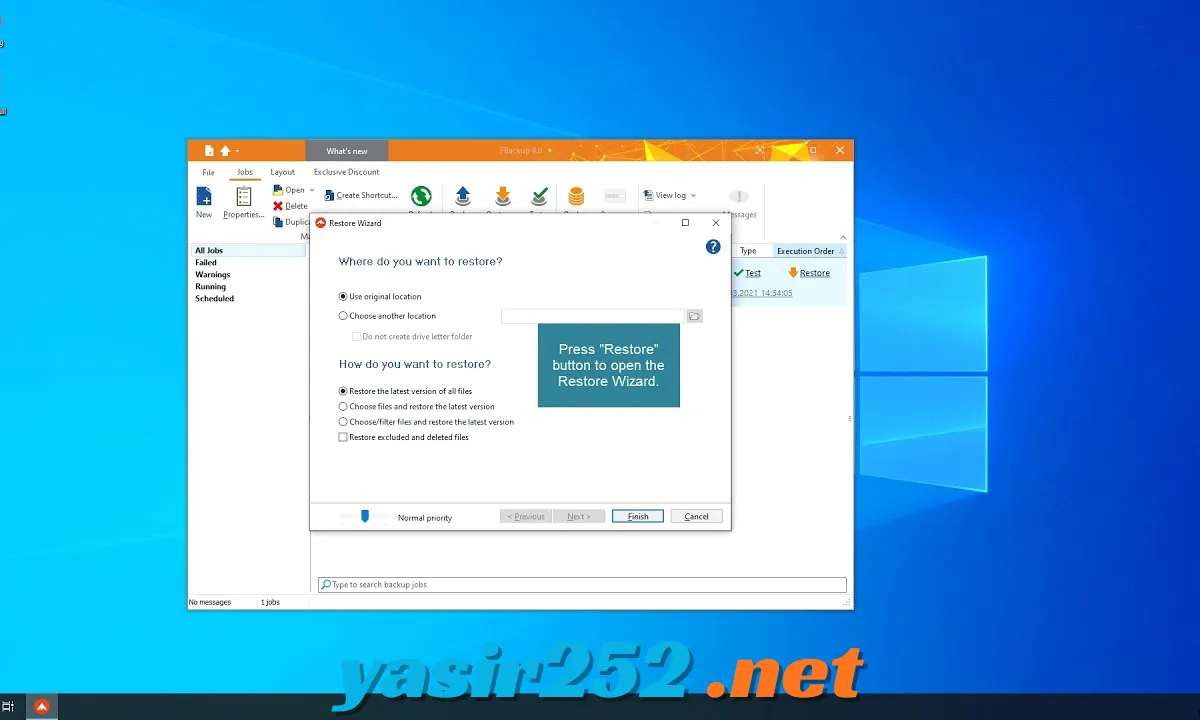
7. Restore Your Files When Needed
When you need your data again, use the available restore options and select the backup you want to recover. Make sure you choose the correct backup destination and files.
FBackup Review: Is It Worth Using?
FBackup is a practical option if you need a free Windows utility for creating copies of important files and folders. Its backup wizard, scheduling options, ZIP archives, and mirror mode make everyday backup tasks easier for users who don’t need advanced configuration.
However, it isn’t a complete replacement for professional backup suites. Users who need incremental backups, disk imaging, or more advanced recovery features should compare it with other backup applications, including Backup4all.
Pros and Cons
| Pros | Cons |
|---|---|
| Free for personal and commercial use | Focuses on file and folder backups |
| Beginner-friendly interface | No standard incremental backup option |
| Supports full and mirror backups | Not a complete disk-imaging solution |
| Automatic backup scheduling | Advanced features may require another product |
| Supports local and network destinations | Windows-focused software |
| ZIP compression and password protection | Cloud compatibility depends on supported services |
FBackup vs Backup4all
FBackup and Backup4all are both developed by Softland, but they target different types of users.
| Feature | FBackup | Backup4all |
|---|---|---|
| Pricing | Free | Paid |
| Developer | Softland | Softland |
| Full Backup | Yes | Yes |
| Mirror Backup | Yes | Yes |
| Incremental Backup | Not a standard FBackup option | Available |
| Differential Backup | Not a standard FBackup option | Available |
| Automatic Scheduling | Yes | Yes |
| Best For | Basic file and folder backups | More advanced backup workflows |
Which one should you choose? Choose FBackup if you want a free solution for basic file protection. Backup4all is worth considering if your backup requirements include advanced methods and additional configuration options.
Best FBackup Alternatives
If FBackup doesn’t cover everything you need, these programs are worth considering:
-
AOMEI Backupper: A Windows backup solution offering different backup and recovery tools, depending on the edition.
-
EaseUS Todo Backup: Provides file, system, and disk backup features, with capabilities depending on the version.
-
Macrium Reflect: Known for disk imaging and system recovery workflows.
-
Veeam Agent for Microsoft Windows: Designed for Windows system and data protection, with features based on the available edition.
-
Duplicati: An alternative for users interested in encrypted backups and supported cloud storage destinations.
Frequently Asked Questions
1. What is FBackup?
FBackup is a free backup application developed by Softland. It helps Windows users create copies of important files and folders and store them on local, external, network, or supported cloud destinations.
2. Is FBackup free to download?
Yes. FBackup is free for personal and commercial use. You can download the installer from the official website.
3. What is the latest version of FBackup?
The official website lists FBackup 9.9.1062, released October 28, 2026, in its available release information. Check the official download page for newer updates.
4. Is FBackup 9 available for Windows 11?
Yes. The publisher lists Windows 11 among the supported operating systems.
5. Does FBackup support Windows 10?
Yes. Windows 10 is included in the operating systems listed by Softland.
6. Does FBackup support incremental backups?
FBackup’s standard backup methods are Full and Mirror. Incremental and differential backup functionality is available in Softland’s commercial Backup4all product.
7. What is the difference between Full and Mirror backup?
Full backup stores selected files in a compressed ZIP archive. Mirror backup creates an uncompressed copy of the original files and folders.
8. Can FBackup automatically back up files?
Yes. You can configure backup jobs to run automatically using the scheduling functionality.
9. Can I use FBackup for commercial purposes?
Yes. Softland states that FBackup is free for both personal and commercial use.
10. Can FBackup back up files to an external hard drive?
Yes. You can select supported external storage devices as backup destinations.
11. Does FBackup support Google Drive?
Yes. The publisher lists Google Drive among its supported cloud locations. Check the current version’s connection requirements before setting up a job.
12. Can FBackup back up Dropbox files?
Yes. Dropbox is among the cloud services supported by FBackup.
13. Does FBackup compress backup files?
Yes. Its Full backup method uses standard ZIP compression, including ZIP64 support.
14. Can I password-protect an FBackup archive?
Yes. You can enable password protection for supported ZIP backups. Keep the password secure so you can access your archived data later.
15. Is FBackup suitable for beginners?
Yes. Its guided backup wizard makes it relatively easy to select files, choose a destination, and configure backup jobs.
16. Does FBackup create a complete Windows system image?
FBackup is primarily designed for file and folder backups. If you need full system imaging, consider a dedicated disk-imaging application.
17. Is FBackup available for Linux?
FBackup is designed for Windows and does not have an official native Linux version.
18. Is FBackup available for macOS?
The official FBackup download information lists Windows operating systems, not a native macOS edition.
19. What is the difference between FBackup 8 and FBackup 9?
FBackup 9 is the newer major version family. Users looking for an older FBackup 8 release should check the publisher’s previous-version information and verify compatibility before installing it.
20. Is FBackup better than Backup4all?
It depends on your needs. FBackup is a good choice for free basic backups, while Backup4all offers more advanced backup methods and is a commercial product.
Final Verdict
FBackup is a useful free backup program for Windows users who want a simple way to protect important files and folders. Its full and mirror backup options, automatic scheduling, ZIP compression, and supported cloud destinations make it suitable for everyday data protection.
If you need straightforward backups without paying for a commercial application, FBackup is worth trying. However, users who require incremental backups, disk imaging, or more advanced recovery tools should explore dedicated alternatives or Softland’s Backup4all.