
Microsoft Visual Studio 2026 Download – Free IDE for Windows v18.12.0 Multilingual
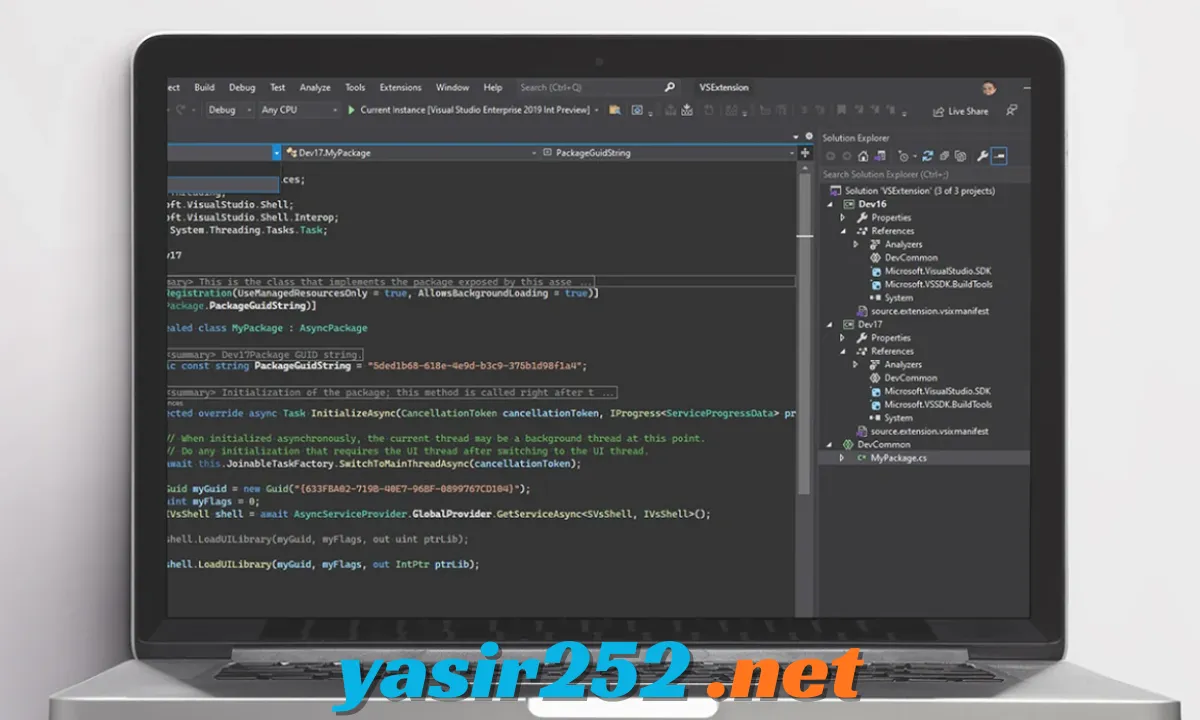
Microsoft Visual Studio 2026 is a modern integrated development environment (IDE) for building desktop applications, web projects, cloud services, games, and other software solutions. It brings together a powerful code editor, debugging tools, project templates, testing features, and development services in one workspace. Whether you’re learning programming or working on professional projects, Visual Studio provides a complete environment for writing, testing, and managing code.
The Community edition is free for individual developers, students, and eligible open-source projects, while Professional and Enterprise editions are paid products with additional capabilities and licensing terms. Visual Studio is designed to support popular programming languages and frameworks, including C#, C++, .NET, ASP.NET, and Python through supported workloads and extensions. Choose the edition that matches your development needs before downloading.
Microsoft Visual Studio Enterprise 2026 v18.12.0 Download Links
Microsoft Visual Studio 2026 Software Information
| Field | Details |
|---|---|
| Software Name | Microsoft Visual Studio 2026 |
| Latest Version | 18.11.2 |
| Release Date | October 25, 2026 (Version 18.11.2) |
| Original Release | November 11, 2025 |
| Developer | Microsoft |
| Publisher | Microsoft Corporation |
| License | Free Community Edition / Paid Professional and Enterprise |
| Category | Programming and Development |
| Operating System | Windows 11, supported Windows Server editions |
| Architecture | 64-bit x64 and ARM64 |
| Main Languages | C#, C++, Python, JavaScript, TypeScript, Visual Basic |
| Official Website | Visual Studio |
| Installer | Visual Studio Installer |
Version information: 18.11.2 is the latest stable version listed on Microsoft’s download page at the time of writing.
What Is Microsoft Visual Studio 2026?
Microsoft Visual Studio 2026 is an integrated development environment that helps developers create, debug, test, and maintain software applications. Instead of using separate programs for writing code, managing projects, and debugging errors, you can handle these tasks within one development environment.
It supports different programming languages, frameworks, and development platforms through optional workloads. You can build Windows desktop applications, websites, cloud services, enterprise software, and other projects using Microsoft’s development tools and supported extensions.
Key Features of Microsoft Visual Studio 2026
– AI-Powered Development: Visual Studio 2026 integrates AI-assisted development features, including GitHub Copilot, to help developers write code, understand projects, troubleshoot issues, and improve productivity.
– Improved Performance: Microsoft has focused on faster startup times, smoother navigation, and improved responsiveness. These improvements are particularly useful when working with large solutions and complex projects.
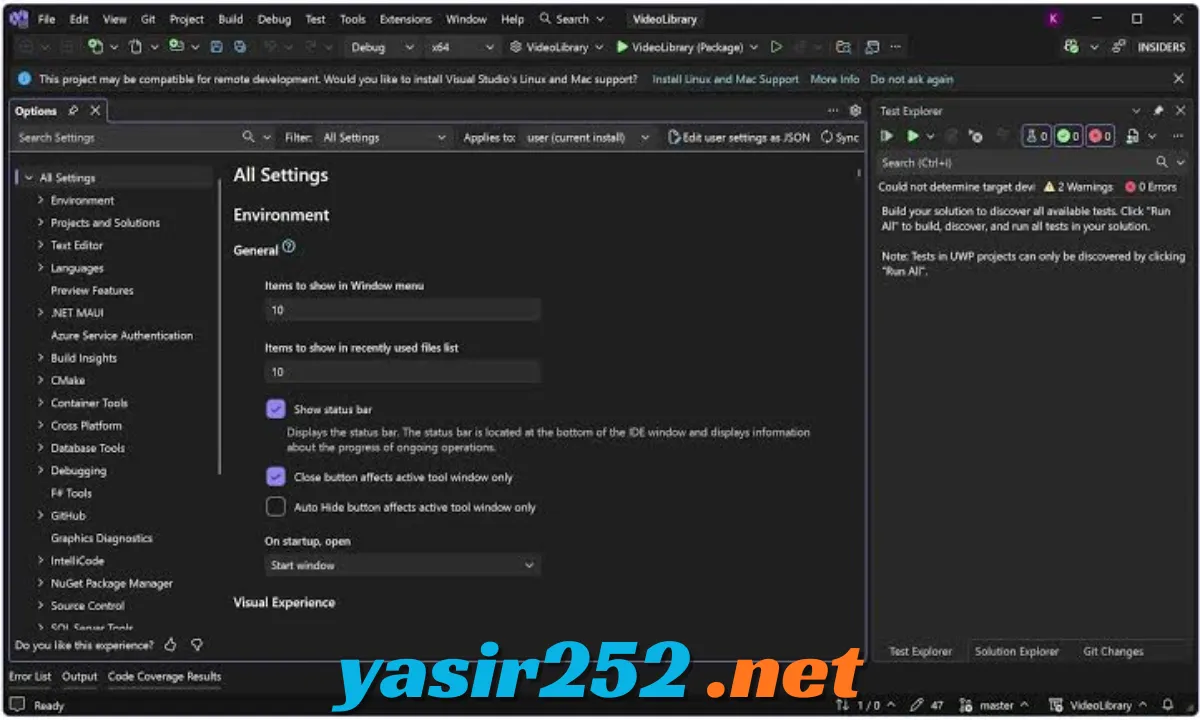
– Modern User Interface: The redesigned interface introduces a refreshed Fluent UI experience with improved navigation and a more streamlined development workspace.
– Advanced Code Editor: Write and manage code with syntax highlighting, IntelliSense, code completion, navigation, and other productivity tools.
– Multiple Programming Languages: Develop applications using C#, C++, Visual Basic, Python, JavaScript, and TypeScript, depending on installed workloads and extensions.
– .NET Development: Build modern applications using .NET, ASP.NET Core, and other supported Microsoft development frameworks.
– C++ Development Tools: Create desktop applications, native software, and performance-focused projects using Microsoft’s C++ compiler, debugging tools, and development libraries.
– Powerful Debugging: Find and troubleshoot programming errors using breakpoints, variable inspection, call stacks, and other integrated debugging tools.
– Integrated Testing: Run and manage unit tests to check application behavior and identify problems during development.
– Git Integration: Work with Git repositories, manage source code changes, review differences, and handle version control tasks directly inside the IDE.
– Cloud and Azure Development: Build and manage supported cloud applications using Azure development tools and related integrations.
– Project Templates: Start new projects with templates for supported application types, frameworks, and programming languages.
– Performance Profiling: Analyze application performance and identify areas that may need optimization using integrated diagnostics and profiling tools.
– Extensions and Customization: Add supported extensions, themes, and development tools through Visual Studio’s extension ecosystem.
– Separate Build Tool Updates: Visual Studio 2026 separates IDE updates from build tools, helping developers maintain their compiler toolchains while updating the development environment.
Visual Studio 2026 Editions
Microsoft offers different editions for individual developers, professional teams, and large organizations.
| Edition | License | Best For |
|---|---|---|
| Visual Studio Community 2026 | Free | Individual developers, students, and eligible open-source projects |
| Visual Studio Professional 2026 | Paid / Free Trial | Professional developers and small teams |
| Visual Studio Enterprise 2026 | Paid / Free Trial | Large development teams and enterprise projects |
| Visual Studio Build Tools 2026 | Licensing depends on usage | Command-line project compilation |
| Visual Studio Team Explorer 2026 | Free | Azure DevOps and team collaboration |
Which Edition Should You Download?
Community Edition: The best option if you want a free, fully featured development environment for personal projects, learning programming, or eligible open-source work.
Professional Edition: Suitable for professional developers and small teams that need additional development services and subscription benefits.
Enterprise Edition: Designed for organizations that need advanced debugging, testing, architecture, and enterprise development capabilities.
Important licensing note: Community Edition is not unrestricted freeware for every organization. Enterprise organizations must follow Microsoft’s Community licensing terms. Check the official licence conditions before using it commercially.
Supported Programming Languages
Visual Studio 2026 supports several programming languages through its built-in tools, workloads, and extensions.
| Programming Language | Development Use |
|---|---|
| C# | .NET applications and desktop software |
| C++ | Native applications and system development |
| Visual Basic | Windows and .NET applications |
| Python | Automation, scripting, and development |
| JavaScript | Web application development |
| TypeScript | Modern web applications |
| HTML | Web page structure |
| CSS | Website styling |
| SQL | Database development and management |
The availability of individual language tools depends on the selected installation workloads and extensions.
Visual Studio 2026 Workloads
One of the most useful parts of Visual Studio is its workload-based installation system. Instead of installing every development component, you can select only the tools needed for your projects.
-
.NET Desktop Development: Build Windows desktop applications using supported .NET technologies.
-
ASP.NET and Web Development: Create websites, web applications, and web services.
-
Desktop Development with C++: Develop native Windows applications and C++ software.
-
Python Development: Write, run, and debug Python projects.
-
Azure Development: Build and deploy supported cloud-based applications.
-
Node.js Development: Work on JavaScript and Node.js projects.
-
Game Development: Use supported tools and integrations for game development.
-
Data Storage and Processing: Work with supported database and data development tools.
You can add or remove workloads later through Visual Studio Installer.
Microsoft Visual Studio 2026 System Requirements
Visual Studio 2026 requires a compatible 64-bit Windows environment. Microsoft recommends a modern processor and sufficient memory, especially when working with large development projects.
| Requirement | Minimum / Supported Details |
|---|---|
| Operating System | Windows 11 (supported versions) |
| Windows Server | 2025, 2022, 2019 |
| Processor | AMD64/x64 or ARM64 |
| CPU Recommendation | Quad-core or better |
| RAM | 4 GB minimum |
| Recommended RAM | 16 GB for typical professional solutions |
| Storage | 2.5 GB to 210 GB, depending on features |
| Typical Installation | Approximately 20–50 GB |
| Graphics | WXGA resolution (1366 × 768) minimum |
| Recommended Display | 1920 × 1080 or higher |
| .NET Framework | 4.7.2 or later required for installation |
| Additional Component | Microsoft Edge WebView2 Runtime |
| Administrator Rights | Required |
Important: Windows 10 is not listed among the supported operating systems for Visual Studio 2026. Windows 11 is recommended for the best experience. ARM64 systems have some workload limitations, so check Microsoft’s compatibility information before installation.
Is Microsoft Visual Studio 2026 Really Free?
Yes, Microsoft Visual Studio 2026 offers a genuinely free Community edition. You can download it without purchasing a Professional or Enterprise subscription, provided your usage meets Microsoft’s Community licensing requirements.
However, not every edition is free.
| Edition | Free or Paid? | Details |
|---|---|---|
| Community 2026 | Free | Free for eligible individual and organizational use |
| Professional 2026 | Paid | Commercial licence with trial availability |
| Enterprise 2026 | Paid | Advanced enterprise development tools |
| Build Tools 2026 | Usage-dependent | Licence requirements depend on the project and usage |
If you are an individual developer, student, or open-source contributor, Community Edition is generally the best starting point.
How to Download Microsoft Visual Studio 2026 for Free
You can download Visual Studio 2026 directly from Microsoft’s official website. Follow these steps:
-
Open the official Visual Studio download page.
-
Find the Visual Studio Community 2026 edition.
-
Select the Free Download option.
-
Download the Visual Studio bootstrapper.
-
Save the installer to your computer.
-
Wait for the download to finish.
-
Run the installer as administrator.
-
Continue to the workload selection screen.
Official Download Page: https://visualstudio.microsoft.com/downloads/
Make sure you select Community Edition if you want the free version.
How to Install Microsoft Visual Studio 2026
After downloading the installer, follow these steps to install Visual Studio on your Windows computer.
-
Locate the downloaded Visual Studio installer.
-
Double-click the setup file to launch Visual Studio Installer.
-
Allow Windows to display the User Account Control prompt.
-
Accept the Microsoft licence terms and continue.
-
Select your preferred development workloads.
-
Choose additional components if needed.
-
Review the installation location and available disk space.
-
Click Install.
-
Wait while the required development components are downloaded and installed.
-
Launch Visual Studio 2026 after installation finishes.
-
Sign in with your Microsoft account if requested.
-
Create your first project and start coding.
Tip: Select only the workloads you need. Installing every available development component can require a significant amount of storage.
How to Create Your First Project in Visual Studio 2026
Once the installation is complete, you can create a new development project.
-
Open Visual Studio 2026.
-
Select Create a new project.
-
Choose a project template, such as Console App.
-
Select your preferred programming language.
-
Enter a project name.
-
Choose a location to save your project.
-
Click Create.
-
Write your code in the editor.
-
Select Build to compile your project.
-
Press F5 to run and debug your application.
You can use the same basic workflow for many supported project types.
Visual Studio 2026 vs Visual Studio Code
Visual Studio and Visual Studio Code are both Microsoft development products, but they serve different purposes.
| Feature | Visual Studio 2026 | Visual Studio Code |
|---|---|---|
| Product Type | Full IDE | Lightweight Code Editor |
| Main Platform | Windows | Windows, macOS, Linux |
| Debugging | Integrated advanced tools | Through extensions and built-in features |
| Project Management | Extensive IDE tools | Workspace and extension-based |
| C++ Development | Full development workloads | Extensions and toolchains |
| .NET Development | Integrated project support | Supported through extensions |
| Extensions | Visual Studio Marketplace | Visual Studio Code Marketplace |
| Best For | Large and professional development projects | Lightweight coding and flexible workflows |
Choose Visual Studio 2026 if you need a full development environment with integrated project management, debugging, testing, and compiler tools.
Choose Visual Studio Code if you prefer a lightweight editor that works across multiple operating systems.
Advantages and Disadvantages
| Advantages | Disadvantages |
|---|---|
| Free Community Edition available | Professional and Enterprise editions are paid |
| Supports multiple programming languages | Requires considerable disk space |
| Advanced debugging tools | Windows 11 required for supported desktop installation |
| AI-assisted development features | Some AI features may require additional access or limits |
| Integrated testing and profiling | Large projects need more RAM |
| Extensive project templates | Installation can take time |
| Git and source control integration | Some ARM64 workloads are unavailable |
| Regular updates and improvements | Can be complex for beginners |
Frequently Asked Questions
1. Is Microsoft Visual Studio 2026 free to download?
Yes. Visual Studio Community 2026 is free for individual developers, students, open-source contributors, and other users who meet Microsoft’s licensing requirements.
2. What is the latest version of Visual Studio 2026?
Version 18.11.2 is the latest stable version listed on Microsoft’s official download page at the time of writing.
3. Can I install Visual Studio 2026 on Windows 11?
Yes. Visual Studio 2026 supports compatible 64-bit Windows 11 editions.
4. Does Visual Studio 2026 work on Windows 10?
Windows 10 is not listed as a supported operating system for Visual Studio 2026. A supported Windows 11 or Windows Server installation is recommended.
5. What is the difference between Community and Professional editions?
Community is free for eligible usage scenarios, while Professional is a paid edition with additional development services and subscription benefits.
6. Does Visual Studio 2026 support C++?
Yes. It supports C++ development through the Desktop Development with C++ workload and related compiler tools.
7. Can I use Visual Studio 2026 for C# programming?
Yes. Visual Studio provides C# editing, IntelliSense, debugging, project templates, and .NET development tools.
8. Does Visual Studio 2026 include GitHub Copilot?
Visual Studio 2026 includes AI-assisted development capabilities, including Copilot integration. Availability and usage limits may depend on the applicable account and service terms.
9. How much RAM does Visual Studio 2026 need?
The listed minimum is 4 GB of RAM, but Microsoft recommends 16 GB for typical professional solutions. Larger projects may need more memory.
10. How much storage does Visual Studio 2026 require?
Depending on the selected features, installation can require between 2.5 GB and 210 GB. Typical installations use approximately 20–50 GB.
11. Can I install Visual Studio 2026 without an internet connection?
Yes, you can create an offline installation layout using Visual Studio Installer and Microsoft’s command-line tools. However, you need an internet connection to prepare the layout and download the required components.
12. Does Visual Studio 2026 support Python?
Yes. Python development is supported through the Python development workload, subject to platform compatibility.
13. Can I develop Android applications with Visual Studio 2026?
Visual Studio supports certain mobile development workflows through its available workloads and extensions. However, individual mobile platforms and frameworks have their own compatibility and tooling requirements.
14. Is Visual Studio 2026 the same as Visual Studio Code?
No. Visual Studio 2026 is a full IDE, while Visual Studio Code is a lightweight code editor with extension-based functionality.
15. Can I use Visual Studio 2026 for commercial projects?
Yes, subject to the licensing conditions of the edition you use. Community Edition has restrictions for certain enterprise organizations, so check Microsoft’s licence terms before commercial use.
Conclusion
Microsoft Visual Studio 2026 is a powerful development environment for programmers who want to create, test, and manage modern applications. Its improved performance, redesigned interface, AI-assisted development, debugging tools, and support for multiple programming languages make it a strong choice for both learning and professional software development.
The free Community edition is an excellent option for eligible individual developers and students who want a complete IDE without purchasing a subscription. Download it directly from Microsoft’s official website, choose the workloads you need, and start building your next software project.