
MobiKin Assistant for Android Full Version Download 5.4.60 Multilingual
MobiKin Assistant for Android adalah software untuk mengelola data smartphone dan tablet Android langsung dari komputer Windows atau Mac. Aplikasi ini membantu pengguna memindahkan, mencadangkan, memulihkan, serta mengatur berbagai jenis file seperti kontak, pesan SMS, foto, video, musik, dan aplikasi melalui satu antarmuka.
Dengan dukungan koneksi USB dan Wi-Fi, kamu bisa mengakses data Android tanpa harus mengelola semuanya dari layar ponsel. MobiKin juga menyediakan fitur pratinjau data, pengelolaan file, serta backup dan restore untuk membantu menjaga file penting tetap tersimpan. Namun, perlu diketahui bahwa versi gratis hanya menyediakan pemindaian dan pratinjau; fitur pengelolaan penuh memerlukan lisensi berbayar.
MobiKin Assistant for Android 5.4.60 Download Links
| Rapidgator | Nitroflare |
|---|---|
| 🟣 DOWNLOAD | 🟡 DOWNLOAD |
Informasi Software
| Field | Details |
|---|---|
| Title | MobiKin Assistant for Android |
| Latest Windows Version | 5.4.60 |
| Latest Windows Update | November 13, 2026 |
| Developer | MobiKin |
| Publisher | MobiKin |
| License | Commercial (Free Trial Available) |
| Category | Android Data Management |
| Operating System | Windows 11, 10, 8, 7; macOS |
| Supported Devices | Android phones and tablets |
| Connection | USB and Wi-Fi |
| Official Website | mobikin.com |
What Is MobiKin Assistant for Android?
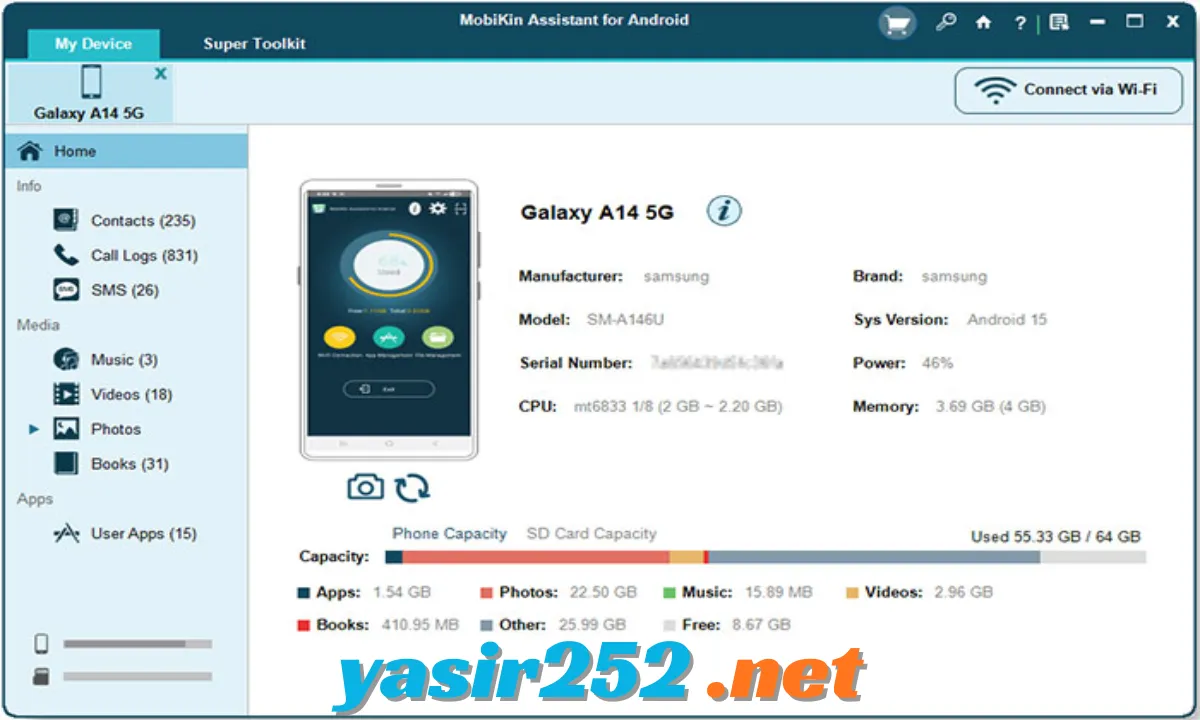
MobiKin Assistant for Android merupakan aplikasi desktop yang dirancang untuk membantu pengguna mengelola data perangkat Android dari komputer. Software ini menyediakan akses ke berbagai kategori data, sehingga kamu dapat melihat, mengatur, menambahkan, menghapus, mengimpor, dan mengekspor file yang didukung.
Selain pengelolaan file, aplikasi ini juga memiliki fitur backup dan restore untuk menyimpan data Android ke komputer. Fitur tersebut berguna ketika ingin membuat salinan data penting sebelum mengganti perangkat, melakukan reset, atau mengatur ulang isi smartphone.
Key Features of MobiKin Assistant for Android
– Android Data Management: Kelola berbagai jenis data Android melalui komputer, termasuk kontak, pesan, foto, video, musik, dan aplikasi yang didukung.
– One-Click Backup and Restore: Cadangkan data dari perangkat Android ke komputer dan pulihkan kembali menggunakan fitur backup dan restore.
– Contact Management: Lihat, tambahkan, edit, hapus, impor, dan ekspor kontak sesuai format yang didukung aplikasi.
– SMS Management: Akses pesan teks dari perangkat Android dan kelola data SMS melalui komputer. Fitur ekspor dan impor membantu menyimpan percakapan untuk kebutuhan arsip.
– Photo and Video Management: Jelajahi foto dan video yang tersimpan di smartphone, lihat pratinjau, serta pindahkan file antara perangkat dan komputer.
– Music and Media Transfer: Kelola file musik dan media yang kompatibel tanpa harus memindahkannya satu per satu melalui aplikasi file manager ponsel.
– Application Management: Lihat dan atur aplikasi Android yang terdeteksi. Software juga mendukung pengelolaan serta pemasangan file APK pada perangkat yang kompatibel.
– Wi-Fi Connection: Hubungkan perangkat Android ke komputer secara nirkabel melalui fitur koneksi Wi-Fi yang didukung.
– USB Connection: Gunakan kabel USB untuk menghubungkan ponsel ke komputer. Pada sejumlah perangkat, USB Debugging perlu diaktifkan agar software dapat mengenali perangkat.
– Multiple Device Support: Hubungkan dan kelola lebih dari satu perangkat Android melalui komputer, sesuai dukungan koneksi aplikasi.
– Data Preview: Periksa data yang terdeteksi sebelum memutuskan untuk menggunakan fitur pengelolaan atau backup.
– Broad Android Compatibility: Mendukung banyak perangkat dari produsen populer, termasuk Samsung, Xiaomi, OPPO, vivo, Motorola, Huawei, Google, realme, dan merek lainnya. Kompatibilitas tetap bergantung pada model dan versi Android.
– Recent Version Improvements: Versi Windows 5.4.60 memperbarui dukungan impor file audio M4R dan video M4V, meningkatkan kompatibilitas SMS Android 14, serta memperbaiki masalah ekspor lampiran SMS berukuran besar.
Supported Data Types
MobiKin Assistant for Android mendukung beberapa kategori data yang dapat diakses dan dikelola dari komputer. Ketersediaan tindakan seperti impor, ekspor, penghapusan, dan pemulihan dapat berbeda menurut jenis data serta kompatibilitas perangkat.
| Data Type | Available Management |
|---|---|
| Contacts | View, add, edit, delete, import, and export |
| SMS Messages | View, manage, import, and export supported messages |
| Photos | Browse, preview, and transfer |
| Videos | Browse, preview, and transfer |
| Music | Browse and transfer supported audio files |
| Applications | View and manage supported apps |
| Call Logs | View and manage supported call records |
| Other Files | Access and transfer supported device files |
Important: MobiKin Assistant for Android can back up installed apps, but its official FAQ states that app data is not included in the app backup. It is also designed to back up Android data to a computer, rather than directly transferring a complete backup from one Android phone to another.
Latest Version 5.4.60 – What’s New?
MobiKin Assistant for Android Windows version 5.4.60 was updated on November 13, 2026. This release focuses on media-file compatibility, SMS handling, and general stability.
-
Added support for importing M4R audio files.
-
Added support for importing M4V video files.
-
Improved SMS compatibility with Android 14.
-
Improved contact matching and message loading stability.
-
Fixed memory issues when exporting large SMS attachments.
-
Resolved minor APK installation issues.
-
Updated startup screen information and SMS prompts.
System Requirements
Before installing MobiKin Assistant for Android, check whether your computer meets the following Windows requirements.
| Component | Minimum Requirement |
|---|---|
| Operating System | Windows 11, 10, 8, 7 |
| Processor | 750 MHz Intel or AMD |
| RAM | 512 MB or above |
| Hard Disk Space | 1 GB or more |
| Android Compatibility | Android 6 and above |
| Connection | USB cable or supported Wi-Fi connection |
The listed Windows requirements are the specifications provided by the developer. Actual performance may vary depending on the Android device, the amount of stored data, and the computer configuration.
Is MobiKin Assistant for Android Free?
MobiKin Assistant for Android is commercial software, but users can download a free trial to test its compatibility and preview supported Android data. The trial is not equivalent to the full version.
| Feature | Free Trial | Full Version |
|---|---|---|
| Scan Android Data | Yes | Yes |
| Preview Detected Files | Yes | Yes |
| One-Click Backup and Restore | Restricted | Yes |
| Import and Export Data | Restricted | Yes |
| Add and Delete Supported Data | Restricted | Yes |
| Manage Applications | Restricted | Yes |
| Technical Support | Limited | Included with purchase |
| Full Features | No | Yes |
The free trial is useful for checking whether the software recognizes your phone and displays the data you need. To use the complete backup, restore, and data-management functions, you need to purchase a licence. Avoid unofficial cracked installers or modified activation files, as they may contain unwanted software and can create security or reliability problems.
How to Download MobiKin Assistant for Android
Follow these steps to obtain the official installer:
-
Open the official MobiKin Assistant for Android product page.
-
Choose the Windows or Mac version that matches your computer.
-
Select the free trial download option.
-
Wait for the installer to finish downloading.
-
Save the installation file to a folder you can easily find.
-
Check that the installer comes from the official MobiKin website before running it.
Official Download: MobiKin Assistant for Android
Official Download Center: MobiKin Software Downloads
How to Install MobiKin Assistant for Android on Windows
-
Download the Windows installer from the official website.
-
Open the downloaded EXE file.
-
Follow the installation instructions displayed on the screen.
-
Choose the installation location if the setup provides that option.
-
Wait until the installation process finishes.
-
Launch MobiKin Assistant for Android from the desktop shortcut or Start menu.
How to Connect an Android Phone to MobiKin Assistant
Once the desktop application is installed, connect your Android device using one of the supported connection methods.
-
Open MobiKin Assistant for Android on your computer.
-
Connect your smartphone using a compatible USB cable.
-
Unlock your Android phone and approve any connection prompts.
-
Enable USB Debugging if the software requests it.
-
Allow the required permissions on your phone.
-
Wait for the program to detect your device and load its available data.
-
Select the category you want to manage.
For Wi-Fi connections, follow the connection instructions displayed in the application. The exact process can vary by Android version and device manufacturer.
How to Back Up Android Data to a Computer
-
Connect your Android phone to the computer.
-
Open MobiKin Assistant and wait for the device to be recognized.
-
Select the available backup or one-click backup option.
-
Choose the supported data categories you want to save.
-
Select a destination folder on your computer.
-
Start the backup process and keep the device connected.
-
Wait until the software confirms that the process is complete.
Keep enough free storage space on your computer, especially when backing up a large collection of photos, videos, or messages.
Advantages and Disadvantages
| Advantages | Disadvantages |
|---|---|
| Manages multiple Android data categories | Full features require a paid licence |
| Supports USB and Wi-Fi connections | Some devices may not be recognized |
| Includes backup and restore tools | USB Debugging may be required |
| Provides a data preview in the trial | App backup does not include app data |
| Supports many Android manufacturers | Does not provide complete phone-to-phone backup transfer |
| Available for Windows and Mac | Supported actions vary by device and Android version |
Frequently Asked Questions (FAQ)
1. What is MobiKin Assistant for Android?
MobiKin Assistant for Android is a desktop application that helps users manage Android contacts, messages, photos, videos, music, applications, and other supported data from a computer.
2. Is MobiKin Assistant for Android free?
It offers a free trial that allows users to scan and preview Android data. Full backup, restore, import, export, and management features require a paid licence.
3. What is the latest version of MobiKin Assistant for Android?
The latest Windows version listed is 5.4.60, updated on November 13, 2026.
4. Does MobiKin Assistant support Windows 11?
Yes. The Windows edition supports Windows 11, Windows 10, Windows 8, and Windows 7.
5. Can I connect my Android phone wirelessly?
Yes. The software supports Wi-Fi connections, allowing compatible Android devices to connect without a USB cable.
6. Does MobiKin Assistant support Samsung phones?
Yes. It supports many Samsung Galaxy smartphones and tablets, although compatibility can vary depending on the particular model and Android version.
7. Can I back up Android contacts and messages?
Yes. The full version provides backup and management options for supported contacts and SMS messages.
8. Can I transfer data directly between two Android phones?
The software’s documented backup feature saves Android data to a computer. It does not currently provide a complete direct phone-to-phone backup transfer feature.
9. Can I back up installed Android applications?
Yes. You can back up supported application files to your computer, but the app data itself is not included.
10. Does MobiKin Assistant require USB Debugging?
USB Debugging may be required when connecting through USB. Follow the instructions shown by the application and approve the connection permissions on your phone.
11. Does it support Android 14?
Yes. The Windows version 5.4.60 includes improvements to Android 14 SMS compatibility, contact matching, and message loading.
12. Can I export photos and videos to my computer?
Yes. You can browse supported media files and transfer them to your computer using the available management features.
13. Is MobiKin Assistant available for Mac?
Yes. MobiKin provides a separate Mac edition with its own version and installer.
14. Why is my Android phone not detected?
Check your USB cable, connection mode, device permissions, USB Debugging settings, and drivers. You can also try the supported Wi-Fi connection method.
15. Is the full version different from the free trial?
Yes. The trial mainly allows scanning and previewing data, while the licensed version unlocks the full backup, restore, and data-management capabilities.
Conclusion
MobiKin Assistant for Android is a useful option for people who want to manage smartphone data through a Windows or Mac computer. Its contact, SMS, photo, video, application, backup, and restore tools make everyday Android data management more convenient.
The free trial is a practical way to check device compatibility and preview your files before purchasing. If you need unrestricted backup and management features, choose the official full version rather than an unofficial modified installer.