
Nero AI Blur Face Pro 1.1.3.0 Download [2027] – AI Face Blurring Software for Windows
Nero AI Blur Face Pro is an AI-powered privacy tool designed to detect and blur faces in photos and videos. It helps users protect personal identities before sharing visual content online, publishing recordings, or using media in professional projects. Instead of manually editing every face, the software uses automated face detection to make the privacy-editing process easier.
Whether you’re a content creator, journalist, business user, or someone who regularly shares photos and videos, face-blurring software can be useful for protecting people’s identities. Nero AI Blur Face Pro focuses on making face anonymization more convenient, helping users process visual content while reducing the need for time-consuming manual editing.
Nero Blur Face 1.1.3.0 Download Links
| Rapidgator | DDownload | Nitroflare |
|---|---|---|
| 🟣 DOWNLOAD | 🔵 DOWNLOAD | 🟡 DOWNLOAD |
Nero AI Blur Face Pro Software Information
| Field | Details |
|---|---|
| Title | Nero AI Blur Face Pro |
| Genre | AI Photo and Video Privacy Software |
| Developer | Nero AG |
| Publisher | Nero AG |
| Franchise | Nero AI |
| Release Date | Version-specific release date not independently confirmed |
| Version | 1.1.3.0 (version identified in the supplied listing) |
| Platform | Windows |
| License | Commercial software; verify current trial and license terms |
| Main Purpose | AI-powered face detection and blurring |
| Official Website | https://www.nero.com/ |
What Is Nero AI Blur Face Pro?
Nero AI Blur Face Pro is a Windows application associated with Nero’s AI software lineup. Its main purpose is to help users anonymize faces in visual content by applying blur effects. This type of tool is useful when photos or videos contain people who have not given permission for their faces to be shown publicly.
AI-based face detection can simplify the editing process by identifying faces in an image or video so that users can apply privacy effects without manually locating every face. The exact supported media formats, processing options, batch capabilities, and export settings should be checked against the documentation for the specific version.
Key Features of Nero AI Blur Face Pro
1. Automatic Face Detection
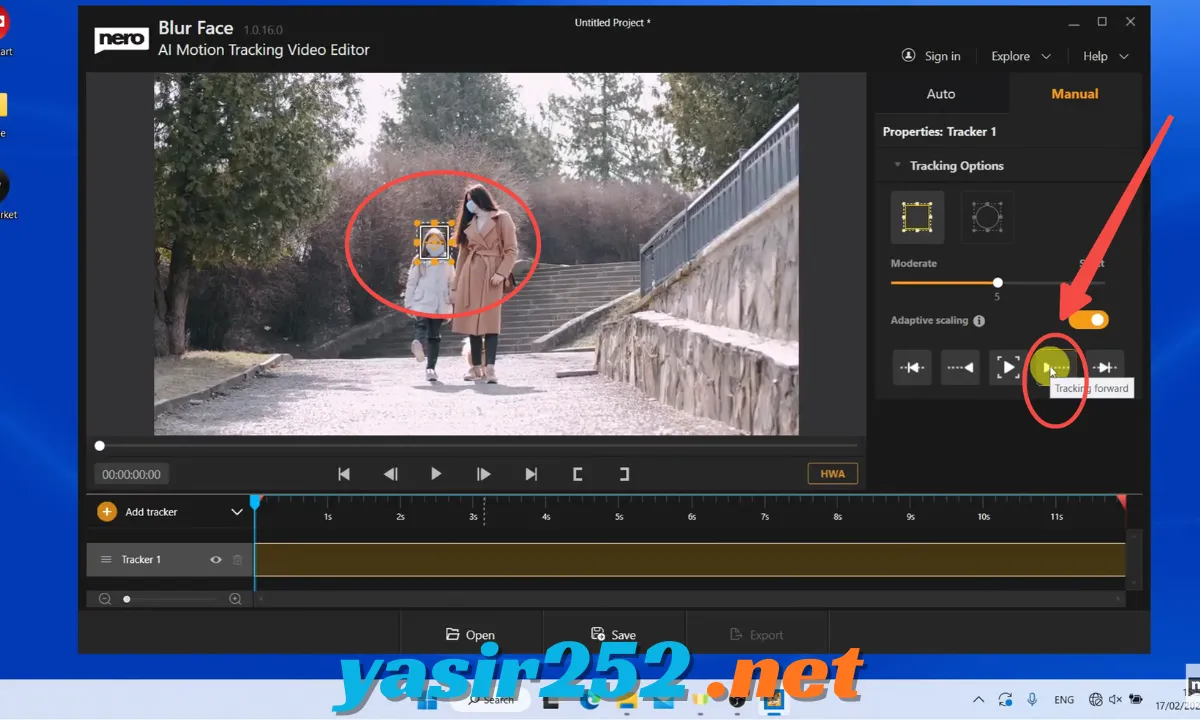
The software can automatically identify faces in video footage and create tracking areas around them. This makes it easier to anonymize multiple people without manually selecting every face throughout the entire recording.
2. AI Motion Tracking
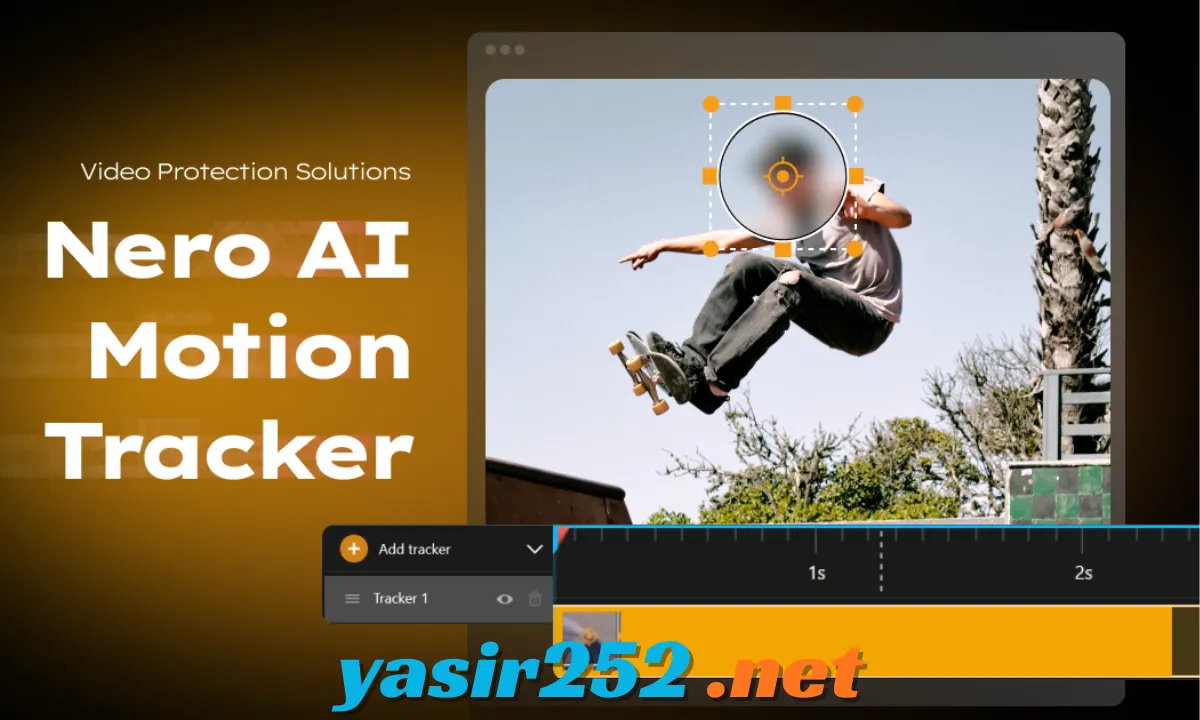
Motion tracking follows selected faces or objects as they move across the video. The tracking area can adapt to changes in position and size, helping the privacy effect stay aligned with the subject.
3. Manual Tracking
If automatic detection misses a face or selects the wrong area, you can create and adjust a tracking region manually. This gives you more control over which parts of the footage should be hidden.
4. Blur Effects
Apply a blur effect to faces, objects, or other selected areas. You can adjust the effect to make sensitive details less recognizable while keeping the rest of the video visible.
5. Mosaic Effects
The mosaic option pixelates a selected tracking area. It is useful for hiding faces, vehicle registration plates, confidential documents, signs, and other sensitive details.
6. License Plate Privacy
Use motion tracking and blur or mosaic effects to cover vehicle registration plates in moving footage. This can be helpful for dashcam videos, travel recordings, and public video content.
7. Logo and Object Blurring
The software can be used to obscure logos and other tracked objects. This is useful when preparing promotional videos, demonstrations, or footage where particular visual details should remain hidden.
8. Tracking Area Customization
Adjust the tracking region to cover the exact area you want to conceal. Manual adjustments help correct tracking results when a face or object moves unpredictably.
9. Segment Tracking
Newer Nero Motion Tracker documentation describes segment tracking, which allows users to select an object or region for tracking. This extends editing beyond face detection and can help cover more complex moving subjects. Availability depends on the installed version and license.
10. Text and Caption Overlays
Add personalized messages, captions, or text to your video. You can customize supported text properties such as font, size, and color to match the style of your content.
11. Clipart and Image Overlays
Add decorative images or clipart to tracked areas. These elements can follow the selected subject, making it possible to create playful visual effects or cover a face with a graphic.
12. Fixed-Area Blurring
Use a fixed tracking area when the sensitive information stays in one position. This can be useful for covering a stationary section of a video without tracking a moving subject.
13. Video Preview
Preview your edits before exporting the finished video. Reviewing the footage helps you check whether the blur or mosaic effect remains correctly positioned throughout the selected section.
14. Video Trimming
Select the portion of footage you want to export using available timeline controls. This helps you prepare shorter clips without needing to process the entire original recording.
15. Project Saving
Save supported editing projects so you can return to your work later. This is useful when a video requires several tracking adjustments or multiple editing sessions.
16. MP4 Video Export
The listed 1.1.3.0 release information describes MP4 export for processed videos. Export options and output quality should be checked in the installed version before starting a large project.
17. Privacy-Focused Editing
Nero AI Blur Face Pro is useful for reducing the exposure of personal and confidential information in videos. It can help creators prepare footage for social media, websites, presentations, and other public uses.
18. Multiple Tracking Methods
Automatic and manual tracking provide different ways to follow faces and objects. You can use automatic detection for convenience and manual tracking when a particular area needs more precise control.
What Is New in Nero AI Blur Face Pro 1.1.3.0?
The supplied software listing identifies Nero AI Blur Face Pro version 1.1.3.0. Its listed functionality includes motion tracking, blur and mosaic effects, text and image overlays, and video export.
A reliable official changelog specifically confirming the changes introduced in version 1.1.3.0 is not available here, so it would be misleading to describe these features as newly added in that release.
The broader Nero Blur Face and Motion Tracker product documentation also describes automatic face tracking, manual tracking, fixed-area effects, and newer segment-tracking capabilities. These features can vary by release.
How to Download Nero AI Blur Face Pro
To get Nero AI Blur Face Pro safely, check Nero’s official AI software page and download the version currently offered for your Windows system.
Official Nero AI download center: https://pcai.nero.com/downloads
Download and Installation Steps
-
Open the official Nero AI download center.
-
Find Nero AI Blur Face or Nero Motion Tracker.
-
Review the available version, compatibility, and license information.
-
Download the official installer.
-
Open the downloaded setup file.
-
Follow the installation instructions.
-
Launch the application after installation.
-
Import a video and test the available tracking features.
-
Activate a license if your selected edition requires one.
Important: Version 1.1.3.0 is the version identified in the supplied software listing. Do not assume that every third-party package is an official Nero installer. Check the file’s authenticity and license requirements before installing it.
How to Use Nero AI Blur Face Pro
The basic workflow is straightforward: import a video, identify the face or object, track its movement, apply a privacy effect, and export the edited footage.
Step 1: Open the Software
Launch Nero AI Blur Face Pro or the compatible Nero Motion Tracker application on your Windows PC.
Step 2: Import Your Video
Choose the option to open or browse for a video file. Select the recording you want to edit and wait for it to load into the editing workspace.
Step 3: Select Face Tracking
Choose the automatic face-tracking option if you want the software to identify faces in the video. Detected faces can appear as separate tracking areas.
Step 4: Use Manual Tracking if Necessary
If automatic tracking does not identify a face correctly, select the manual tracking option. Position and resize the tracking area around the face or object you want to hide.
Step 5: Start Tracking
Start the tracking process and allow the application to analyze the video. The tracker follows the selected area as it moves through the footage.
Step 6: Apply Blur or Mosaic
Choose the blur or mosaic effect for the selected tracking area. Adjust the available effect settings until the sensitive information is sufficiently obscured.
Step 7: Preview the Video
Play the edited footage and check the tracking throughout the clip. Pay particular attention to fast movement, scene changes, partial obstructions, and moments when the subject leaves the frame.
Step 8: Export the Finished Video
Choose the available export option, select the output settings, and save the processed video to your computer.
Nero AI Blur Face Pro System Requirements
The exact hardware requirements depend on the application build, tracking mode, video resolution, and graphics acceleration support. The following table provides general guidance rather than a guaranteed official minimum specification.
| Component | Suggested Setup |
|---|---|
| Operating System | Windows 10 or Windows 11 |
| Processor | Modern Intel or AMD processor |
| RAM | 4 GB or more recommended |
| Graphics | Compatible GPU; NVIDIA graphics with 6 GB VRAM recommended for demanding tracking workflows |
| DirectX | DirectX 11 or compatible graphics support |
| Storage | SSD recommended; space depends on video files and project cache |
| Display | Standard Windows-compatible display |
| Internet | May be required for download, activation, or updates |
Performance note: Video tracking can be demanding, especially with high-resolution footage and complex objects. An updated graphics driver and a capable GPU can help improve stability and processing performance.
Is Nero AI Blur Face Pro Free?
Nero AI Blur Face Pro should not be described as completely free based only on third-party download listings. Nero provides its software through official distribution channels, and the availability of free downloads, trial access, premium features, and paid licenses depends on the particular product and edition.
| Version or Access Type | Details |
|---|---|
| Official Download | Check Nero’s download center |
| Free Access | Availability depends on the current offering |
| Premium Features | May require a Pro license or purchase |
| Version 1.1.3.0 | Identified in the supplied third-party listing |
| Registration | Follow the official activation process |
| Crack or Keygen | Not an official licensing method |
Avoid modified installers, unofficial activation tools, and suspicious registration keys. They can contain malware, compromise your files, or cause the software to malfunction.
Advantages and Disadvantages
Advantages
-
Automatic Face Detection: Helps identify faces in video footage without manually selecting every one.
-
Motion Tracking: Follows moving faces and objects through the video.
-
Blur and Mosaic Effects: Provides two useful methods for concealing sensitive visual details.
-
Manual Control: Allows you to adjust tracking areas when automatic detection needs correction.
-
Privacy Protection: Useful for hiding faces, license plates, logos, and confidential information.
-
Text and Clipart: Adds captions and decorative graphics to tracked areas.
-
Video Export: Allows you to save processed footage for sharing or further editing.
-
Simple Workflow: Combines tracking and privacy effects in a focused editing environment.
Disadvantages
-
Windows Focus: The desktop application is intended for Windows users.
-
Hardware Demands: Complex tracking and high-resolution videos may require a capable computer.
-
Manual Corrections: Automatic tracking may need adjustments in difficult footage.
-
License Limitations: Some features may require a paid edition or subscription.
-
Version Differences: Features and export options can vary between releases.
-
Processing Time: Longer videos and complex tracking tasks can take additional time.
Best Alternatives to Nero AI Blur Face Pro
If you need another way to hide faces or sensitive information in videos, consider these alternatives.
| Software | Main Purpose | Pricing |
|---|---|---|
| DaVinci Resolve | Video editing, masking, tracking, and effects | Free and paid editions |
| Adobe Premiere Pro | Video editing and masking workflows | Subscription |
| CapCut | Video editing and visual effects | Free and paid features |
| Shotcut | Video editing and filters | Free / Open Source |
| Kdenlive | Video editing, effects, and masking workflows | Free / Open Source |
DaVinci Resolve
DaVinci Resolve is a professional video editing application with advanced color grading, visual effects, and tracking tools. It can be used to create privacy masks and follow moving subjects, although the workflow is more involved than using a dedicated face-blurring tool.
Adobe Premiere Pro
Adobe Premiere Pro provides professional editing tools, masking, and tracking workflows. It is suitable for editors who want to combine privacy editing with a larger video production process.
CapCut
CapCut is a popular video editing application with accessible editing tools and effects. It may be useful for creators who need a simpler workflow for preparing social media videos.
Shotcut
Shotcut is an open-source video editor that supports filters and video editing operations. It can be a useful free option for users who want more control over their editing process.
Kdenlive
Kdenlive is another open-source editor that offers a range of video editing and effects tools. It is suitable for users who prefer a flexible desktop editor and are comfortable working with manual masking workflows.
Frequently Asked Questions (FAQs)
1. What is Nero AI Blur Face Pro?
Nero AI Blur Face Pro is an AI-assisted video editing application designed to track faces and other selected areas, then apply blur or mosaic effects to protect sensitive information.
2. What is the latest version of Nero AI Blur Face Pro?
The supplied software listing identifies version 1.1.3.0. Check Nero’s official download center for the currently supported release.
3. Is Nero AI Blur Face Pro free?
Its full licensing terms depend on the edition. Check Nero’s official website for current free access, trial availability, and premium purchase options.
4. Can Nero AI Blur Face Pro blur faces automatically?
Yes, its automatic face-tracking functionality can identify faces in video footage and create tracking areas for applying privacy effects.
5. Can I blur multiple faces in one video?
The face-tracking workflow supports identifying and tracking multiple faces, allowing you to apply privacy effects to selected faces.
6. Can Nero AI Blur Face Pro blur license plates?
Yes, you can use tracking areas and blur or mosaic effects to conceal license plates and other sensitive details in video footage.
7. Does Nero AI Blur Face Pro support Windows 11?
The application is intended for Windows. Check the system requirements of your specific release to confirm compatibility with Windows 11.
8. What is the difference between blur and mosaic?
Blur makes a selected area appear out of focus, while mosaic replaces visual details with visible pixel blocks. Both effects can help conceal faces and private information.
9. Can I manually select a face to blur?
Yes, manual tracking allows you to select and adjust an area around a face or object when automatic detection is not suitable.
10. Does Nero AI Blur Face Pro support motion tracking?
Yes, motion tracking is a central feature. It follows selected faces or objects as they move through the video.
11. Can I use Nero AI Blur Face Pro to hide logos?
Yes, you can track a selected logo and apply a blur or mosaic effect to conceal it.
12. Can I add text to videos?
Yes, the listed feature set includes text overlays and personalized captions with customizable font, size, and color options.
13. Can I add images or clipart?
Yes, the application supports adding images or decorative clipart to tracked areas in supported versions.
14. Does Nero AI Blur Face Pro support MP4 export?
The listed version 1.1.3.0 information describes MP4 video export. Confirm the available output settings in your installed edition.
15. Can I use Nero AI Blur Face Pro for YouTube videos?
Yes, it can help prepare videos for YouTube by concealing faces, vehicle plates, and other private details before publishing.
16. Is Nero AI Blur Face Pro suitable for professional use?
It can be useful for privacy-focused editing and content preparation. Professional users should review tracking accuracy, export quality, and license terms before relying on it for commercial projects.
17. What is Nero Motion Tracker?
Nero Motion Tracker is the name used in Nero’s documentation for its motion-tracking functionality. It provides tools for tracking faces and objects and applying visual effects.
18. Does Nero AI Blur Face Pro require a powerful GPU?
A compatible graphics processor can improve tracking performance. Nero’s current guidance recommends an NVIDIA GPU with at least 6 GB of VRAM for the most stable experience with demanding tracking workflows.
19. Is Nero AI Blur Face Pro available for Mac?
The desktop version discussed here is Windows-focused. Check Nero’s official product information for any separately supported macOS application.
20. Where can I download Nero AI Blur Face Pro safely?
Use Nero’s official AI download center:
https://pcai.nero.com/downloads
Final Words
Nero AI Blur Face Pro is a useful video privacy and motion-tracking tool for anyone who needs to hide faces, license plates, logos, or other sensitive details in recordings. Its automatic face detection, manual tracking, blur and mosaic effects, text overlays, and video export options make it a practical choice for privacy-focused video editing.
If you’re searching for Nero AI Blur Face Pro Download [2027], check the official Nero download center for the available edition, supported Windows version, and licensing requirements. For creators, journalists, businesses, and everyday users, it offers a convenient way to make video content more privacy-conscious before sharing it online.