
Paint.NET Free Download – Free Photo Editing Software for Windows 5.2 (x64) Multilingual
Paint.NET is a powerful yet easy-to-use image and photo editing program designed for Windows users. It gives you useful editing tools like layers, special effects, image adjustments, selections, and unlimited undo without making the interface feel complicated. Whether you’re editing personal photos, creating graphics, or working on digital designs, Paint.NET offers a practical alternative to more complex image editors.
The best part is that the Classic Desktop version of Paint.NET is completely free to download and use. It is actively developed by Rick Brewster and supports plugins that add extra effects and file formats. Users can also choose the paid Microsoft Store edition, which offers the same core functionality with fully automatic updates.
Paint.NET 5.2 Download Links
| Part / Link | Official / DDownload | Rapidgator | Nitroflare |
|---|---|---|---|
| Paint.NET 5.2 x64 | 🔵 DOWNLOAD | 🟣 DOWNLOAD | 🟡 DOWNLOAD |
Paint.NET Software Information
| Field | Details |
|---|---|
| Software Name | Paint.NET |
| Version | 5.2 |
| Release Date | November 10, 2026 |
| Developer | Rick Brewster |
| Publisher | dotPDN LLC |
| License | Freeware (Classic Desktop Edition) |
| Category | Image and Photo Editing |
| Operating System | Windows 10 (21H2 or newer), Windows 11 |
| Architecture | 64-bit (x64 with AVX2 or ARM64) |
| Official Website | paint.net |
| File Type | Installer, Portable ZIP, Offline Installer |
Version note: Paint.NET 5.2 is the latest stable release as of November 11, 2026. Earlier 5.2 builds were beta versions.
What Is Paint.NET?
Paint.NET is a Windows-based image editing application that started as a college project intended to provide a free alternative to Microsoft Paint. Over time, it developed into a more capable editor with advanced tools for photo manipulation, graphic design, and digital artwork.
Its interface is designed to be approachable for beginners while still providing useful features for experienced users. You can work with multiple images, organize designs using layers, apply visual effects, adjust colors, and extend the program with community-created plugins.
Key Features of Paint.NET
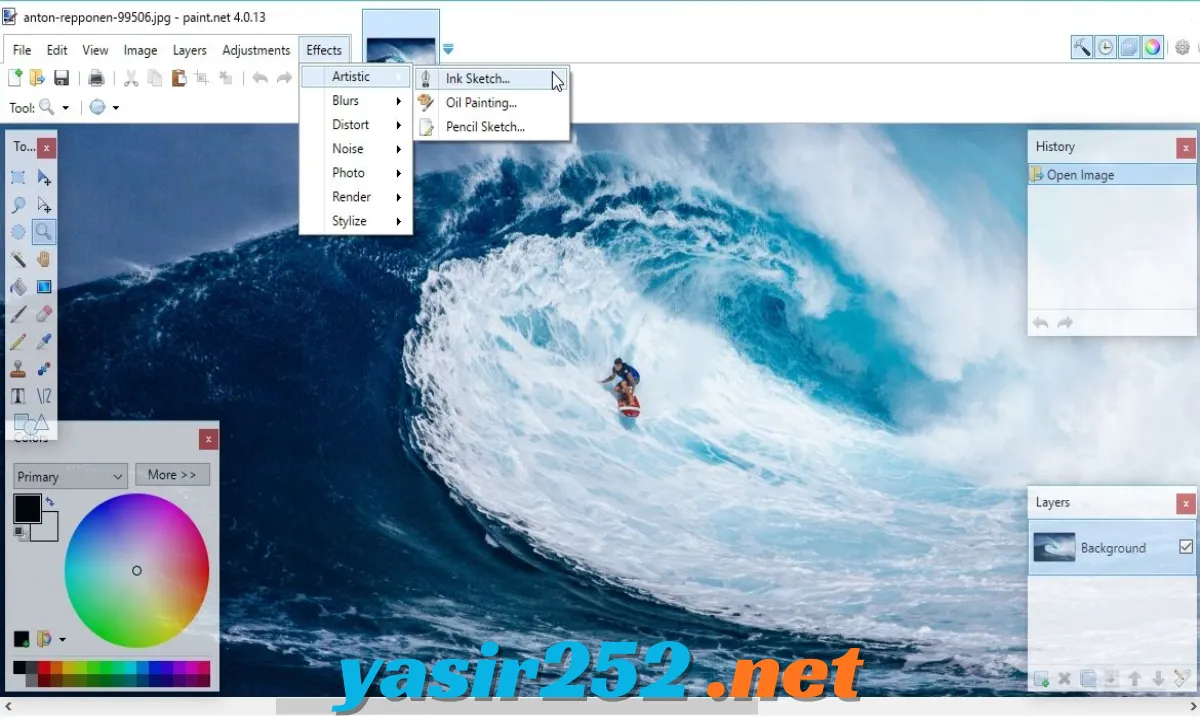
– Layer-Based Editing: Create complex compositions by stacking multiple image layers. You can reorder layers, adjust transparency, and use different blending modes to control how elements appear.
– Unlimited Undo History: Every editing action is recorded in the History window. You can return to an earlier editing point without manually reversing each change, with history limited by available memory and disk space.
– Multiple Image Support: Open several images at the same time using the tabbed document interface. Each tab displays a thumbnail, making it easier to switch between projects.
– Special Effects: Apply built-in effects to improve or transform images. These tools are useful for creating blur, distortion, artistic effects, and other visual changes.
– Image Adjustments: Improve photos with color and tonal adjustments. You can modify image appearance to achieve a more balanced or creative result.
– Selection Tools: Select specific areas of an image for editing. This makes it easier to apply changes to individual objects or portions of a design.
– Drawing and Painting Tools: Use brushes, shapes, gradients, and other drawing tools to create artwork or modify existing images.
– Full Color Management: Paint.NET supports color profiles such as sRGB, Adobe RGB, Display P3, and ProPhoto RGB. You can also work with supported ICC and ICM color profiles.
– Plugin Support: Extend the program with third-party plugins that add new effects, adjustments, and image file formats. The Paint.NET community provides additional resources and tools.
– Multi-Core Performance: Its rendering engine is designed to take advantage of modern multi-core processors, helping improve performance during image editing.
– Wide Language Support: The application includes multiple built-in languages, making it accessible to users from different regions.
– Automatic Updates: Paint.NET can check for updates and provide new features, bug fixes, and performance improvements.
Supported Image File Formats
Paint.NET supports several popular image formats, while additional formats can be added through compatible FileType plugins.
| Format | Extension |
|---|---|
| Paint.NET Image | .pdn |
| PNG | .png |
| JPEG | .jpg, .jpeg, .jpe |
| JFIF | .jfif |
| EXIF JPEG | .exif |
| DDS | Through supported FileType plugin |
| JPEG XL | Through supported FileType plugin |
| Additional Formats | Through compatible plugins |
Plugin availability and supported format features can vary by plugin version.
Paint.NET Plugins and Extensions
One of the most useful parts of Paint.NET is its plugin ecosystem. You can install additional plugins to expand the application’s editing capabilities without replacing the main program.
Common plugin categories include:
-
Effects Plugins: Add new artistic filters, distortions, and visual effects.
-
Adjustment Plugins: Provide additional ways to modify image colors, brightness, and appearance.
-
FileType Plugins: Add support for additional image formats.
-
Creative Tools: Extend the editor with tools for specialized graphics and image manipulation.
Download plugins from the official Paint.NET community forum and check compatibility with your installed version.
Paint.NET System Requirements
Paint.NET 5.2 is designed for modern 64-bit Windows systems. Check these requirements before installing the application.
| Requirement | Details |
|---|---|
| Operating System | Windows 11 |
| Older Supported OS | Windows 10 version 21H2 or newer |
| Server Support | Windows Server 2022 |
| Processor | 64-bit Intel/AMD x64 with AVX2 or ARM64 |
| CPU Cores | At least 4 cores |
| Graphics | GPU supporting Direct3D 11 |
| Storage | SSD recommended |
| .NET Runtime | Microsoft .NET 9 included with the application |
| HDR Display | Optional |
| Windows Ink Pen | Optional |
Important: Older processors without AVX2 may still work, but performance can be slower and is not part of the developer’s current optimization and testing focus. An HDD may also work, but an SSD is recommended.
Is Paint.NET Really Free?
Yes. Paint.NET offers a genuinely free Classic Desktop edition that you can download from its official website. It does not require a subscription, trial activation, or paid licence to use.
There are two main editions:
| Edition | Price | Main Difference |
|---|---|---|
| Classic Desktop | Free | Standard desktop edition with manual update options |
| Microsoft Store | Paid | Same core functionality with fully automatic updates |
Both editions provide the same core editing functionality. The paid Store edition is an optional way to support the developer and receive automatic updates.
You can also use Paint.NET for personal, commercial, educational, and government purposes under its licensing terms.
How to Download Paint.NET for Free
Follow these instructions to download the free Classic Desktop edition:
-
Open the official Paint.NET website.
-
Visit the download section.
-
Find the free Classic Desktop download option.
-
Select the free download rather than the paid Microsoft Store edition.
-
Download the installer to your Windows computer.
-
Wait for the download to complete.
-
Open the downloaded installer to begin setup.
Official Download: https://www.getpaint.net/download.html
For offline installers, portable ZIP packages, and deployment MSIs, you can also visit the official release page:
https://github.com/paintdotnet/release/releases
How to Install Paint.NET on Windows
After downloading the installer, follow these steps:
-
Locate the downloaded Paint.NET setup file.
-
Double-click the installer to launch it.
-
Allow Windows to display the installation permission prompt if required.
-
Follow the setup instructions.
-
Choose the installation options available in the installer.
-
Wait for the installation process to finish.
-
Launch Paint.NET from the Windows Start menu.
-
Open an image and start editing.
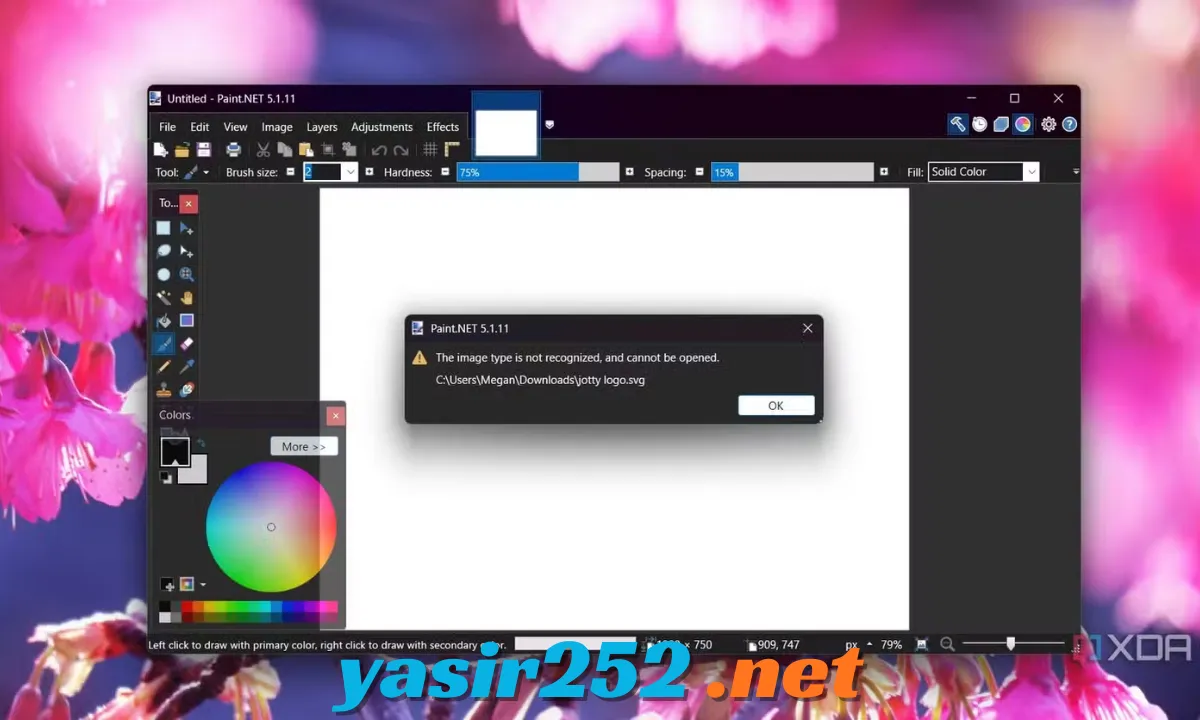
The application includes its required .NET components, so you do not need to install Microsoft .NET 9 separately.
How to Use Paint.NET
Getting started with Paint.NET is simple, even if you have never used an advanced image editor.
-
Open an Image: Launch Paint.NET and select File > Open to load a photo or graphic.
-
Choose a Tool: Select a brush, selection tool, shape tool, or another editing option from the toolbar.
-
Edit Your Image: Apply adjustments, draw elements, or use effects to improve the image.
-
Work with Layers: Open the Layers window to add, remove, reorder, or adjust layers.
-
Use Undo History: If you make a mistake, open the History window and return to an earlier editing action.
-
Save Your Project: Save your editable project in PDN format or export it to a suitable image format.
Advantages and Disadvantages
| Advantages | Disadvantages |
|---|---|
| Free Classic Desktop edition | Designed primarily for Windows |
| Beginner-friendly interface | Some advanced features require plugins |
| Supports layer-based editing | Not a full replacement for professional design suites |
| Unlimited undo history | Performance depends on system hardware |
| Multiple images in tabs | Modern 64-bit hardware requirements |
| Supports color management | Some file formats require plugins |
| Active plugin community | Store edition is paid |
Frequently Asked Questions
1. Is Paint.NET free to download?
Yes. The Classic Desktop edition is completely free to download and use. The Microsoft Store edition is paid but provides the same core editing functionality.
2. What is the latest version of Paint.NET?
Paint.NET 5.2 is the latest stable release as of November 11, 2026.
3. Is Paint.NET available for Windows 11?
Yes. Paint.NET supports Windows 11 and is designed for compatible 64-bit systems.
4. Can I use Paint.NET on Windows 10?
Yes. Paint.NET 5.2 supports Windows 10 version 21H2 or newer.
5. Is Paint.NET good for beginners?
Yes. Its straightforward interface, familiar tools, and useful editing features make it suitable for beginners who want more control than basic image editors provide.
6. Does Paint.NET support layers?
Yes. You can create multiple layers, change their order, adjust transparency, and use blending modes to build complex images.
7. Does Paint.NET support plugins?
Yes. Third-party plugins can add new effects, adjustments, and file format support.
8. Can Paint.NET edit PNG and JPEG images?
Yes. Paint.NET supports popular image formats such as PNG and JPEG, making it useful for everyday photo editing and graphic work.
9. Is Paint.NET better than Microsoft Paint?
Paint.NET provides more advanced editing features, including layers, special effects, and an extensive undo history. Microsoft Paint is more suitable for basic drawing and simple image changes.
10. Can I use Paint.NET for commercial projects?
Yes. The developer’s licensing information allows commercial use, as well as personal, educational, and government use.
11. Does Paint.NET work on Mac?
Paint.NET is primarily designed for Windows. Experimental Wine-based options may be available, but macOS is not an officially supported primary platform.
12. Does Paint.NET support ARM64 processors?
Yes. Current versions support compatible ARM64 Windows systems.
13. Do I need to install .NET separately?
No. Paint.NET includes the required Microsoft .NET runtime components with the application.
14. Can I download Paint.NET without Microsoft Store?
Yes. You can download the free Classic Desktop edition directly from the official Paint.NET website without using Microsoft Store.
15. Can Paint.NET open Photoshop PSD files?
Native PSD support is not a standard built-in feature. You may need a compatible third-party FileType plugin, and compatibility can vary.
16. Is Paint.NET safe to download?
The official Classic Desktop installer is provided by the Paint.NET developer. Download it from the official website or official release repository rather than unfamiliar third-party download sites.
Conclusion
Paint.NET is an excellent choice for Windows users who want a capable image editor without paying for a subscription. Its layer-based editing, special effects, unlimited undo history, color management, and plugin support make it useful for photo editing and everyday graphic design.
The free Classic Desktop edition provides the core Paint.NET experience without requiring a paid licence. If you need a lightweight and approachable editor for your Windows PC, Paint.NET 5.2 is worth checking out.