
Pepakura Designer 6.3.9 (x64) Multilingual Download – Create 2D Papercraft Patterns from 3D Models
Pepakura Designer is a creative papercraft design software developed by Tamasoft that lets you turn 3D models into printable 2D paper patterns. Instead of building everything from scratch, you can import an existing 3D model and unfold it into separate pieces that are ready for printing, cutting, folding, and assembling. It’s a pretty useful tool for anyone who enjoys making paper models, helmets, cosplay props, vehicles, and detailed DIY projects.
The best part is that Pepakura Designer gives you plenty of control over how your paper patterns look before printing. You can adjust parts, add labels, change layouts, customize paper sizes, and prepare your designs for real-world crafting. Version 6 also introduces useful improvements such as reference avatars for costume fitting, better unfolding algorithms, and support for modern 3D model formats. You can download the installer for free, but saving and exporting finished patterns require a purchased license.
Pepakura Designer Software Information
| Field | Details |
|---|---|
| Title | Pepakura Designer 6 |
| Genre | 3D Modeling / Papercraft Design |
| Developer | Tama Software Ltd. (Tamasoft) |
| Publisher | Tama Software Ltd. (Tamasoft) |
| Franchise | Pepakura |
| Release Date | Original release date not specified; Version 6 is the current major generation |
Main Features of Pepakura Designer
1. 3D to 2D Unfolding
3D Model Conversion: Transform 3D computer graphics models into flat 2D paper patterns. The software automatically unfolds the model into individual pieces that can be printed and assembled into a physical object.
2. Automatic Unfolding
Smart Unfolding Engine: Generate paper patterns from 3D geometry with automatic unfolding tools. You can also adjust the unfolding process to get a layout that works better for your project.
3. Interactive 3D and 2D Views
Real-Time Design Workspace: View the original 3D model alongside its unfolded 2D pattern. This makes it easier to understand how individual paper pieces connect during assembly.
4. Manual Pattern Editing
Custom Pattern Adjustment: Move, rotate, separate, join, and rearrange unfolded parts to create a more practical layout. You can fine-tune the design before sending it to your printer.
5. Reference Avatar
Costume Model Fitting: Load a human-body avatar as a reference model in the 3D workspace. You can move and scale costume designs to match your height and body shape, while the 2D pattern updates automatically.
6. Multiple 3D Model Formats
3D File Compatibility: Import supported 3D model formats, including OBJ, STL, and glTF 2.0 formats such as GLB. This makes it easier to work with models created in different 3D applications.
7. Paper Layout Customization
Flexible Page Settings: Customize paper sizes, margins, and pattern placement according to your printing requirements. This helps you prepare designs for different paper formats.
8. Texture and Material Support
Detailed Model Appearance: Work with model textures and material information where supported by the imported file format. This helps you identify different surfaces and components while preparing patterns.
9. Edge and Face Editing
Precise Geometry Control: Join or separate faces and adjust model edges to improve the unfolding result. These tools are useful when working with complex or imperfect 3D geometry.
10. Fold Lines and Assembly Guides
Easy Paper Assembly: Display fold lines, edge identifiers, and other visual guides on your patterns. These details make it easier to understand where each paper section should be folded and connected.
11. Parts Arrangement
Optimized Pattern Layout: Arrange unfolded pieces across paper sheets to make better use of available space. Version 6.3.6 introduced a revised layout algorithm to improve paper usage and processing speed.
12. Print and Export Options
Printable Papercraft Templates: Prepare your unfolded designs for printing and supported output formats such as PDF, SVG, and EPS. These formats are useful for different printing and cutting workflows.
13. Text and Image Objects
Custom Pattern Labels: Add text and images to the 2D pattern to provide instructions, labels, or visual details. You can adjust their placement to make your papercraft templates easier to understand.
14. Undo and Redo
Flexible Editing History: Reverse or restore supported editing operations while working on your design. This makes experimenting with different pattern arrangements easier.
15. Dark Mode
Comfortable Workspace: Use the simple dark mode introduced in version 6.1.3 to change the application’s appearance. It provides an alternative interface for users who prefer darker workspaces.
16. Sample Models and Learning Resources
Ready-to-Use Examples: Practice with sample data such as geometric solids, cars, helmets, and gift boxes. These examples are useful for learning how 3D objects become printable paper patterns.
17. OBJ Model Optimization
Improved OBJ Compatibility: Pepakura Designer 6.3 includes improvements for loading OBJ models, including automatic coordinate-system and scale detection for supported Blender exports.
18. Grid Snapping
Accurate Part Positioning: Use grid snapping to position and arrange pattern components more accurately. This helps keep your paper layouts organized during editing.
19. Custom Scaling and Rotation
Flexible Model Resizing: Move, rotate, and scale objects to match your project requirements. You can also scale models independently along the X, Y, and Z axes.
20. Cutting Plotter Support
Silhouette and Cutting Workflows: Export supported registration marks for compatible cutting equipment, including Silhouette CAMEO workflows. SVG output also supports maintaining the intended scale in Cricut Design Space.
What’s New in Pepakura Designer 6.3.9?
November 2, 2026
Pepakura Designer 6.3.9 is the latest version listed in the official release notes as of November 3, 2026. This update improves how vertices located at identical coordinates are merged when importing 3D models.
Other recent version 6 improvements include:
-
Improved Unfolding Algorithm: Better processing and paper-space efficiency when creating patterns.
-
GLTF and GLB Support: Import modern 3D models using glTF 2.0 formats.
-
PDF Export: Save patterns in PDF format for convenient printing.
-
Better OBJ Import: Improved compatibility with models exported from Blender.
-
Avatar Reference: Fit costume designs to a human-body reference model.
-
Enhanced Editing: Additional object movement, rotation, scaling, and Undo/Redo capabilities.
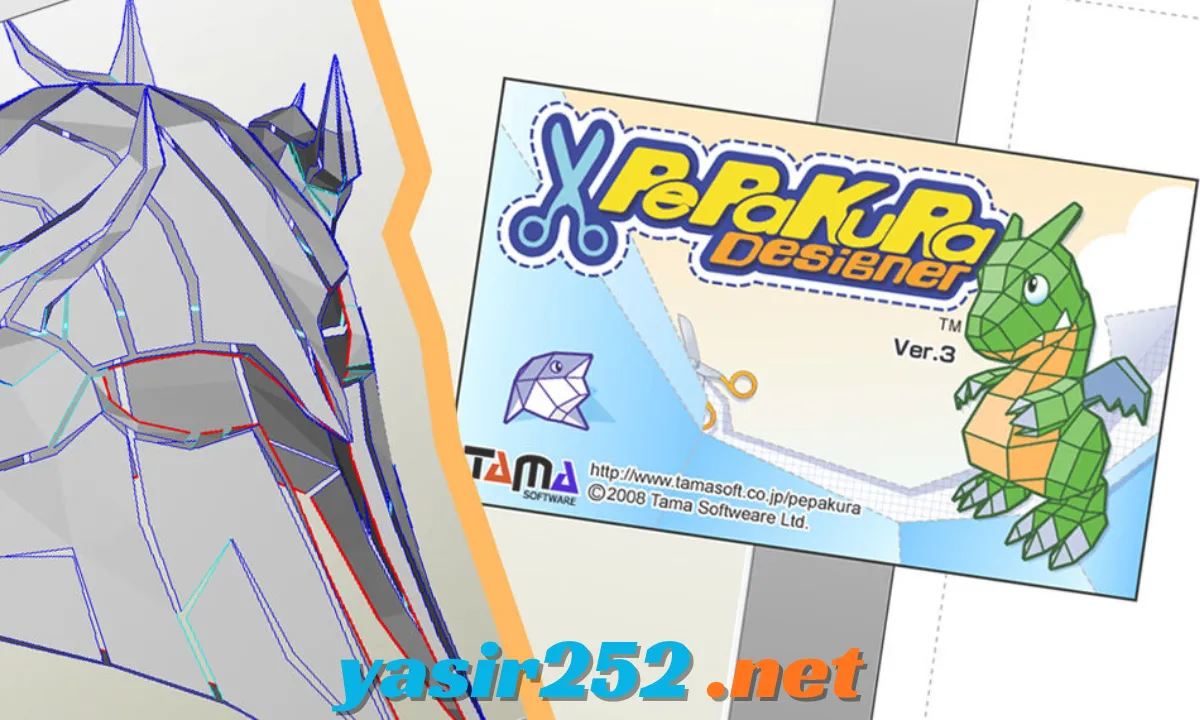
Is Pepakura Designer Free?
Pepakura Designer offers a free installer, but it is not completely free for unrestricted use.
You can download the software and access its features before purchasing a license. However, saving and exporting finished patterns are restricted until you purchase and register a license key.
| Feature | Free Version | Licensed Version |
|---|---|---|
| Download Installer | Yes | Yes |
| Open 3D Models | Yes | Yes |
| Unfold 3D Models | Yes | Yes |
| Edit 2D Patterns | Yes | Yes |
| Adjust Model Scale | Yes | Yes |
| Preview Designs | Yes | Yes |
| Save Projects | Restricted | Yes |
| Export Patterns | Restricted | Yes |
| Print Finished Patterns | Restricted | Yes |
Important: If your intention is Pepakura Designer Free Download, you can use the official free installer to explore its features. A license key is required for saving and exporting completed designs.
System Requirements
| Component | Requirements |
|---|---|
| Operating System | Windows |
| Supported Windows | Windows 10 / Windows 11 |
| Processor | Compatible Windows processor |
| RAM | Depends on 3D model complexity |
| Storage | Free space for installation and project files |
| Graphics | Graphics hardware compatible with Windows |
| Internet | Required for downloading the installer and license-related operations |
How to Download Pepakura Designer
Follow these simple steps to download Pepakura Designer for Windows:
-
Visit the official Tamasoft Pepakura Designer website.
-
Open the Download section.
-
Find Pepakura Designer 6 for Windows.
-
Click Free Download (Installer).
-
Save the installer to your computer.
-
Run the downloaded setup file.
-
Follow the installation instructions.
-
Launch Pepakura Designer from the Start Menu.
-
Import a 3D model and start creating paper patterns.
Official Pepakura Designer Download
Pepakura Designer 6
Windows · Free installer · License required for saving and exporting
Download Free InstallerOfficial Tamasoft download page.
How to Use Pepakura Designer
-
Open Pepakura Designer on your Windows computer.
-
Click File and select Open.
-
Import a supported 3D model such as OBJ, STL, or GLB.
-
Adjust the model orientation and scale if necessary.
-
Select the Unfold option to generate the 2D pattern.
-
Review the unfolded pieces in the 2D workspace.
-
Rearrange, rotate, and adjust individual parts.
-
Add labels and fold guides where needed.
-
Check the pattern layout before printing or exporting.
-
Purchase and activate a license to save and export your finished design.
Frequently Asked Questions
1. Is Pepakura Designer free to download?
Yes, Tamasoft provides a free installer. However, saving and exporting finished patterns require a purchased license.
2. What is Pepakura Designer used for?
It converts 3D models into printable 2D patterns for paper crafting, cosplay props, helmets, masks, vehicles, and other DIY projects.
3. What is the latest version of Pepakura Designer?
Version 6.3.9 is listed in the official release notes dated November 2, 2026.
4. Does Pepakura Designer support Windows 11?
Yes, it is a Windows application compatible with modern Windows systems, including Windows 11.
5. Can Pepakura Designer import OBJ files?
Yes, OBJ is a supported 3D model format.
6. Does Pepakura Designer support STL files?
Yes, STL models can be imported for creating unfolded paper patterns.
7. Can I export Pepakura designs as PDF?
Yes, PDF is among the supported pattern export formats, but exporting requires a registered license.
8. Can I use Pepakura Designer for cosplay?
Yes, it is useful for creating wearable paper patterns, costume parts, masks, and helmet designs.
9. What is the PDO file format?
PDO is Pepakura Designer’s project format, used to store 3D model and unfolded pattern information.
10. Does Pepakura Designer include 3D modeling tools?
It focuses on unfolding and editing 3D models into paper patterns rather than creating complete 3D models from scratch.
11. Can I adjust the size of a costume model?
Yes, version 6.2 introduced a reference avatar feature that allows costume models to be fitted to a person’s height and body shape.
12. Does Pepakura Designer support Cricut?
Its supported SVG export workflow can maintain the correct scale when importing designs into Cricut Design Space.
Conclusion
Pepakura Designer is an excellent choice for anyone interested in papercraft, cosplay, and 3D model conversion. Its automatic unfolding technology, interactive 3D and 2D views, flexible pattern editing, avatar fitting, and multiple export formats make it a useful tool for creating detailed paper models.
The free installer lets you explore almost all design features before purchasing a license. However, saving and exporting completed patterns require activation. If you enjoy creating helmets, masks, vehicles, costumes, or custom paper models, Pepakura Designer 6 is definitely worth trying.