
Personal Backup Download 6.4.15.0 Free for Windows 11, 10, 8 & 7
Personal Backup is a free Windows backup utility developed by Dr. Jürgen Rathlev. It helps protect important files, folders, documents, photos, and other personal data by copying them to another storage location. You can save backups to an internal drive, external hard disk, USB storage device, network folder, or FTP server.
What makes Personal Backup useful is its flexible backup scheduling and file management options. You can create multiple backup jobs, automatically copy updated files, compress or encrypt backup data, and restore individual files whenever needed. It also supports portable use, real-time backup through an additional utility, and command-line automation, making it a practical choice for both everyday users and advanced Windows users.
Personal Backup 6.4.1500 Download Links
| Part / Link | Official / DDownload | Rapidgator | Nitroflare |
|---|---|---|---|
| Personal Backup 6.4.1500 | 🔵 DOWNLOAD (32-bit) / 🔵 DOWNLOAD (64-bit) | 🟣 DOWNLOAD | 🟡 DOWNLOAD |
Personal Backup Software Information
| Field | Details |
|---|---|
| Software Name | Personal Backup |
| Latest Version | 6.4.14.0 |
| Developer | Dr. Jürgen Rathlev |
| Publisher | J. Rathlev |
| License | Freeware |
| Category | Backup & Recovery |
| Operating System | Windows 7, 8, 10, 11 |
| Architecture | 32-bit / 64-bit |
| 32-bit Installer Size | 23.4 MB |
| 64-bit Installer Size | 26.7 MB |
| Portable Version | Available as ZIP archive |
| Languages | English, German, French, Spanish, Italian, and others |
| Latest Release Date | September 24, 2026 |
| Official Website | https://personal-backup.rathlev-home.de/ |
Version and installer sizes refer to the official 6.4.14.0 release.
What Is Personal Backup?
Personal Backup is a file and folder backup application designed to help Windows users protect their personal data. Instead of manually copying files every time, you can configure backup tasks that automatically save selected folders to another location.
The software offers flexible selection rules, scheduling, compression, encryption, file verification, and restoration options. It can also keep previous versions of backed-up files, which is useful when you need to recover an earlier copy of a document. One important limitation: Personal Backup is designed for personal data and files, not for creating a complete bootable Windows system image.
Key Features of Personal Backup
– Automatic File Backup: Automatically copy selected files and folders to another storage location. You can configure backup tasks to run manually or according to a schedule.
– Unlimited Backup Tasks: Create and save as many backup configurations as you need. Each task can have its own source folders, destination locations, filters, and backup settings.
– Flexible Backup Destinations: Save files to internal hard drives, external drives, USB devices, Windows network servers, and FTP servers. FTPS connections are also supported.
– Scheduled Backups: Set backups to run at login, logout, shutdown, or a selected time and day. You can also use Windows Task Scheduler for more advanced scheduling.
– Incremental File Copying: Personal Backup checks file timestamps and normally copies only new or modified files. This reduces unnecessary copying and saves time during repeated backup operations.
– File and Folder Selection: Choose complete directories, individual files, or selected subfolders. You can also include or exclude files using different filtering rules.
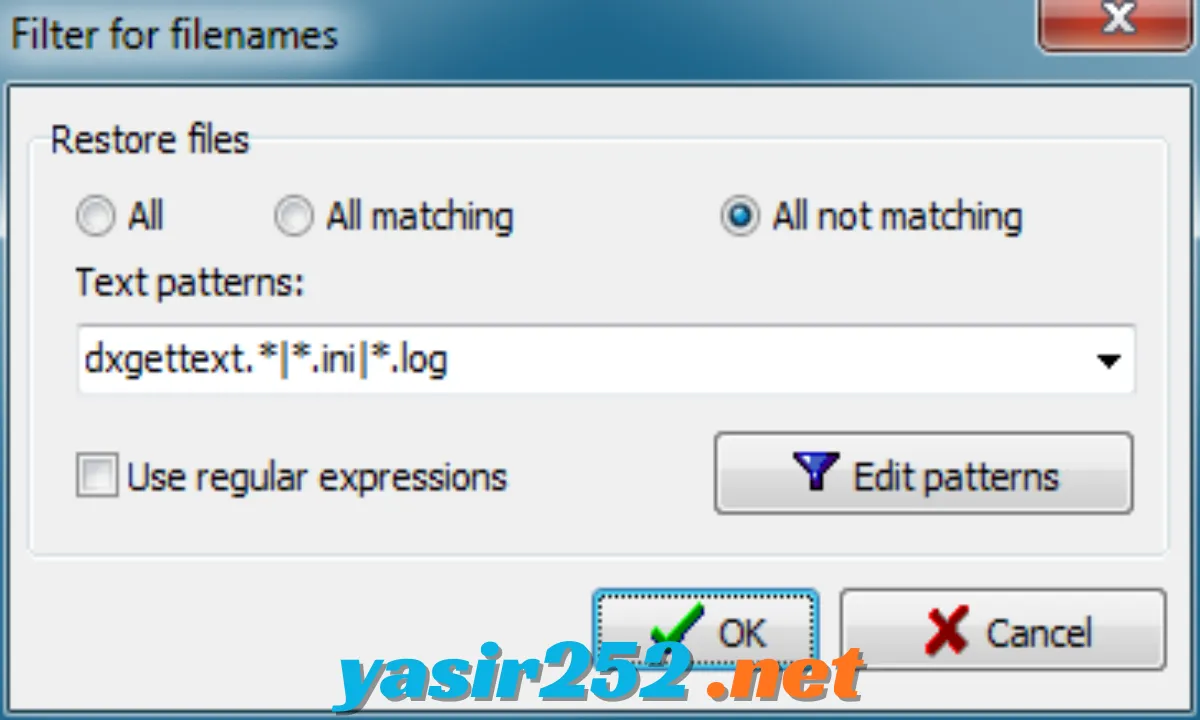
– Advanced File Filters: Filter files by name, extension, age, size, attributes, and regular expressions. This gives you better control over which information is included in each backup.
– ZIP and GZIP Compression: Compress backed-up files to reduce storage requirements. You can save data as separate compressed files or organize it into ZIP archives.
– AES Encryption: Protect supported ZIP backup archives using AES encryption. This helps prevent unauthorized access to sensitive backed-up information.
– Large File Support: Supports ZIP archives containing files larger than 4 GB, making it suitable for backing up large documents, media files, and other personal data.
– Previous File Versions: Keep multiple previous versions of backed-up files instead of replacing every older copy. You can configure how many versions to retain and their maximum age.
– Backup Verification: Check backed-up files to verify that the stored data matches the expected backup content. This helps identify possible backup problems.
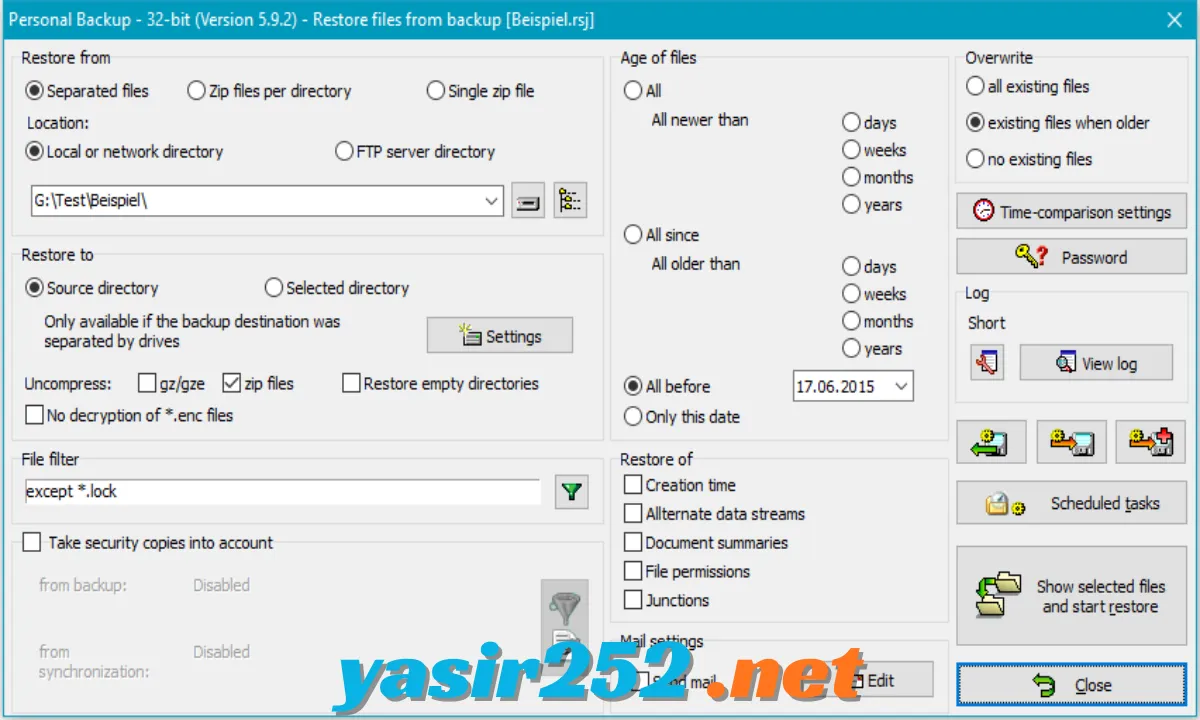
– Easy File Restoration: Restore complete directory structures or select individual files from previous backups. The additional PbRestore utility can also restore files from compressed and encrypted archives.
– Real-Time Backup: Use the additional PbWatchdog utility to monitor selected folders and automatically start backups when changes are detected.
– FTP and FTPS Backup: Transfer backup data to FTP servers, with support for proxy settings and secure FTP over SSL/TLS.
– Volume Shadow Copy Support: Use Windows Volume Shadow Copy Service (VSS) during backup operations. This can help copy files that are otherwise difficult to access while applications are running.
– Windows Explorer Integration: Start a one-click backup through the Windows Explorer context menu. This makes it convenient to back up selected directories without opening the main application.
– Command-Line Support: Run backup tasks through command-line options and integrate them with Windows Task Scheduler or other automation workflows.
– External Program Execution: Run external applications or scripts before or after backup operations. This is useful for automating additional maintenance tasks.
– Email Notifications: Configure email delivery after backup actions, including status information and log files. Secure TLS connections are supported.
– Backup Logs: Generate logs containing information about backup and restore operations. These records help you check completed tasks and troubleshoot problems.
– Thunderbird Backup Utility: Includes TbBackup, an additional tool designed to help users back up and restore Mozilla Thunderbird data.
– Ransomware Protection Support: The PbStarter utility can run backups under a different Windows account. This adds a layer of protection against malware that may otherwise access backup files through the normal user account.
– Multiple Language Support: The application provides several interface languages, including English, German, French, Italian, Spanish, Dutch, Portuguese, Polish, Russian, and Chinese.
Supported Backup Destinations
Personal Backup supports several storage destinations, allowing you to choose where your important files should be stored.
| Backup Destination | Support |
|---|---|
| Internal Hard Drive | Yes |
| External Hard Drive | Yes |
| USB Flash Drive | Yes |
| Windows Network Folder | Yes |
| Network Server | Yes |
| FTP Server | Yes |
| FTPS Server | Yes |
| Cloud Storage via Direct FTP Support | Depends on the service and configuration |
Personal Backup does not provide a built-in general-purpose cloud storage service. Cloud destinations require a compatible FTP or network-based setup.
Backup Compression and Encryption
Personal Backup includes different methods for organizing and protecting backup data.
| Feature | Description |
|---|---|
| Uncompressed Backup | Copies files in their original format |
| GZIP Compression | Compresses files using GZIP |
| ZIP Compression | Stores files in ZIP archives |
| AES Encryption | Encrypts supported ZIP archives |
| Archive Splitting | Splits ZIP archives according to a configured maximum size |
| File Versioning | Retains previous copies of backed-up files |
| Backup Verification | Checks stored backup data |
These options help users balance storage space, backup organization, and data protection.
Personal Backup Portable Download
Personal Backup also offers ZIP packages for updates or portable use. This is useful if you prefer not to run the standard Windows installer.
The portable package can be extracted to a USB drive or another folder and used according to the developer’s portable-use instructions. This makes it convenient for users who want to carry their backup utility between compatible Windows computers.
Important: The ZIP archive is an official download option, but it should be configured correctly before using it on another computer. Keep your backup task settings and destination paths organized when moving between systems.
Personal Backup Free Download: Is It Really Free?
Yes. Personal Backup is genuine freeware developed by Dr. Jürgen Rathlev. You can download and use the program without purchasing a commercial licence or subscribing to a monthly plan.
The developer also accepts voluntary donations to support continued development. The standard backup features are available without a paid upgrade requirement.
| Feature | Free Version |
|---|---|
| File and Folder Backup | Yes |
| Unlimited Backup Tasks | Yes |
| Automatic Scheduling | Yes |
| FTP and FTPS Backup | Yes |
| ZIP and GZIP Compression | Yes |
| AES Encryption | Yes |
| Previous File Versions | Yes |
| Backup Verification | Yes |
| File Restoration | Yes |
| Command-Line Support | Yes |
| Portable ZIP Package | Yes |
| Commercial Subscription | Not Required |
Important: Personal Backup is freeware, not a time-limited trial. You can use its available backup features without paying for a full-version licence.
Personal Backup System Requirements
| Component | Requirement |
|---|---|
| Operating System | Windows 7, 8, 10, 11 |
| 32-bit Version | Supports 32-bit and 64-bit Windows |
| 64-bit Version | Requires 64-bit Windows |
| Processor | Compatible Windows processor |
| RAM | Depends on backup workload |
| Storage | 23.4 MB (32-bit) / 26.7 MB (64-bit) installer |
| Internet Connection | Required for FTP backups and online update checks |
| Additional Software | No additional backup application required |
How to Download Personal Backup
Follow these steps to download Personal Backup safely:
-
Visit the official Personal Backup website.
-
Open the Download section.
-
Find the latest release, version 6.4.14.0.
-
Choose the 32-bit or 64-bit Windows installer.
-
Download the appropriate setup file.
-
Wait until the download finishes.
-
Optionally verify the downloaded file using the published SHA256 checksum.
Official Download Page: https://personal-backup.rathlev-home.de/download-e.html
How to Install Personal Backup on Windows
-
Open the downloaded Personal Backup setup file.
-
Select your preferred installation language.
-
Follow the installation wizard.
-
Choose the installation directory if required.
-
Complete the setup process.
-
Launch Personal Backup from the Start Menu.
-
Create your first backup task.
-
Select the source folders and destination.
-
Configure backup settings and scheduling.
-
Start the backup and check the result.
How to Create Your First Backup
After installing the program, you can create your first backup task using its built-in wizard.
-
Open Personal Backup: Launch the application from your Windows desktop or Start Menu.
-
Create a New Task: Select the option to create a new backup configuration.
-
Choose Source Folders: Select the documents, pictures, videos, or other folders you want to protect.
-
Select Destination: Choose an external drive, USB storage device, network folder, or FTP server.
-
Configure Backup Options: Select compression, encryption, and file filtering settings if needed.
-
Set a Schedule: Choose manual backup or configure an automatic schedule.
-
Save the Task: Store your backup configuration for future use.
-
Start Backup: Run the task and wait for the process to complete.
-
Verify the Files: Use the verification feature to check your backed-up data.
For important files, keep at least one additional backup on a separate physical drive or another secure location.
Advantages and Disadvantages
| Advantages | Disadvantages |
|---|---|
| Completely free freeware | Windows-focused application |
| Supports unlimited backup tasks | Interface may look traditional |
| Automatic backup scheduling | Requires initial configuration |
| Supports FTP and FTPS | Does not create complete bootable system images |
| ZIP and GZIP compression | Cloud storage needs compatible external access |
| AES encryption for supported ZIP archives | Advanced options may confuse beginners |
| Portable ZIP version available | Backup results depend on destination availability |
| File verification and restoration | Not a complete disaster-recovery solution |
| Previous file version retention | Requires users to manage backup storage |
Frequently Asked Questions (FAQ)
1. Is Personal Backup free to download?
Yes. Personal Backup is freeware developed by Dr. Jürgen Rathlev. You can download and use it without purchasing a licence.
2. What is the latest version of Personal Backup?
The latest stable release listed on the official website is Personal Backup 6.4.14.0, released on September 24, 2026.
3. Does Personal Backup work on Windows 11?
Yes. Personal Backup supports Windows 11, Windows 10, Windows 8, and Windows 7.
4. Does Personal Backup support 32-bit and 64-bit systems?
Yes. The developer provides separate 32-bit and 64-bit downloads. The 32-bit build also works on supported 64-bit Windows systems.
5. Can Personal Backup copy files to an external hard drive?
Yes. You can save backups to internal drives, external hard disks, USB devices, and supported network destinations.
6. Does Personal Backup support FTP backups?
Yes. It supports FTP and FTPS connections, including optional proxy configuration.
7. Can Personal Backup automatically back up files?
Yes. You can configure scheduled backups to run at selected times, during login or logout, or through Windows Task Scheduler.
8. Does Personal Backup support ZIP compression?
Yes. It supports ZIP and GZIP compression, along with options for organizing backup archives and splitting them into smaller files.
9. Can Personal Backup encrypt backup files?
Yes. It supports optional AES encryption for compatible ZIP archives.
10. Can Personal Backup restore individual files?
Yes. It includes restoration functionality and the additional PbRestore utility for selecting individual files or restoring complete folders.
11. Does Personal Backup support portable use?
Yes. The official website provides ZIP archives for portable use or program updates.
12. Can Personal Backup create a complete Windows system image?
No. It is designed to back up personal files and folders, not to create a complete bootable Windows system image.
13. Does Personal Backup support real-time backup?
Yes. The additional PbWatchdog utility can monitor selected folders and initiate automatic backups when changes are detected.
14. Can Personal Backup retain older versions of files?
Yes. You can configure the program to keep multiple previous versions of backed-up files and control their retention period.
15. Does Personal Backup support Thunderbird email backup?
Yes. The software package includes TbBackup, an additional utility for backing up and restoring Mozilla Thunderbird data.
16. Can Personal Backup run backups automatically at shutdown?
Yes. You can configure automatic backups at logoff or shutdown, subject to the selected scheduling settings.
17. Is Personal Backup suitable for beginners?
Yes. Its backup wizard helps users create basic backup tasks. However, advanced options such as filters, FTP settings, and encryption may require some configuration knowledge.
18. Where can I download Personal Backup safely?
The safest option is the official developer website, where you can download the latest Windows installer or portable ZIP package.
Conclusion
Personal Backup is a useful free Windows application for protecting important files and folders. Its automatic scheduling, FTP support, ZIP compression, AES encryption, file versioning, and restoration tools make it a practical solution for everyday data protection.
Unlike many commercial backup applications, Personal Backup provides its main features without requiring a paid subscription. It also offers an official portable ZIP package for users who prefer a non-traditional installation.
If you need a lightweight backup utility for documents, photos, and personal files, Personal Backup is worth trying. Download the latest version from the official website and create regular backups to keep your important data safer.