
Rufus Download 4.16.2442 Beta2 Multilingual – Free Latest Version for Windows 11 and 10 (2026)
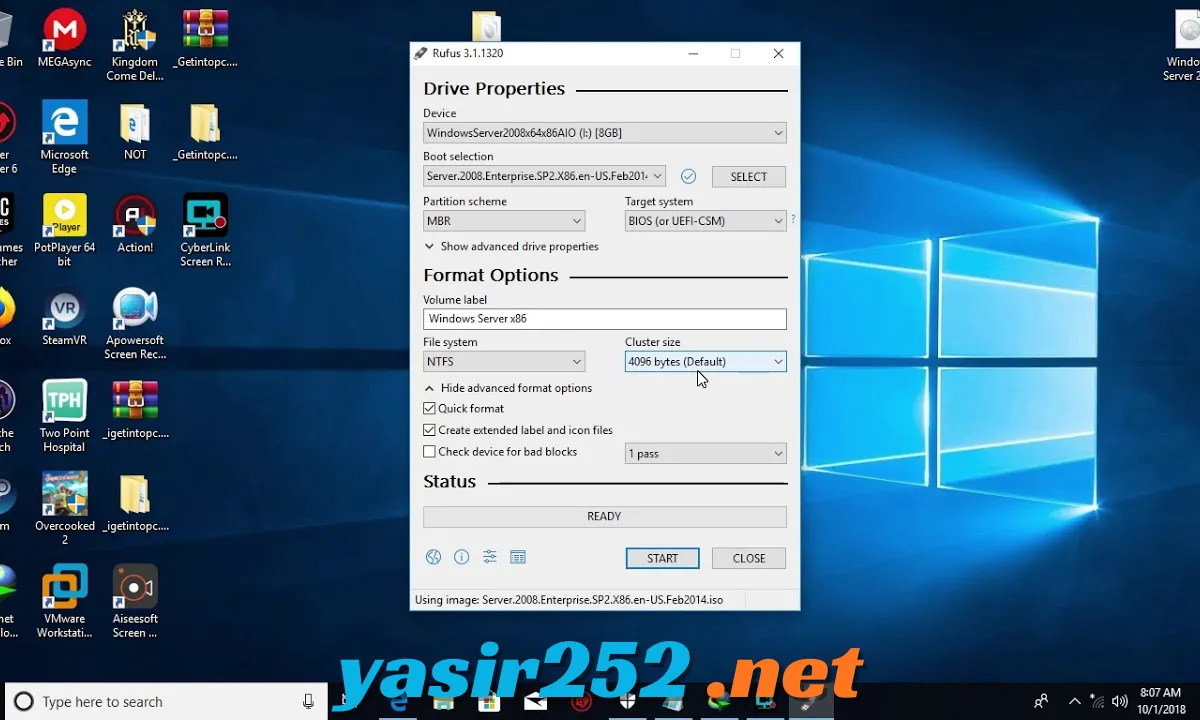
Rufus is a free, open-source utility that makes creating bootable USB drives super easy. If you need to install Windows, try a Linux distribution, update firmware, or prepare a USB drive for system recovery, Rufus helps you get the job done without complicated setup. Just connect your USB drive, select an ISO file, choose the required settings, and let the program create your bootable media.
What makes Rufus stand out is its lightweight design and fast performance. It supports different partition schemes, file systems, and boot modes, including UEFI and BIOS compatibility options. It also comes in a portable version, so you can run it without installing anything on your PC. Whether you’re preparing a Windows 11 installer or a Linux boot drive, Rufus is one of the most practical tools to keep around.
Rufus 4.16 Beta 2 Download Links
| Part / Link | Official GitHub | Rapidgator | Nitroflare |
|---|---|---|---|
| Rufus 4.16 Beta 2 | 🔵 DOWNLOAD | 🟣 DOWNLOAD | 🟡 DOWNLOAD |
Rufus Software Information
| Information | Details |
|---|---|
| Software Name | Rufus |
| Latest Stable Version | 4.15 |
| Stable Release Date | June 30, 2026 |
| Latest Beta | 4.16 Beta 2 (November 11, 2026) |
| Developer | Pete Batard |
| Publisher | Akeo Consulting |
| License | GNU General Public License (GPL) v3 or later |
| Category | Bootable USB Creator / System Utilities |
| Operating System | Windows 8 or later |
| Architecture | x86, x64, ARM64 |
| Supported File Systems | FAT, FAT32, NTFS, UDF, exFAT, and others depending on the image |
| Supported Images | ISO, DD and other supported bootable disk images |
| File Size | Approximately 1.9 MB for the standard x64 version |
| Installation | Portable executable; no traditional installation required |
| Price | Free |
| Official Website | https://rufus.ie/ |
Version note: Rufus 4.15 is the latest stable release listed on the official website. Rufus 4.16 Beta 2 is a pre-release build, not a final stable version.
What Is Rufus?
Rufus is a Windows utility designed to format USB flash drives and turn them into bootable installation or recovery media. It is commonly used to create USB installers for Windows and Linux from ISO images. It can also prepare USB drives for firmware updates and other low-level system tasks.
The program gives you control over important settings such as partition scheme, target system, file system, and formatting options. It supports both modern UEFI-based computers and compatible legacy BIOS systems. Because Rufus is small, portable, and free, it is useful for everyday PC users, technicians, and IT professionals.
Key Features of Rufus
– Create Bootable USB Drives: Turn a regular USB flash drive into bootable installation media using a supported ISO or disk image. This makes it easier to install or repair an operating system.
– Windows Installation Media: Create bootable USB installers for supported Windows ISO images. Rufus provides options for preparing installation media for Windows 10 and Windows 11.
– Linux Bootable USB: Write supported Linux distribution images to a USB drive. You can use the resulting media to install Linux or run a live environment.
– UEFI and BIOS Support: Prepare USB media for systems using modern UEFI firmware or compatible legacy BIOS configurations. The correct settings depend on your computer and the image being written.
– GPT and MBR Partition Schemes: Choose between GPT and MBR partition layouts when creating bootable media. GPT is commonly used with modern UEFI systems, while MBR is often needed for legacy BIOS compatibility.
– Multiple File Systems: Work with file systems such as FAT32, NTFS, UDF, and exFAT when supported by the selected image and configuration.
– ISO Image Support: Select an operating system ISO file and use it as the source for bootable USB creation. Rufus handles the required formatting and file-copying process.
– DD Image Writing: Support for DD image mode allows compatible disk images to be written directly to a USB drive. This is useful for certain Linux and specialized boot images.
– Portable Version: Run Rufus directly without a traditional installation. The portable edition can keep its settings in a local configuration file.
– Quick Format: Format USB drives before writing new bootable media. This helps prepare the selected drive for a fresh installation image.
– Bad Block Checking: Test USB storage for bad blocks when needed. This can help identify possible problems with a flash drive, although it is not a complete hardware diagnostic tool.
– Windows User Experience Options: For supported Windows installation images, Rufus can display customization options such as removing certain installation requirements or adjusting setup preferences. Available options depend on the image and Rufus version.
– Persistent Storage for Supported Linux Images: Create persistent storage on compatible Linux live USB drives so certain changes and files can remain available after restarting.
– UEFI:NTFS Support: Use the UEFI:NTFS mechanism when needed to boot NTFS-formatted installation media on compatible UEFI systems.
– Small Download Size: The standard x64 executable is approximately 1.9 MB. You do not need a large software package to create bootable USB drives.
– Multilingual Interface: Use Rufus in several languages, including English and Indonesian. The interface language can be changed through the available settings.
– Open-Source Development: Rufus is distributed under the GPL v3 or later licence, with its source code publicly available for inspection and development.
Supported Operating System Images
Rufus can create bootable USB media from many supported operating system images. The exact compatibility depends on the ISO and its boot configuration.
| Operating System / Image | Supported Use |
|---|---|
| Windows 11 | Create Windows installation USB |
| Windows 10 | Create Windows installation USB |
| Windows 8 / 8.1 | Create supported installation media |
| Ubuntu | Create Linux bootable USB |
| Debian | Prepare Debian installation media |
| Fedora | Create Fedora bootable USB |
| Linux Mint | Prepare Linux Mint installation media |
| Arch Linux | Write supported Arch Linux images |
| SystemRescue | Create system recovery media |
| FreeDOS | Prepare DOS bootable USB |
| Other Linux Distributions | Write compatible ISO and disk images |
Rufus Partition Schemes and File Systems
Choosing the correct partition scheme and file system is important when creating a bootable USB drive.
| Option | Description |
|---|---|
| MBR | Commonly used for legacy BIOS systems and compatible configurations |
| GPT | Commonly used with modern UEFI systems |
| FAT32 | Widely compatible with UEFI boot environments |
| NTFS | Supports files larger than the FAT32 file-size limit |
| UDF | Used by certain optical-disc and installation image formats |
| exFAT | Suitable for general removable storage when supported by the image |
The available file-system options depend on the selected image, target system, and Rufus configuration.
System Requirements
Rufus is designed for Windows computers and does not require a powerful system to run.
| Requirement | Details |
|---|---|
| Operating System | Windows 8 or later |
| Windows 11 | Supported |
| Windows 10 | Supported |
| Windows 8 / 8.1 | Supported |
| Windows 7 | Not supported by Rufus 4.x |
| Processor Architecture | x86, x64, ARM64 |
| RAM | No specific minimum published |
| Storage | Approximately 2 MB for the standard executable |
| USB Drive | Required for creating bootable media |
| ISO Image | Required for most installation-media tasks |
| Internet Connection | Needed to download Rufus or obtain online components when required |
| Installation | Not required |
Important: Rufus 4.x requires Windows 8 or later. Users running Windows 7 should look for the older Rufus 3.22 release instead.
Is Rufus Free to Download?
Yes. Rufus is completely free and open-source software distributed under the GNU General Public License version 3 or later. You can download and use it without purchasing a subscription or activating a paid licence.
There is no standard trial period or paid edition required for its main bootable USB creation features. The project also makes its source code publicly available, allowing developers to inspect and modify it according to the licence.
For security, download Rufus from its official website or official project releases instead of using modified third-party packages.
Rufus Standard vs Portable Version
Rufus provides different executable packages for different user requirements.
| Version | Description | Recommended For |
|---|---|---|
| Standard x64 | Regular executable for 64-bit Windows | Most modern PCs |
| Portable x64 | Runs without traditional installation and can store settings locally | Technicians and USB toolkits |
| x86 32-bit | Version for compatible 32-bit Windows systems | Older computers |
| ARM64 | Native version for supported ARM64 Windows devices | ARM-based Windows PCs |
| Beta | Pre-release build for testing upcoming changes | Experienced users who want to test new features |
For most modern Windows 10 and Windows 11 computers, the standard x64 version is the recommended option. Choose the beta build only if you specifically want to test unfinished features and can accept possible issues.
How to Download Rufus for Windows
Follow these steps to download the official Rufus version:
-
Open your web browser.
-
Visit the official Rufus website.
-
Scroll down to the Download section.
-
Find the latest stable release.
-
Select the correct version for your computer: x64, x86, or ARM64.
-
Choose the portable version if you do not want to use the standard executable.
-
Click the download link.
-
Wait for the file to finish downloading.
Official Download Page: https://rufus.ie/
Official Downloads Directory: https://rufus.ie/downloads/
Official GitHub Repository: https://github.com/pbatard/rufus
How to Create a Bootable USB with Rufus
You can use Rufus to prepare a USB drive for Windows or Linux installation. Before starting, download the operating system ISO from its official source.
-
Connect a USB flash drive to your computer.
-
Open Rufus.
-
Allow the application to detect your USB device.
-
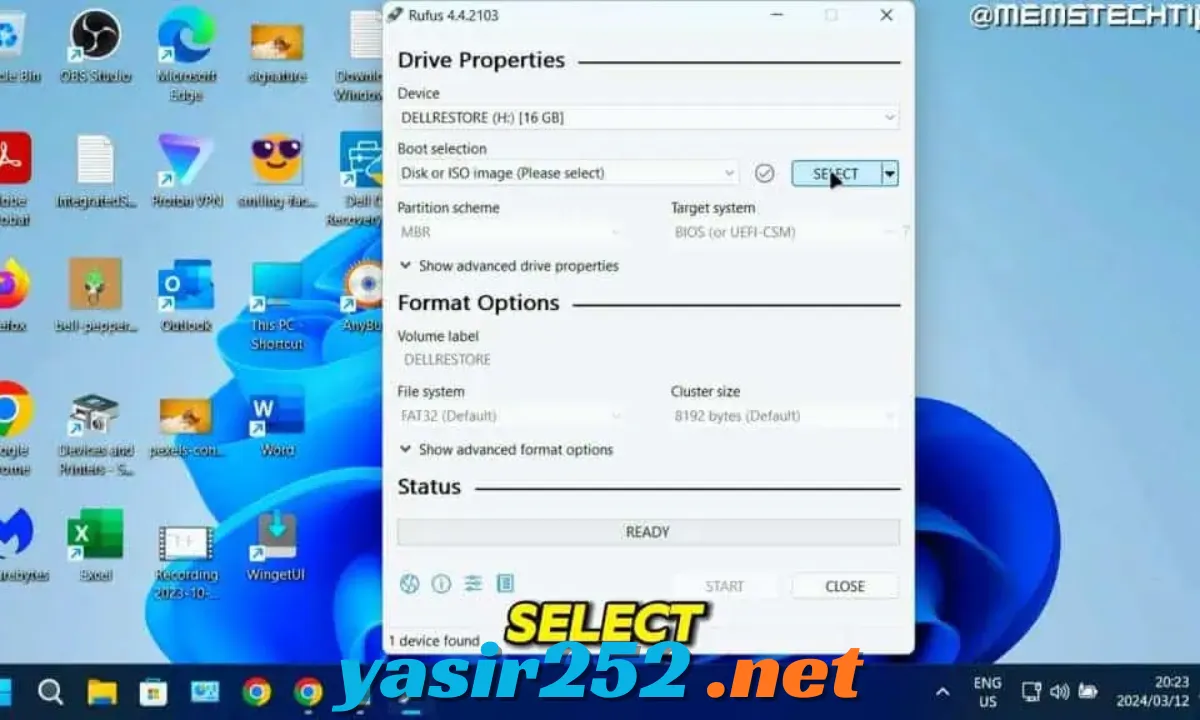
Select your USB drive under Device.
-
Choose Disk or ISO Image under Boot Selection.
-
Click SELECT and locate your downloaded ISO file.
-
Choose the appropriate partition scheme, such as GPT or MBR.
-
Select the target system if it is not automatically configured.
-
Review the file system and formatting options.
-
Click START.
-
Confirm the warning about erasing existing USB data.
-
Wait until Rufus completes the writing process.
-
Safely eject the USB drive when the operation is finished.
Warning: Creating bootable media normally formats the selected USB drive and deletes its existing files. Back up important data before clicking Start.
How to Create a Windows 11 Bootable USB
Rufus makes it straightforward to prepare a Windows 11 installation drive.
-
Download a Windows 11 ISO from Microsoft’s official website.
-
Insert a USB drive with sufficient capacity.
-
Launch Rufus.
-
Select the USB drive under Device.
-
Choose the Windows 11 ISO file.
-
Select GPT for a typical modern UEFI-based PC.
-
Review the target system and other settings.
-
Click Start.
-
If Rufus displays Windows User Experience options, review them carefully.
-
Confirm the formatting warning and wait for the process to finish.
The resulting USB can be used to start Windows Setup on a compatible computer. Installation requirements and licensing rules still apply; Rufus does not provide a Windows licence.
How to Create a Linux Bootable USB
Rufus can also prepare bootable USB drives for compatible Linux distributions.
-
Download the Linux ISO from the distribution’s official website.
-
Connect a USB flash drive.
-
Open Rufus.
-
Select the connected USB device.
-
Browse for the Linux ISO file.
-
Choose the recommended partition scheme and target system.
-
Review the available formatting options.
-
Click Start.
-
Select the appropriate writing mode if Rufus asks.
-
Wait for the process to complete.
Afterward, restart the computer and select the USB drive from the boot menu to launch the Linux installer or live environment.
Rufus Advantages and Disadvantages
| Advantages | Disadvantages |
|---|---|
| Completely free and open-source | Designed for Windows only |
| Very small download size | Windows 8 or later required for Rufus 4.x |
| No traditional installation required | Creating media erases USB data |
| Supports Windows and Linux images | Incorrect settings can make a USB unbootable |
| Supports GPT and MBR | Some ISO files need specific configurations |
| UEFI and BIOS compatibility options | Does not provide operating system licences |
| Portable version available | Beta versions may contain bugs |
| Supports x86, x64, and ARM64 builds | Advanced options may confuse beginners |
Frequently Asked Questions
1. Is Rufus free to download?
Yes. Rufus is free and open-source software. You can use its bootable USB creation features without paying for a subscription or licence.
2. What is the latest stable version of Rufus?
Rufus 4.15 is the latest stable version listed on the official website as of November 12, 2026. Version 4.16 Beta 2 is also available, but it is a pre-release build rather than a stable release.
3. Does Rufus work on Windows 11?
Yes. Rufus supports Windows 11 and can create bootable installation USB drives from compatible Windows 11 ISO files.
4. Can I use Rufus on Windows 10?
Yes. Rufus 4.x supports Windows 10 and can prepare bootable USB media for supported operating systems.
5. Is Rufus available for 32-bit Windows?
Yes. The developer provides an x86 build for compatible 32-bit Windows systems.
6. Does Rufus support ARM64 computers?
Yes. Rufus provides a dedicated ARM64 executable for compatible Windows devices.
7. Can Rufus create a Windows 11 bootable USB?
Yes. Select a compatible Windows 11 ISO, choose your USB drive, review the partition settings, and start the writing process.
8. Can Rufus create a Linux bootable USB?
Yes. Rufus supports many Linux distribution images, including Ubuntu, Debian, Fedora, and Linux Mint.
9. Does Rufus require installation?
No. Rufus is distributed as a standalone executable. Download the file and run it directly.
10. What is the difference between GPT and MBR in Rufus?
GPT is commonly used with modern UEFI-based computers, while MBR is commonly associated with legacy BIOS systems. Choose the scheme that matches your target computer and operating system image.
11. Does Rufus erase USB data?
Yes. Creating bootable media generally requires formatting the selected USB drive, which deletes its existing contents. Back up your files before starting.
12. Can Rufus create a Windows 10 installation USB?
Yes. You can select a compatible Windows 10 ISO and use Rufus to create installation media.
13. Is Rufus portable?
Yes. The project offers a portable executable that can run without a conventional installation process.
14. Can Rufus bypass Windows 11 installation requirements?
Rufus offers optional Windows User Experience settings for supported Windows installation images. Depending on the version, these can help customize certain setup requirements. However, they do not make unsupported hardware officially supported or guarantee that Windows will work correctly on every computer.
15. Is Rufus safe to use?
Rufus is an established open-source utility. Download it from the official website or project repository, and carefully verify the selected USB drive before formatting.
16. Can I use Rufus to update BIOS?
Rufus can prepare a USB drive for certain DOS-based firmware or BIOS update utilities. The actual firmware update must be performed using instructions from your motherboard or computer manufacturer.
17. Does Rufus support Windows 7?
Rufus 4.x does not support Windows 7. Rufus 3.22 was the final release compatible with Windows 7.
Conclusion
Rufus is one of the most useful free tools for creating bootable USB drives on Windows. Its support for Windows and Linux ISO images, GPT and MBR partition schemes, UEFI and BIOS configurations, and portable operation makes it a practical choice for installing operating systems and preparing recovery media.
If you regularly install Windows, test Linux distributions, or troubleshoot computers, Rufus is worth keeping in your software toolkit. Download the stable version from the official website, select the correct USB settings, and always back up your files before creating bootable media.