
SystemRescue 13.03 (x64) Free Download – Powerful Linux-Based System Recovery Tool
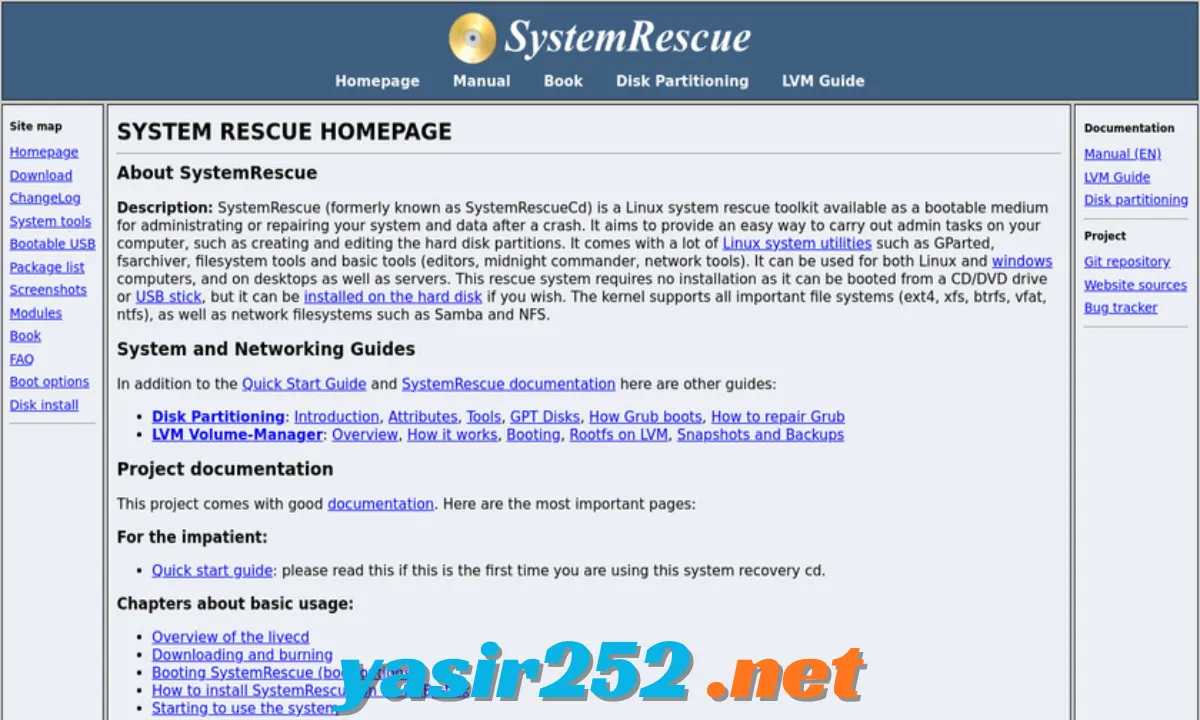
SystemRescue is a powerful, free, open-source system rescue and recovery toolkit designed to help users troubleshoot computers, repair damaged systems, recover data, and manage hard drives and partitions. It runs independently from an installed operating system using a bootable USB drive or CD/DVD, making it especially useful when Windows or Linux cannot start normally.
Whether you’re dealing with a corrupted partition, a damaged bootloader, an unresponsive operating system, or an inaccessible hard drive, SystemRescue provides a collection of professional command-line and graphical utilities to help diagnose and resolve problems. It includes tools for partition management, filesystem repair, data recovery, disk imaging, network troubleshooting, and system administration. Best of all, SystemRescue is completely free and open-source, so you can download and use it without purchasing a licence.
SystemRescue 13.03 AMD64 Download Links
| Part / Link | SourceForge / DDownload | Nitroflare | Rapidgator |
|---|---|---|---|
| SystemRescue 13.03 AMD64 | 🔵 DOWNLOAD | 🟡 DOWNLOAD | 🟣 DOWNLOAD |
SystemRescue Software Information
| Field | Details |
|---|---|
| Title | SystemRescue |
| Genre | System Recovery & Data Rescue |
| Developer | SystemRescue Development Team |
| Publisher | SystemRescue Project |
| Franchise | SystemRescue |
| Release Date | Initial release: 2003 |
| Latest Version | Check official download page |
| License | Free and Open Source |
| Operating System | Linux-based Live System |
| Platform | PC / x86-64 |
| File Format | ISO |
| Architecture | 64-bit |
| Language | Multiple languages |
| Boot Support | USB, CD/DVD |
| Official Website | system-rescue.org |
What Is SystemRescue?
SystemRescue is a Linux-based live operating system that allows users to access powerful maintenance and recovery utilities without installing a new operating system on their computer. It boots directly from external media and provides an independent environment for repairing existing Windows and Linux installations.
Unlike ordinary recovery applications that run inside Windows, SystemRescue can work when the installed operating system is damaged or completely inaccessible. Users can access storage devices, repair supported filesystems, recover lost partitions, create disk images, and troubleshoot boot-related problems.
The toolkit is particularly useful for IT technicians, system administrators, computer repair professionals, and advanced users who need reliable tools for maintaining computers and recovering important information.
Key Features of SystemRescue
1. Complete System Recovery Environment
SystemRescue provides an independent recovery environment that runs directly from a bootable USB drive or optical disc. It allows users to troubleshoot computers even when their installed operating system fails to start.
2. Partition Management
The toolkit includes powerful partition management utilities for creating, deleting, resizing, moving, and organizing disk partitions. It helps users manage storage devices without relying on their installed operating system.
3. GParted Partition Editor
SystemRescue includes GParted, a graphical partition editor that makes managing hard drives and SSDs easier. Users can create partitions, resize existing volumes, change filesystem types, and inspect disk layouts through a visual interface.
4. Filesystem Repair
The software provides specialized utilities for checking and repairing supported filesystems. Tools such as e2fsck, xfs_repair, and other filesystem-specific utilities help diagnose storage errors and repair certain filesystem problems.
5. Data Recovery Tools
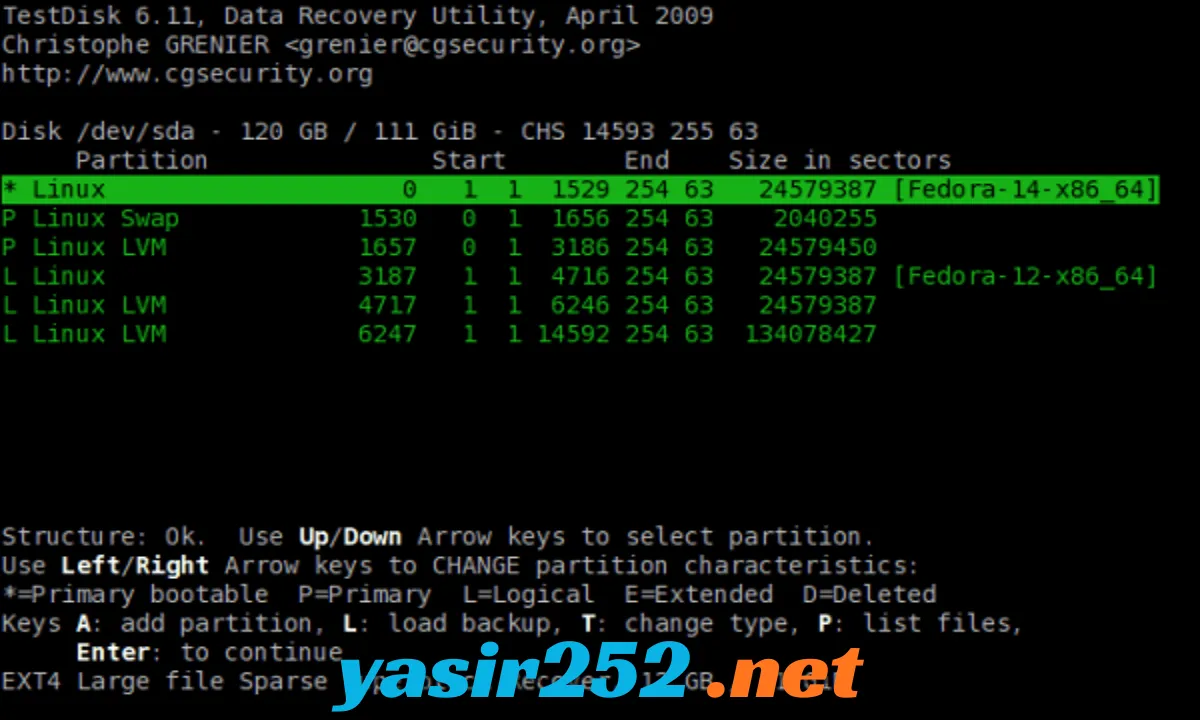
SystemRescue includes utilities that can help recover lost files and partitions from damaged or inaccessible storage devices. Available tools include TestDisk and PhotoRec, which are useful for different types of recovery operations.
6. TestDisk Integration
TestDisk helps recover lost partitions and repair certain damaged partition tables. It can also assist with restoring access to supported filesystems when partition information becomes corrupted.
7. PhotoRec File Recovery
PhotoRec is designed to recover lost files from storage devices, including documents, photos, videos, and other file types. It uses file signatures to locate recoverable data, even when filesystem information is damaged.
8. Disk Imaging and Cloning
SystemRescue includes tools for creating disk images and copying storage devices. Utilities such as Clonezilla and Partclone support backup and cloning operations for compatible filesystems and devices.
9. Secure Data Management
The environment provides disk utilities for inspecting, wiping, and managing storage devices. Users can securely erase data using supported tools, although the appropriate method depends on the storage technology.
10. Command-Line Utilities
SystemRescue offers a comprehensive collection of Linux command-line tools for advanced system administration. Experienced users can manage disks, inspect hardware, configure networks, and perform recovery operations through terminal commands.
11. Graphical Desktop Environment
The live system includes a graphical desktop environment that provides access to supported applications and utilities. This makes several recovery and maintenance tasks easier for users who prefer graphical interfaces.
12. Network Troubleshooting
SystemRescue includes network utilities for checking connectivity, configuring network interfaces, and troubleshooting communication problems. It can also support network-based recovery and data transfer workflows.
13. SSH Remote Access
The toolkit supports SSH services, allowing administrators to access a running SystemRescue environment remotely when networking and SSH are configured. This is useful for remote maintenance and troubleshooting.
14. Web Browser Support
The live environment includes web browsing capabilities, allowing users to access online documentation and troubleshooting resources while working in the recovery environment.
15. Hardware Information Tools
SystemRescue provides utilities for identifying hardware components and examining system information. Users can inspect storage devices, processors, memory, and connected hardware.
16. SMART Disk Monitoring
The toolkit includes SMART monitoring utilities for checking supported hard drive and SSD health information. This helps users investigate possible storage problems before attempting recovery operations.
17. Bootloader Repair
SystemRescue provides tools for repairing certain bootloader and boot configuration problems. It can help troubleshoot GRUB installations and other supported boot-related issues.
18. NTFS Filesystem Support
The live system includes utilities for accessing and working with NTFS partitions commonly used by Windows. This allows users to inspect supported Windows storage volumes and perform selected maintenance operations.
19. Linux Filesystem Support
SystemRescue supports a wide range of Linux filesystems, including ext2, ext3, ext4, XFS, Btrfs, and others through available Linux utilities. This makes it useful for repairing and maintaining Linux installations.
20. USB Boot Support
You can create a bootable USB drive containing SystemRescue and use it on compatible computers. This provides a portable recovery environment that can be carried between different machines.
21. Disk Space and Storage Analysis
The toolkit includes utilities for examining disk usage, partitions, mounted filesystems, and storage capacity. These tools help users understand how available storage is being used.
22. Open-Source Software
SystemRescue is distributed as free and open-source software. Users can download, use, and study the project without purchasing a commercial licence.
SystemRescue Latest Version and Download Information
The latest release listed in the project’s changelog is SystemRescue 13.03, released on November 7, 2026. It updates the system to the Linux 6.18.60 Long-Term Support kernel and includes updated Bcachefs tools and kernel modules version 1.39.7.
The download is provided as a bootable ISO image for 64-bit AMD/Intel computers. The ISO is approximately 1.4 GB, so make sure you have enough storage space before downloading.
System Requirements
| Component | Requirements |
|---|---|
| Operating System | Standalone Linux Live Environment |
| Architecture | 64-bit AMD/Intel (x86_64) |
| RAM | At least 2 GB |
| RAM for Copy-to-RAM | At least 4 GB |
| Storage | USB drive or DVD for boot media |
| ISO Size | Approximately 1.4 GB |
| Boot Support | BIOS and UEFI |
| Filesystems | NTFS, FAT, ext4, XFS, Btrfs and others |
| Internet | Optional, required for online services |
Important: SystemRescue is not a normal Windows application. You cannot simply run the ISO like an EXE installer. You must create bootable media and start your computer from that device.
How to Download SystemRescue for Free
Follow these steps to download the official SystemRescue ISO:
-
Visit the official SystemRescue download page.
-
Select the latest 64-bit AMD/Intel ISO image.
-
Download the ISO file to your computer.
-
Download the matching SHA256 checksum file.
-
Verify the downloaded ISO to check its integrity.
-
Prepare a USB flash drive using a bootable USB creation utility.
-
Restart your computer and select the USB drive from the boot menu.
-
Choose the default SystemRescue boot option to enter the recovery environment.
SystemRescue 13.03
64-bit ISO · Approximately 1.4 GB
Download SystemRescueOfficial download page. Select the latest available ISO and matching checksum.
How to Create a Bootable SystemRescue USB
You can use Rufus to prepare a bootable USB drive from Windows.
-
Download and open Rufus.
-
Connect a USB flash drive with sufficient capacity.
-
Select your USB device in Rufus.
-
Choose the downloaded SystemRescue ISO file.
-
Select the appropriate partition scheme for your computer.
-
Start the process and confirm the USB formatting.
-
Wait until Rufus finishes writing the image.
-
Restart your computer and boot from the USB drive.
Warning: Creating bootable media will erase existing data on the selected USB drive. Check the selected device carefully.
How to Use SystemRescue
After booting from your USB drive, SystemRescue loads its live environment. You can use the graphical desktop or terminal to access the available recovery utilities.
-
Open GParted: Manage partitions and inspect storage devices.
-
Run TestDisk: Scan for lost partitions and repair supported partition structures.
-
Launch PhotoRec: Search for recoverable files on damaged storage media.
-
Use Filesystem Tools: Check and repair supported filesystem problems.
-
Run Disk Utilities: Inspect storage health and perform disk-related operations.
-
Configure Networking: Connect to a network for remote administration and data transfer.
-
Create Disk Images: Use supported imaging tools to back up important storage devices.
Always avoid writing to a drive that contains files you are trying to recover. Whenever possible, create a separate image of the damaged device before attempting repairs.
Advantages and Disadvantages of SystemRescue
Advantages
-
Completely free and open-source software.
-
Works without installing Windows or Linux.
-
Supports both BIOS and UEFI boot environments.
-
Includes powerful partition management tools.
-
Provides TestDisk and PhotoRec for data recovery.
-
Supports Windows NTFS and multiple Linux filesystems.
-
Includes graphical and command-line utilities.
-
Supports USB and DVD boot media.
-
Useful for repairing damaged systems and recovering files.
-
Works offline for many recovery and maintenance tasks.
Disadvantages
-
Requires a bootable USB or DVD.
-
The ISO download is relatively large.
-
Some advanced operations require Linux command-line knowledge.
-
Incorrect partition or disk commands can cause permanent data loss.
-
Not designed as a daily desktop operating system.
Frequently Asked Questions (FAQs)
1. Is SystemRescue free to download?
Yes. SystemRescue is completely free and open-source. You can download and use it without purchasing a licence.
2. What is the latest version of SystemRescue?
SystemRescue 13.03 is the latest release listed in the project’s changelog as of November 8, 2026.
3. Does SystemRescue work with Windows 11?
Yes. It can boot independently on compatible computers running Windows 11 and provides tools for managing and repairing supported Windows partitions.
4. Can I use SystemRescue without installing Linux?
Yes. SystemRescue runs as a live environment directly from a bootable USB drive or DVD.
5. Does SystemRescue support NTFS?
Yes. It supports NTFS filesystems and provides utilities for accessing and managing Windows storage partitions.
6. Can SystemRescue recover deleted files?
Yes. Its PhotoRec utility can recover supported file types from storage devices, depending on their condition and whether the data has been overwritten.
7. Does SystemRescue include GParted?
Yes. GParted is included for graphical partition management and storage organization.
8. Can SystemRescue repair corrupted partitions?
Yes. It includes partition recovery and filesystem repair utilities that can help with certain types of disk corruption.
9. How much RAM does SystemRescue require?
The official documentation recommends at least 2 GB of RAM for default boot options and 4 GB when using the copy-to-RAM option.
10. Does SystemRescue support SSDs?
Yes. It can work with compatible SSDs, SATA drives, NVMe storage devices, and other supported block devices.
11. Can I create a bootable SystemRescue USB?
Yes. You can write its ISO image to a USB flash drive using Rufus or another compatible image-writing utility.
12. Does SystemRescue work without an internet connection?
Yes. Most local disk management, partition repair, and data recovery operations can be performed offline.
13. Is SystemRescue suitable for beginners?
Beginners can use graphical tools such as GParted, but advanced recovery and repair operations may require Linux command-line experience.
14. Can SystemRescue repair the Windows bootloader?
It includes utilities that can help repair supported bootloader problems, including certain GRUB and Windows-related recovery situations.
15. Is SystemRescue safe to use?
It is a legitimate open-source recovery toolkit. However, disk management and recovery commands can permanently modify data, so always create backups or disk images before performing risky operations.
Final Verdict
SystemRescue is an excellent free recovery toolkit for anyone who needs to repair computers, manage partitions, troubleshoot operating system problems, or recover important files. Its combination of GParted, TestDisk, PhotoRec, filesystem utilities, disk imaging tools, and networking features makes it a valuable addition to any computer technician’s toolkit.
The biggest advantage is that it works independently of your installed operating system, meaning you can access important recovery utilities even when Windows refuses to boot. If you regularly troubleshoot computers or want a reliable emergency recovery USB, SystemRescue is definitely worth downloading.