
Tenorshare 4uKey iTunes Backup Download – Manage and Unlock iTunes Backup Files 5.2.40 Multilingual
Tenorshare 4uKey iTunes Backup is a software solution designed to help users access and manage password-protected iTunes backups. If you’ve forgotten the password used to encrypt an iPhone or iPad backup, this tool provides recovery options to help you regain access without having to guess passwords manually.
The software is useful for people who need to recover an encrypted backup password, remove backup encryption where supported, or manage iOS backup access on a Windows or Mac computer. It offers different recovery methods and a guided interface, making the process easier even if you’re not an experienced iPhone user.
Important: Tenorshare 4uKey iTunes Backup is commercial software. Downloading the installer may be free, but full recovery and unlocking features require a paid licence. It should not be confused with a completely free iTunes backup utility.
Tenorshare 4uKey iTunes Backup 5 Download Links
| Part / Link | Rapidgator / DDownload | Nitroflare |
|---|---|---|
| Tenorshare 4uKey iTunes Backup 5 | 🟣 DOWNLOAD | 🟡 DOWNLOAD |
Key Features of Tenorshare 4uKey iTunes Backup
– iTunes Backup Password Recovery: Recover forgotten or lost passwords used to encrypt iTunes backups. The program analyzes the selected backup and attempts to identify its original password.
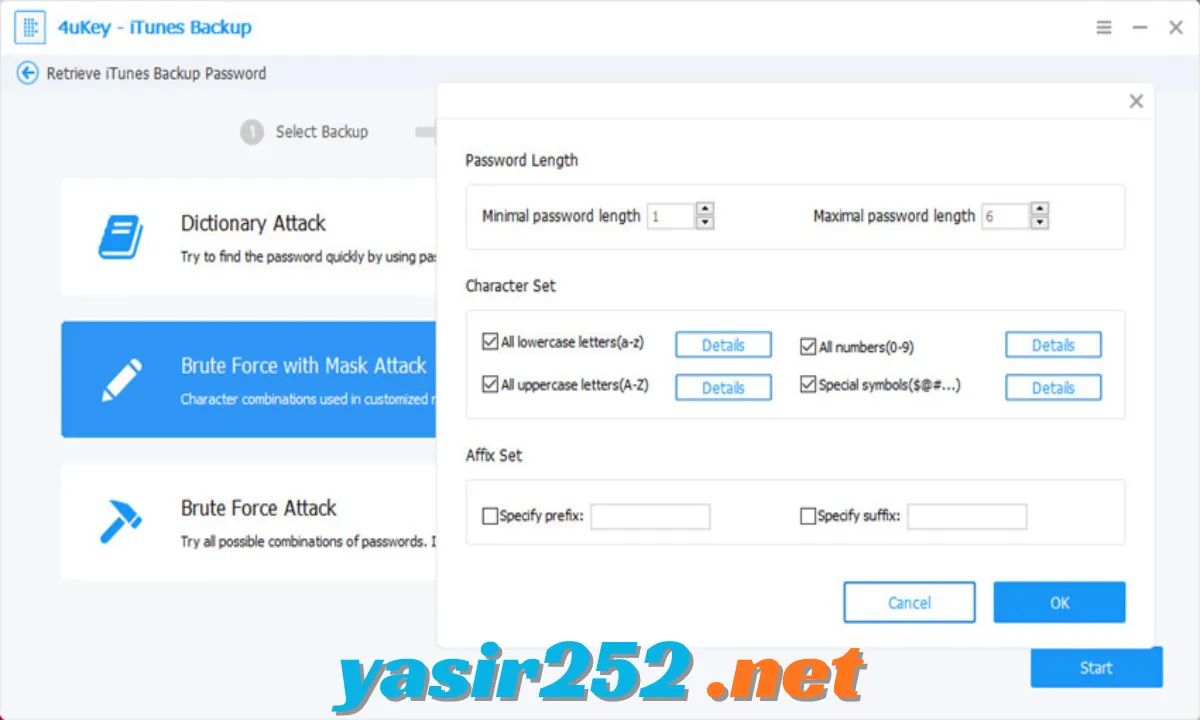
– Three Password Recovery Methods: Choose between Brute Force, Brute Force with Mask, and Dictionary Attack. Each method offers a different approach depending on how much you remember about your password.
– Brute Force Attack: Test possible password combinations when you have no idea what the original password was. This method can take a long time, particularly when the password is lengthy or complex.
– Brute Force with Mask Attack: Use remembered details such as password length, character types, or known beginnings and endings. Limiting the possible combinations can make the recovery process more efficient.
– Dictionary Attack: Import a custom text file containing possible passwords or use the available default dictionary. This method is useful when you remember some likely password choices.
– iTunes Backup Encryption Removal: Remove backup encryption settings from supported iOS devices so that future iTunes backups can be created without encryption. This function supports iOS 11 and iOS 12 devices.
– Screen Time Passcode Removal: Provides a separate option for removing forgotten Screen Time passcodes without erasing device data on supported configurations. Compatibility is limited, and the feature does not support iOS 18/iPadOS 18 according to the product information.
– GPU Acceleration: Uses supported NVIDIA and AMD graphics hardware to accelerate certain password recovery operations. Actual performance depends on your computer’s hardware and the backup password.
– Encrypted Backup Selection: Select an existing encrypted iTunes backup from your computer before starting the password recovery process. This keeps the recovery workflow focused on the backup you want to access.
– Password Recovery Progress: Monitor the recovery process while the program tests possible password combinations. You can stop a running process when necessary.
– Scan Progress Saving: Save progress when normally closing a recovery session using supported brute-force methods. You must select the same recovery method when continuing the saved scan.
– Windows and Mac Compatibility: Use the dedicated desktop installer for your operating system. The software is designed for iOS backup-related tasks on Windows and macOS computers.
– Simple User Interface: Follow a guided workflow to select a backup, choose a recovery method, and start the process. The interface helps users complete the main operations without complicated manual configuration.
– No iPhone Connection for Password Recovery: The password recovery function works with an existing encrypted iTunes backup on the computer, so connecting the original iPhone is not required for this particular operation.
Three Password Recovery Methods Explained
Tenorshare 4uKey iTunes Backup includes three recovery methods to handle different password situations.
| Recovery Method | How It Works | Best For |
|---|---|---|
| Brute Force Attack | Tests possible password combinations | Users who have forgotten the entire password |
| Brute Force with Mask | Uses known password details to narrow combinations | Users who remember part of the password |
| Dictionary Attack | Checks passwords from a dictionary or custom text file | Users who have several likely password choices |
Note: Password recovery is not guaranteed to be quick. The time required depends on password length, complexity, backup encryption version, and computer performance.
Tenorshare 4uKey iTunes Backup System Requirements
The official product download page lists Windows 11, 10, 8.1, 8, and 7 support, along with a separate macOS installer. Check the current download page before installing because operating system compatibility can change.
| Component | Windows | Mac |
|---|---|---|
| Operating System | Windows 11, 10, 8.1, 8, 7 | macOS 27 and earlier supported versions |
| Architecture | Compatible Windows PC | Compatible Intel or Apple Silicon Mac, depending on installer |
| iTunes / Apple Drivers | Required for certain device-related operations | Depends on the selected function |
| Internet Connection | Recommended for downloading and registration | Recommended for downloading and registration |
| RAM | Not specifically stated | Not specifically stated |
| Disk Space | Not specifically stated | Not specifically stated |
| Additional Requirement | Existing encrypted iTunes backup for password recovery | Existing encrypted iTunes backup for password recovery |
The developer does not provide one universal minimum RAM or storage specification for this product on its main product page.
Is Tenorshare 4uKey iTunes Backup Free?
Tenorshare 4uKey iTunes Backup is commercial software, not completely free. You can download its installer without purchasing a licence, but the availability of free trial functions depends on the operation and iOS backup version.
Here is how the trial works:
| Feature | Free Trial Availability |
|---|---|
| Download and Installation | Free |
| Retrieve Password for iOS 10.2 or Earlier Backups | Limited trial; reveals only the first four characters, marked with asterisks |
| Retrieve Password for Newer Backups | No free trial |
| Remove Backup Encryption Settings | Paid licence required |
| Remove Screen Time Passcode | Paid licence required |
| Complete Password Recovery | Paid licence required |
Official Licence Options
The official store lists the following promotional prices. These prices can change depending on region and current offers.
| Licence | Listed Price | Details |
|---|---|---|
| 1-Month Licence | $29.95 | 1 PC and up to 5 mobile devices |
| 1-Year Licence | $34.95 | 1 PC and up to 5 mobile devices |
| Lifetime Licence | $49.95 | 1 PC and up to 5 mobile devices |
The official store also advertises a 30-day money-back guarantee, subject to its refund policy.
How to Download Tenorshare 4uKey iTunes Backup
Follow these steps to download the official setup file:
-
Open the official Tenorshare 4uKey iTunes Backup product page.
-
Choose the Windows or Mac download option.
-
Wait for the installer to download.
-
Open your Downloads folder.
-
Locate the downloaded setup file.
-
Double-click the installer to begin.
-
Follow the on-screen installation instructions.
-
Launch the application after installation.
Official Download Page: https://www.tenorshare.com/products/iphone-backup-unlocker.html
How to Install Tenorshare 4uKey iTunes Backup
-
Download the installer from the official Tenorshare website.
-
Close unnecessary applications before starting installation.
-
Double-click the downloaded setup file.
-
Allow the installer to make changes if Windows requests permission.
-
Follow the installation wizard.
-
Select the installation location if prompted.
-
Wait for the installation to finish.
-
Open Tenorshare 4uKey iTunes Backup.
-
Register or activate the software if you have purchased a licence.
How to Recover an iTunes Backup Password
If you have an encrypted iTunes backup and cannot remember its password, follow these general steps:
-
Open the Program: Launch Tenorshare 4uKey iTunes Backup on your computer.
-
Select Password Recovery: Choose the Retrieve iTunes Backup Password option.
-
Select the Backup: Locate and select the encrypted iTunes backup you want to access.
-
Choose a Recovery Method: Select Brute Force, Brute Force with Mask, or Dictionary Attack.
-
Configure Recovery Settings: Enter any password details you remember or import a custom dictionary file.
-
Start Recovery: Begin the password recovery process.
-
Wait for Results: Allow the software to test the possible combinations.
-
View the Recovered Password: If the password is successfully identified, it will appear in the program.
Important: Only use this tool with backups you own or are authorized to access. Keep an additional copy of the original backup before making changes.
Advantages and Disadvantages
| Advantages | Disadvantages |
|---|---|
| Three password recovery methods | Full recovery requires a paid licence |
| Supports Windows and macOS | Newer iOS backup passwords have no free trial |
| GPU acceleration support | Complex passwords may take a long time |
| Custom dictionary support | Password recovery is not guaranteed |
| Can save supported scan progress | Encryption removal supports only iOS 11 and 12 |
| Separate Screen Time passcode function | Screen Time compatibility is limited |
| Guided recovery interface | Some functions require an iPhone connection |
Frequently Asked Questions
1. What is Tenorshare 4uKey iTunes Backup?
Tenorshare 4uKey iTunes Backup is a desktop utility designed to recover forgotten iTunes backup passwords, remove supported backup encryption settings, and handle certain Screen Time passcode situations.
2. Is Tenorshare 4uKey iTunes Backup free to download?
Yes, the official installer is available for free download. However, most complete recovery and unlocking functions require a paid licence.
3. Can I recover an iTunes backup password for free?
The developer offers a limited trial for backups created with iOS 10.2 or earlier. It reveals only the first four password characters in masked form. Newer backup versions do not have this free trial.
4. Which password recovery methods are available?
The software provides Brute Force Attack, Brute Force with Mask Attack, and Dictionary Attack.
5. Does Tenorshare 4uKey support Windows 11?
Yes. The official product page lists Windows 11, Windows 10, Windows 8.1, Windows 8, and Windows 7.
6. Does Tenorshare 4uKey iTunes Backup work on Mac?
Yes. The developer provides a separate macOS installer for compatible Mac computers.
7. Can I recover an iTunes backup password without connecting my iPhone?
Yes. The Retrieve iTunes Backup Password function works with an existing encrypted backup on your computer and does not require the original iPhone to be connected.
8. Does 4uKey remove iTunes backup encryption?
Yes. It includes a function for removing backup encryption settings on supported devices. The developer specifies support for iOS 11 and iOS 12 for this feature.
9. Does removing backup encryption delete my existing backup?
The developer states that removing the encryption settings does not erase device data. The existing backup on your computer remains password-protected, while future backups can be created without encryption.
10. Can Tenorshare 4uKey remove Screen Time passcodes?
It includes a Screen Time passcode removal function for supported configurations. However, the developer states that this function does not support iOS 18/iPadOS 18 devices.
11. How long does iTunes backup password recovery take?
It depends on the password length, complexity, encryption version, recovery method, and computer hardware. A complex password can take a very long time to identify.
12. Does 4uKey support GPU acceleration?
Yes. The developer lists support for GPU acceleration using compatible NVIDIA and AMD graphics hardware.
13. Can I use my own password dictionary?
Yes. You can create a text file containing possible passwords, with each entry on a separate line, and import it for a Dictionary Attack.
14. Can I pause and continue password recovery?
The program supports saving progress when normally closing a session using Brute Force or Brute Force with Mask. You need to select the same recovery method to continue the saved scan.
15. Is Tenorshare 4uKey iTunes Backup safe?
Download the installer from the official Tenorshare website and use it only with backups you own or are authorized to access. Keep a separate copy of important backup files before performing operations.
Conclusion
Tenorshare 4uKey iTunes Backup is a specialized utility for users who have forgotten their encrypted iPhone or iPad backup passwords. Its three recovery methods, GPU acceleration, dictionary support, and additional encryption management options provide a focused solution for iTunes backup access problems.
The software is not completely free, but you can download the official installer and test its limited trial functionality where supported. If you need complete password recovery or the paid encryption-removal features, you will need an appropriate licence.